
SUMMARY
Firebase for Beginners: Build Scalable Mobile Apps in 2026
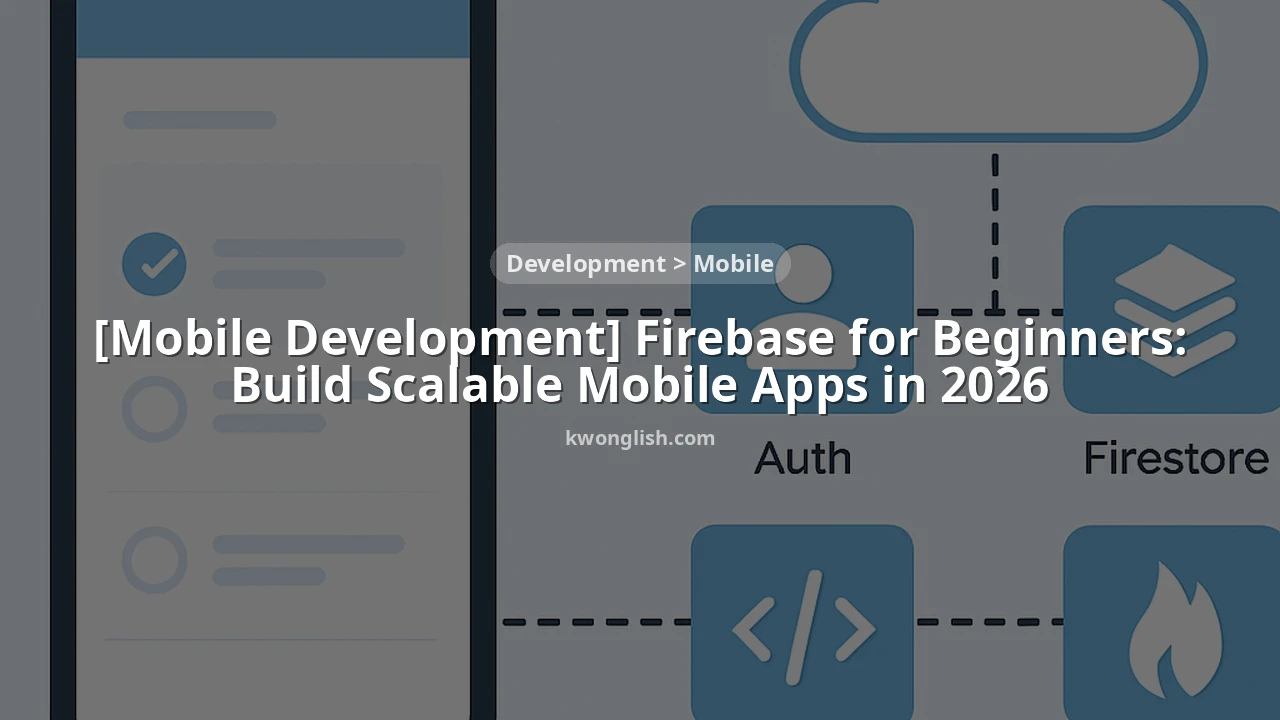
A comprehensive guide for mobile developers to get started with Firebase, covering authentication, NoSQL databases, cloud functions, and more to build scalable applications for Android and iOS.
Keywords: Firebase, mobile app development, serverless backend
TABLE OF CONTENTS
1. Why Firebase in 2026? The Modern Mobile Backend
2. Core Firebase Services for Mobile Applications
3. Getting Started: Setting Up Your Firebase Project
4. Implementing Robust User Authentication
5. Building with Cloud Firestore: A NoSQL Powerhouse
6. Extending Functionality with Cloud Functions
7. Practical Application: Integrating Firebase into a Mobile App
8. Advantages and Considerations: Pros and Cons of Firebase
9. Frequently Asked Questions (FAQ)
INTRODUCTION
1. Why Firebase in 2026? The Modern Mobile Backend
In the rapidly evolving landscape of mobile application development, developers are constantly seeking tools that can accelerate development cycles, manage complex backend infrastructure, and scale effortlessly. As we navigate 2026, Firebase continues to stand out as a premier choice for mobile developers, offering a comprehensive suite of tools and services that abstract away the complexities of server-side programming.
Firebase, a platform developed by Google, provides a Backend-as-a-Service (BaaS) that equips developers with everything they need to build, release, and monitor mobile and web applications. From authentication to real-time databases, cloud storage, and serverless functions, Firebase delivers a unified ecosystem. This integrated approach allows developers to focus on crafting compelling user experiences rather than wrestling with server provisioning, database management, or API development. Its serverless nature means you pay only for what you use, making it incredibly cost-effective for startups and highly scalable for enterprises.
The demand for mobile applications shows no signs of slowing down. Reports indicate that global mobile app revenue is projected to exceed $600 billion by 2026, driven by increased smartphone penetration and digital transformation across industries. To capitalize on this growth, developers need agile tools. Firebase empowers teams to launch Minimum Viable Products (MVPs) in weeks, not months, and iterate quickly based on user feedback. Its real-time capabilities are particularly valuable for applications requiring instant data synchronization, such as chat apps, collaborative tools, or IoT dashboards. Furthermore, its robust security features, managed infrastructure, and deep integration with Google Cloud services ensure that applications built on Firebase are secure, reliable, and future-proof.
KEY POINT
Firebase acts as a comprehensive Backend-as-a-Service (BaaS), significantly reducing development time and operational overhead by providing managed services for authentication, databases, storage, and serverless functions, making it ideal for scalable mobile apps in 2026.
CORE SERVICES
2. Core Firebase Services for Mobile Applications
Firebase is not just one service; it’s a collection of powerful tools designed to work together seamlessly. Understanding these core components is crucial for leveraging its full potential in your mobile development workflow. Here’s a breakdown of the most critical services for mobile app development:
Key Firebase Services
Firebase Authentication — Securely manage user sign-up and sign-in with various providers (email/password, Google, Facebook, etc.).
Cloud Firestore — A flexible, scalable NoSQL cloud database for mobile, web, and server development, offering real-time data synchronization.
Firebase Cloud Functions — Run backend code in response to events triggered by Firebase features and HTTPS requests without managing servers.
Cloud Storage for Firebase — Store and retrieve user-generated content like photos and videos with robust security rules.
Firebase Hosting — Fast and secure hosting for your web app, as well as static and dynamic content, microservices, and APIs.
When comparing Firebase to a traditional custom backend setup, the differences in operational effort are stark. With a traditional backend, you would typically need to provision servers (e.g., AWS EC2, Google Compute Engine), set up and manage databases (e.g., PostgreSQL, MongoDB), write and deploy API endpoints (e.g., Node.js with Express, Python with Django), and implement security measures manually. This process can take weeks or even months, requiring dedicated DevOps and backend engineering teams.
Firebase, on the other hand, provides these functionalities as managed services. For instance, Firebase Authentication handles all the complexities of user identity management, password hashing, and session management. Cloud Firestore offers a fully managed, globally scaled database with built-in real-time synchronization, eliminating the need for database administration. Cloud Functions allow you to write small, event-driven backend logic without worrying about server uptime or scaling. This significantly reduces the time to market and frees up development resources to focus on front-end user experience and core business logic.
KEY POINT
Firebase’s integrated suite of managed services, including Auth, Firestore, and Cloud Functions, dramatically simplifies backend development compared to traditional custom solutions, allowing developers to deploy robust features faster and with less operational overhead.
GETTING STARTED
3. Getting Started: Setting Up Your Firebase Project
Embarking on your Firebase journey begins with setting up a project in the Firebase console. This foundational step links your mobile application to the powerful backend services Firebase offers. The process is straightforward and consistent for both Android and iOS platforms.
First, navigate to the Firebase Console and sign in with your Google account. Click “Add project” and follow the prompts to name your project (e.g., “KwonglishMobileApp”). You can choose to enable Google Analytics, which is highly recommended for gaining insights into user behavior and app performance. Once your project is created, you’ll be redirected to the project overview page.
Next, you need to add your Android or iOS application to the Firebase project. On the project overview page, you’ll see icons for various platforms. Click on the Android icon (for Android apps) or the iOS icon (for iOS apps) and follow the specific instructions:
Register Your App
Provide your app’s package name (for Android, e.g., com.yourcompany.yourapp) or Bundle ID (for iOS, e.g., com.yourcompany.yourapp). This uniquely identifies your app to Firebase.
Download Configuration File
For Android, download google-services.json. For iOS, download GoogleService-Info.plist. These files contain your project’s unique configuration details.
Add SDKs to Your App
Integrate the Firebase SDKs into your project. This involves adding dependencies to your build.gradle files for Android or your Podfile for iOS.
For Android, you’d place google-services.json in your app-level directory and add the following to your Gradle files:
CODE EXPLANATION
This code snippet shows how to add the Google Services plugin and the Firebase BoM (Bill of Materials) for managing Firebase dependency versions in an Android project’s build.gradle files.
// project-level build.gradle
buildscript {
    repositories {
        google()
    }
    dependencies {
        classpath 'com.google.gms:google-services:4.4.1' // Check for latest version in 2026
    }
}

// app-level build.gradle
plugins {
    id 'com.android.application'
    id 'com.google.gms.google-services' // Google Services plugin
}

dependencies {
    implementation platform('com.google.firebase:firebase-bom:32.7.4') // Use latest BoM in 2026
    implementation 'com.google.firebase:firebase-analytics'
    // Add other Firebase SDKs as needed
}
For iOS, you’d drag GoogleService-Info.plist into your Xcode project, ensuring it’s added to your app’s target. Then, use CocoaPods to add Firebase SDKs:
CODE EXPLANATION
This snippet demonstrates how to add Firebase SDKs for Analytics and Authentication to an iOS project using CocoaPods by defining them in the Podfile.
# Podfile
target 'YourAppTarget' do
  use_frameworks!
  pod 'Firebase/Analytics'
  pod 'Firebase/Auth'
  # Add other Firebase pods as needed
end
After modifying your Podfile, run pod install from your terminal. Remember to open the .xcworkspace file from now on, not the .xcodeproj.
KEY POINT
Successful Firebase project setup involves creating a project in the Firebase Console, registering your specific mobile app (Android/iOS), downloading the platform-specific configuration file, and correctly integrating the Firebase SDKs into your project’s build system.
AUTHENTICATION
4. Implementing Robust User Authentication
User authentication is a cornerstone of most mobile applications, providing personalized experiences and securing user data. Firebase Authentication simplifies this complex process, offering robust and secure authentication services with minimal code. It supports various authentication methods, including email/password, phone number, and popular federated identity providers like Google, Facebook, and Apple.
Before diving into code, you need to enable the desired sign-in methods in the Firebase Console. Navigate to “Authentication” > “Sign-in method” and enable “Email/Password” and “Google” for this example. This activates the backend services necessary for these providers.
Email/Password Authentication (Android – Kotlin)
To implement email and password sign-up/sign-in, you’ll use the FirebaseAuth instance. First, add the authentication SDK to your app-level build.gradle: implementation 'com.google.firebase:firebase-auth-ktx'.
CODE EXPLANATION
This Kotlin code demonstrates how to register a new user with email and password and then sign them in using Firebase Authentication. It includes success and failure listeners for handling the authentication outcome.
// Android (Kotlin) - Email/Password Sign Up
import com.google.firebase.auth.FirebaseAuth
import com.google.firebase.auth.ktx.auth
import com.google.firebase.ktx.Firebase

private lateinit var auth: FirebaseAuth

// In your Activity's onCreate or a suitable initialization block
auth = Firebase.auth

fun createAccount(email: String, password: String) {
    auth.createUserWithEmailAndPassword(email, password)
        .addOnCompleteListener(this) { task ->
            if (task.isSuccessful) {
                // Sign in success, update UI with the signed-in user's information
                val user = auth.currentUser
                // Navigate to main activity or show success
            } else {
                // If sign in fails, display a message to the user.
                val errorMessage = task.exception?.message
                // Show error to user
            }
        }
}

fun signIn(email: String, password: String) {
    auth.signInWithEmailAndPassword(email, password)
        .addOnCompleteListener(this) { task ->
            if (task.isSuccessful) {
                // Sign in success
                val user = auth.currentUser
                // Navigate to main activity
            } else {
                // If sign in fails
                val errorMessage = task.exception?.message
                // Show error to user
            }
        }
}
Google Sign-in (iOS – Swift)
For iOS, integrating Google Sign-in involves a few more steps, including setting up a URL scheme and handling the sign-in flow. First, add the necessary pods: pod 'Firebase/Auth' and pod 'GoogleSignIn'. You also need to configure your Xcode project’s URL types for Google Sign-In.
CODE EXPLANATION
This Swift code snippet illustrates the process of signing in a user using their Google account with Firebase Authentication. It involves obtaining an ID token from Google Sign-In and then using it to authenticate with Firebase.
// iOS (Swift) - Google Sign-in
import Firebase
import GoogleSignIn

// In your AppDelegate.swift
func application(_ application: UIApplication, didFinishLaunchingWithOptions launchOptions: [UIApplication.LaunchOptionsKey: Any]?) -> Bool {
    FirebaseApp.configure()
    return true
}

func application(_ app: UIApplication, open url: URL, options: [UIApplication.OpenURLOptionsKey : Any] = [:]) -> Bool {
    return GIDSignIn.sharedInstance.handle(url)
}

// In your ViewController for handling Google Sign-in
func signInWithGoogle() {
    guard let clientID = FirebaseApp.app()?.options.clientID else { return }

    // Create Google Sign In configuration object.
    let config = GIDConfiguration(clientID: clientID)

    GIDSignIn.sharedInstance.signIn(with: config, presenting: self) { user, error in
        if let error = error {
            // Handle error
            return
        }

        guard let authentication = user?.authentication,
              let idToken = authentication.idToken else {
            return
        }

        let credential = GoogleAuthProvider.credential(withIDToken: idToken,
                                                    accessToken: authentication.accessToken)

        Auth.auth().signIn(with: credential) { authResult, error in
            if let error = error {
                // Handle Firebase Auth error
                return
            }
            // User successfully signed in to Firebase with Google
            let firebaseUser = authResult?.user
            // Navigate to main screen
        }
    }
}Handling Authentication State Changes
After a user signs in or out, your app needs to react to these changes to update the UI (e.g., show a different screen for authenticated vs. unauthenticated users). Manually checking the user’s state on every screen load can be cumbersome and error-prone.
SOLUTION — Implement an Auth State Listener
Firebase Authentication provides a listener that automatically notifies your app whenever the user’s sign-in state changes. This is the most reliable way to manage user sessions and UI updates.
// Android (Kotlin) - Auth State Listener
override fun onStart() {
    super.onStart()
    // Check if user is signed in (non-null) and update UI accordingly.
    val currentUser = auth.currentUser
    if (currentUser != null) {
        // User is signed in, navigate to main app content
    } else {
        // No user is signed in, show login/signup screen
    }
}

// iOS (Swift) - Auth State Listener
override func viewWillAppear(_ animated: Bool) {
    super.viewWillAppear(animated)
    Auth.auth().addStateDidChangeListener { auth, user in
        if let user = user {
            // User is signed in, navigate to main app content
        } else {
            // No user is signed in, show login/signup screen
        }
    }
}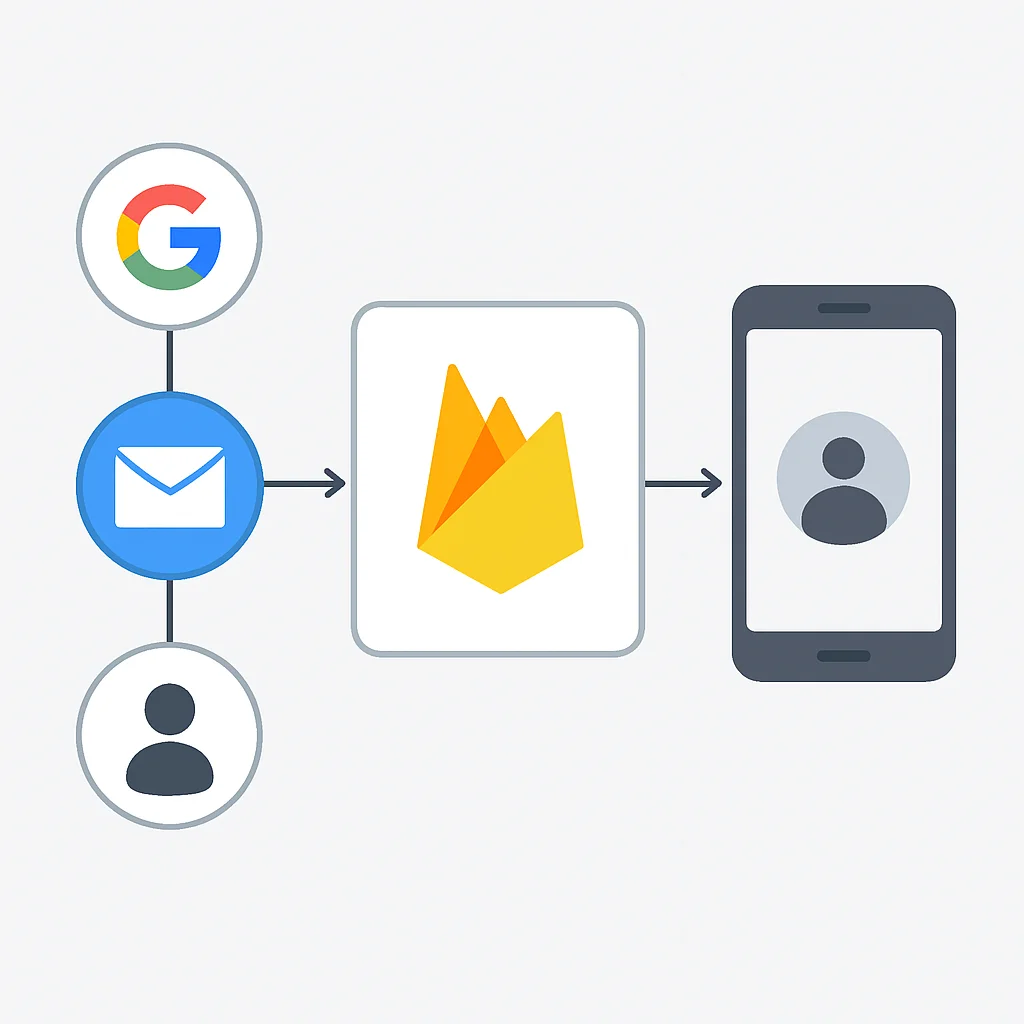
Firebase Authentication significantly reduces the boilerplate code and security concerns associated with managing user identities. By leveraging its managed services, developers can implement secure and flexible authentication systems with ease, allowing them to focus on core application features.
KEY POINT
Firebase Authentication offers a secure and simplified approach to user management, supporting multiple providers. Crucially, implementing an authentication state listener ensures your app’s UI consistently reflects the current user’s sign-in status, enhancing user experience.
DATABASE
5. Building with Cloud Firestore: A NoSQL Powerhouse
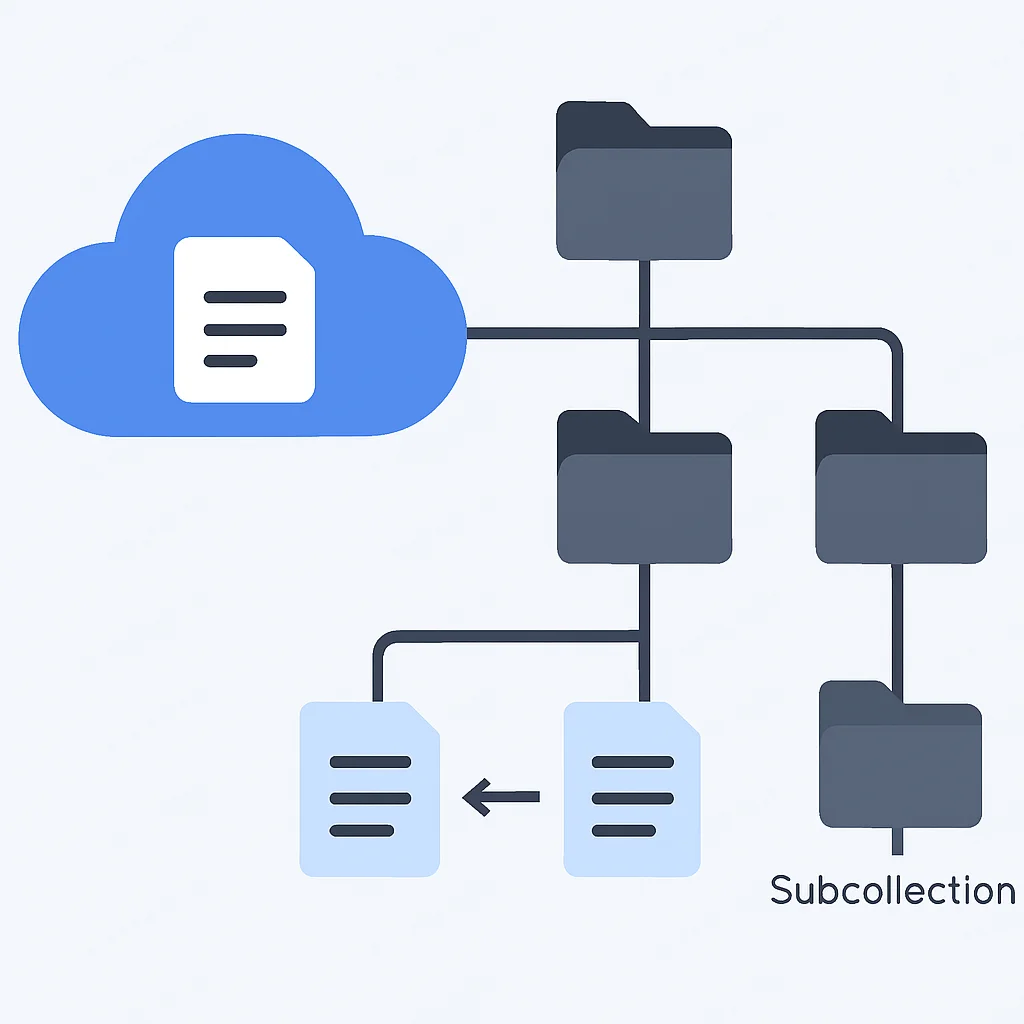
Cloud Firestore is Firebase’s next-generation, flexible, and scalable NoSQL database for mobile, web, and server development. It offers real-time data synchronization, robust querying capabilities, and offline support, making it an excellent choice for dynamic applications that require immediate data updates across multiple clients. Unlike traditional relational databases, Firestore stores data in documents, which are organized into collections. Documents can contain nested subcollections, enabling highly hierarchical and complex data structures.
To begin using Firestore, first enable it in the Firebase Console under the “Firestore Database” section. You’ll need to choose a starting security mode (start in test mode for quick development, but always set up robust security rules for production) and a location for your database. Then, add the Firestore SDK to your project: implementation 'com.google.firebase:firebase-firestore-ktx' for Android or pod 'Firebase/Firestore' for iOS.
CRUD Operations with Firestore (Android – Kotlin)
Let’s explore common Create, Read, Update, and Delete (CRUD) operations for a simple “tasks” collection, where each task has a title, description, and completion status.
CODE EXPLANATION
This Kotlin code demonstrates how to interact with Cloud Firestore to add a new document, fetch all documents from a collection, update an existing document, and delete a document. It utilizes data classes for structured data handling.
// Android (Kotlin) - Cloud Firestore CRUD
import com.google.firebase.firestore.FirebaseFirestore
import com.google.firebase.firestore.ktx.firestore
import com.google.firebase.ktx.Firebase

data class Task(val title: String, val description: String, val isCompleted: Boolean = false) {
    // No-argument constructor required for Firestore deserialization
    constructor() : this("", "", false)
}

private lateinit var db: FirebaseFirestore

// In your Activity's onCreate or a suitable initialization block
db = Firebase.firestore

fun addTask(task: Task) {
    db.collection("tasks")
        .add(task)
        .addOnSuccessListener { documentReference ->
            // Task added with ID: documentReference.id
        }
        .addOnFailureListener { e ->
            // Handle error
        }
}

fun getTasks() {
    db.collection("tasks")
        .get()
        .addOnSuccessListener { result ->
            for (document in result) {
                val task = document.toObject(Task::class.java)
                // Process task
            }
        }
        .addOnFailureListener { exception ->
            // Handle error
        }
}

fun updateTask(taskId: String, newTitle: String, newDescription: String, newStatus: Boolean) {
    val taskRef = db.collection("tasks").document(taskId)
    taskRef.update("title", newTitle, "description", newDescription, "isCompleted", newStatus)
        .addOnSuccessListener {
            // Task updated successfully
        }
        .addOnFailureListener { e ->
            // Handle error
        }
}

fun deleteTask(taskId: String) {
    db.collection("tasks").document(taskId)
        .delete()
        .addOnSuccessListener {
            // Task deleted successfully
        }
        .addOnFailureListener { e ->
            // Handle error
        }
}
Real-time Data with Listeners (iOS – Swift)
One of Firestore’s most powerful features is its real-time listeners. You can set up a listener to automatically receive data updates whenever the data on the server changes, without needing to manually refresh.
CODE EXPLANATION
This Swift code snippet demonstrates how to set up a real-time listener on a Firestore collection. It observes changes to the ‘tasks’ collection and prints the data of any modified documents, providing instant updates to the client.
// iOS (Swift) - Real-time Listener
import FirebaseFirestore
import FirebaseFirestoreSwift // For Codable support

struct Task: Codable, Identifiable {
    @DocumentID var id: String? = UUID().uuidString
    var title: String
    var description: String
    var isCompleted: Bool = false
}

private var db: Firestore!

// In your ViewController's viewDidLoad or a suitable initialization block
override func viewDidLoad() {
    super.viewDidLoad()
    db = Firestore.firestore()
    listenForTasks()
}

var taskListener: ListenerRegistration?

func listenForTasks() {
    taskListener = db.collection("tasks").addSnapshotListener { querySnapshot, error in
        guard let documents = querySnapshot?.documents else {
            // Handle error
            return
        }

        let tasks = documents.compactMap { queryDocumentSnapshot -> Task? in
            return try? queryDocumentSnapshot.data(as: Task.self)
        }
        // Update your UI with the 'tasks' array
        // Example: print(tasks)
    }
}

// Remember to remove the listener when no longer needed to prevent memory leaks
deinit {
    taskListener?.remove()
}
Firestore offers a significant advantage over its predecessor, Firebase Realtime Database, particularly in its structured data model, more powerful querying capabilities (including compound queries and subcollection queries), and better scalability for large datasets. While Realtime Database is excellent for very high-frequency, small data changes (e.g., game states), Firestore excels in general-purpose application data with complex access patterns and larger data volumes. Its robust security rules allow fine-grained control over data access, ensuring that users can only read or write what they are authorized to.
KEY POINT
Cloud Firestore provides a scalable, real-time NoSQL database with a flexible document-collection model. Its advanced querying and real-time listeners are ideal for dynamic mobile apps, offering superior data structuring and scalability compared to the Realtime Database for most use cases.
CLOUD FUNCTIONS
6. Extending Functionality with Cloud Functions
While Firebase offers a rich set of client-side SDKs, there are often scenarios where you need to run backend code in a secure, trusted environment, or perform operations that require server-side logic. This is where Firebase Cloud Functions come into play. Cloud Functions allow you to deploy serverless code written in Node.js, Python, Java, or Go that automatically runs in response to events triggered by Firebase features (like Firestore writes, Authentication events, or Storage uploads) or directly via HTTPS requests.
The beauty of Cloud Functions lies in its serverless nature: you write your code, deploy it, and Google manages the underlying infrastructure. You don’t have to worry about provisioning servers, scaling, or patching operating systems. Functions are billed based on execution time and resources consumed, making them incredibly cost-effective for event-driven tasks.
Common Use Cases for Mobile Apps:
1. Sending Push Notifications: Triggered by a new message in a chat app or a status update, Cloud Functions can send targeted push notifications via Firebase Cloud Messaging.
2. Data Processing and Transformation: Automatically process images uploaded to Cloud Storage (e.g., resize thumbnails), or aggregate data in Firestore when new documents are added.
3. User Management: Perform custom actions when a user signs up or is deleted, such as creating a default profile document in Firestore or cleaning up associated data.
4. Integrating with Third-Party APIs: Securely call external APIs (e.g., payment gateways, SMS services) from a trusted server environment, keeping API keys private.
To get started, you’ll need Node.js and the Firebase CLI installed on your development machine. Initialize a functions project within your Firebase project directory using firebase init functions.
Example: Triggering an Email on New User Signup (Node.js)
Let’s create a simple function that sends a welcome email to a new user after they sign up via Firebase Authentication. For this, we’ll use a hypothetical email sending service (e.g., Nodemailer with SendGrid or Mailgun).
CODE EXPLANATION
This Node.js Cloud Function is triggered every time a new user is created via Firebase Authentication. It then asynchronously sends a welcome email to the newly registered user, demonstrating event-driven serverless logic.
// functions/index.js (Node.js)
const functions = require('firebase-functions');
const admin = require('firebase-admin');
admin.initializeApp();

// Hypothetical email sending utility
// In a real app, you'd integrate with an actual email service like SendGrid
async function sendWelcomeEmail(email, displayName) {
    console.log(`Sending welcome email to ${email} for user ${displayName}...`);
    // Simulate email sending delay
    await new Promise(resolve => setTimeout(resolve, 2000));
    console.log(`Welcome email sent to ${email}!`);
    return true;
}

exports.sendWelcomeEmailOnSignUp = functions.auth.user().onCreate(async (user) => {
    const email = user.email;
    const displayName = user.displayName || 'New User';

    if (!email) {
        console.log('User has no email, skipping welcome email.');
        return null;
    }

    try {
        await sendWelcomeEmail(email, displayName);
        console.log(`Successfully sent welcome email to ${email}.`);
        return { success: true };
    } catch (error) {
        console.error(`Failed to send welcome email to ${email}:`, error);
        return { success: false, error: error.message };
    }
});
To deploy this function, navigate to your functions directory in the terminal and run firebase deploy --only functions. Once deployed, every new user signup will trigger this function, sending a welcome email without any explicit server management.
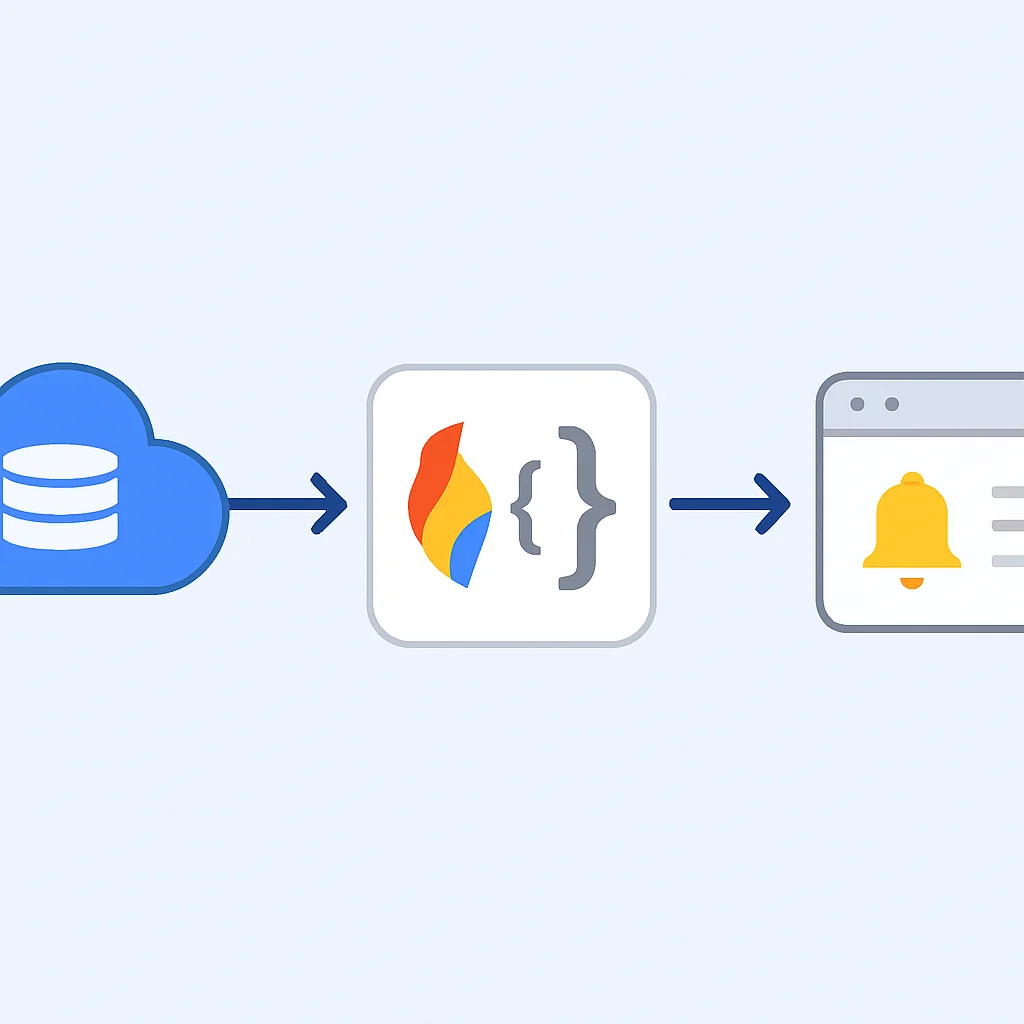
Cloud Functions are a game-changer for mobile developers, allowing them to add powerful backend logic without the overhead of traditional server infrastructure. They bridge the gap between purely client-side operations and complex server-side requirements, enabling rich, dynamic, and secure application experiences.
KEY POINT
Firebase Cloud Functions enable serverless backend logic triggered by Firebase events or HTTP requests. This allows developers to extend app functionality securely and scalably (e.g., sending emails, processing data) without managing servers, significantly boosting development agility.
PRACTICAL APPLICATION
7. Practical Application: Integrating Firebase into a Mobile App
Let’s put our knowledge into practice by outlining how Firebase components would integrate into a common mobile application scenario: a simple task manager app. This example demonstrates how different Firebase services work together to create a robust and interactive user experience.
Imagine building a task manager app where users can create, manage, and track their to-do lists. The app needs user accounts, persistent storage for tasks, and potentially real-time updates for collaborative features. Here’s how Firebase would power such an application:
User Registration and Login
Firebase Authentication: Users sign up and log in using email/password or Google Sign-in. Firebase handles all user account management, including password resets and session persistence. Upon successful login, the app navigates to the main task list.
Storing and Retrieving Tasks
Cloud Firestore: Each user’s tasks are stored in a tasks collection, potentially nested under a users/{userId}/tasks subcollection to ensure data isolation. Firestore’s real-time listeners update the UI instantly as tasks are added, completed, or deleted.
Task Reminders and Notifications
Firebase Cloud Functions + Cloud Messaging: When a user sets a reminder for a task, a Cloud Function is triggered (e.g., via a scheduled job or a write to a reminders collection). This function then uses Firebase Cloud Messaging (FCM) to send a push notification to the user’s device at the specified time.
User Profile Pictures / Attachments
Cloud Storage for Firebase: If users can upload profile pictures or attach files to tasks, Cloud Storage handles the secure and scalable storage of these binary objects. Security rules ensure only authenticated users can upload/download their own files.
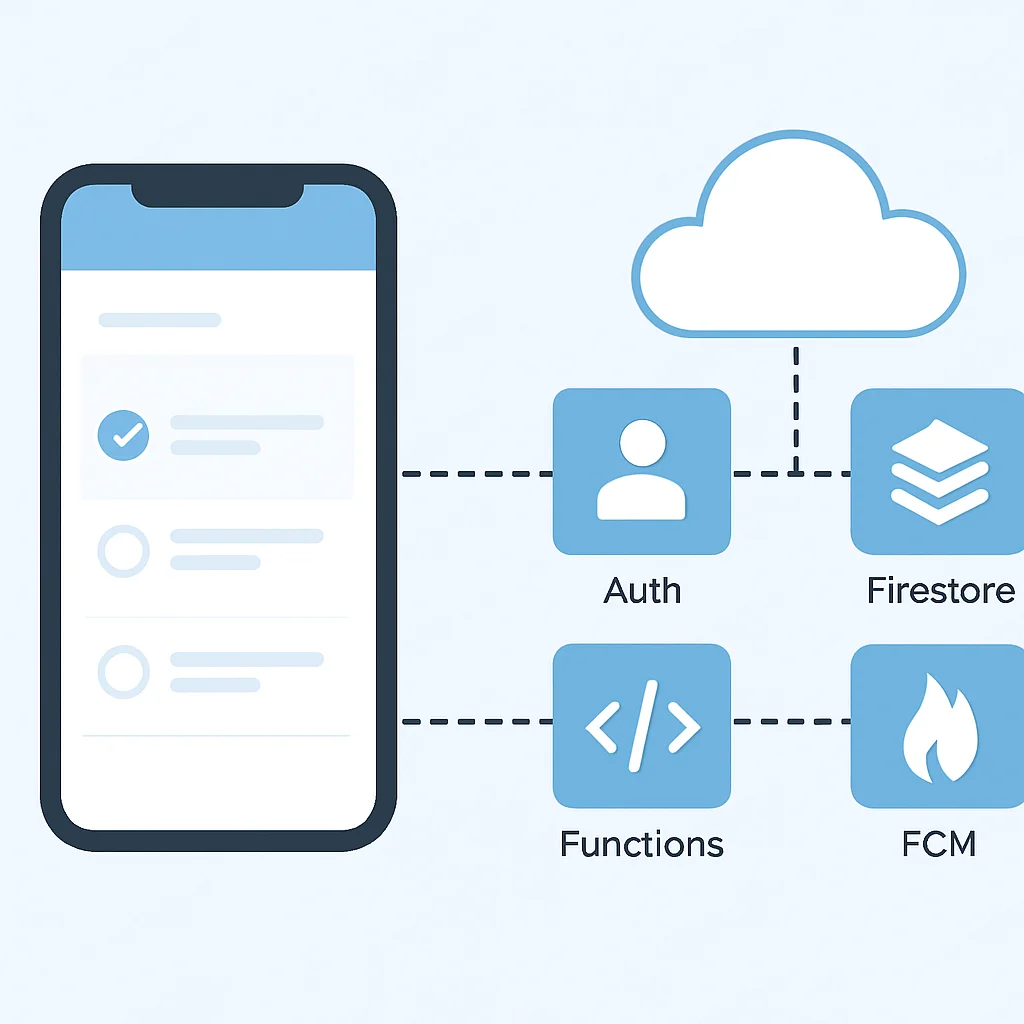
This task manager example highlights how Firebase services seamlessly integrate to provide a full-fledged backend. Developers don’t need to build REST APIs for every data interaction or manage a notification server. Firebase handles the heavy lifting, allowing for faster development and easier maintenance. The combined power of these services enables the creation of complex, feature-rich applications with significantly less effort than traditional backend development.
KEY POINT
A practical application like a task manager app demonstrates the synergistic power of Firebase: Authentication for user management, Cloud Firestore for real-time task data, Cloud Functions for notifications, and Cloud Storage for attachments, all contributing to rapid development and scalable functionality.
ANALYSIS
8. Advantages and Considerations: Pros and Cons of Firebase
Firebase, while incredibly powerful, is not a one-size-fits-all solution. It comes with a distinct set of advantages that make it highly attractive for mobile development, but also some considerations that developers should be aware of before committing to the platform. Understanding these will help you make an informed decision for your 2026 mobile projects.
Pros
✔ Rapid Development: Significantly reduces time to market by eliminating the need to build and maintain a custom backend. Developers can focus on the client-side experience.
✔ Scalability: Google’s robust infrastructure ensures that Firebase services automatically scale with your user base, handling millions of concurrent users without manual intervention.
✔ Real-time Capabilities: Firestore and Realtime Database provide instant data synchronization across all connected clients, perfect for collaborative or dynamic applications.
✔ Comprehensive Ecosystem: A wide array of integrated services (Auth, Firestore, Storage, Functions, Hosting, Analytics, Messaging, Crashlytics) covers most mobile app needs.
✔ Cost-Effective for Startups: The generous free tier and pay-as-you-go pricing model make it highly accessible for small projects and startups, with costs scaling predictably.
✔ Offline Support: Databases automatically cache data locally, allowing apps to function even when offline and synchronize changes once connectivity is restored.
Cons
✖ Vendor Lock-in: Building heavily on Firebase can lead to a degree of vendor lock-in, making it challenging to migrate to another backend provider later.
✖ Cost at Scale: While initially cost-effective, very high-volume usage of certain services (especially Cloud Functions invocations or extensive data reads/writes in Firestore) can become expensive, requiring careful monitoring and optimization.
✖ Limited Customization: Being a managed service, Firebase offers less control over the underlying infrastructure and database schemas compared to a custom-built backend.
✖ NoSQL Nature: Firestore’s NoSQL document model is flexible but might not be ideal for all applications, especially those requiring complex relational queries or strong transactional consistency across multiple collections.
✖ Learning Curve: While simplifying backend tasks, mastering the nuances of Firebase security rules, data modeling for NoSQL, and Cloud Functions can still present a learning curve for new developers.
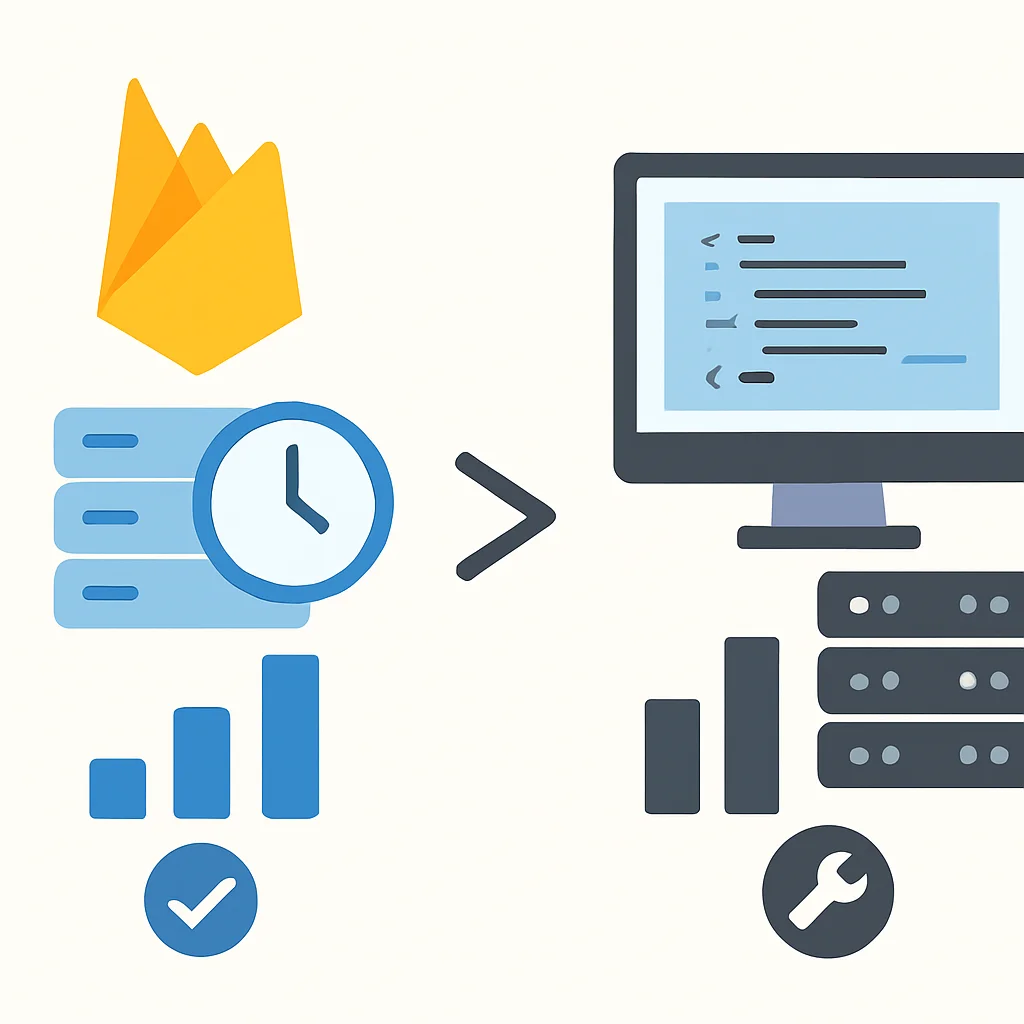
For many mobile developers in 2026, especially those in startups or agile teams, the benefits of Firebase significantly outweigh its drawbacks. Its ability to accelerate development, provide instant scalability, and handle complex backend operations makes it an invaluable tool. However, for applications with highly specific infrastructure requirements, extremely tight budget constraints at massive scale, or a strong preference for relational databases, a custom backend or a different BaaS might be more suitable. A thorough evaluation of your project’s specific needs and anticipated growth is always recommended.
KEY POINT
Firebase excels in rapid development, scalability, and real-time features, making it ideal for most modern mobile apps. However, developers must consider potential vendor lock-in and cost implications at extreme scale, along with the NoSQL data model, when choosing Firebase.
Frequently Asked Questions (FAQ)
Q. Is Firebase free to use for mobile app development?
A. Firebase offers a generous free tier (Spark Plan) that covers most development and small-scale production needs. For larger applications with higher usage, you transition to a pay-as-you-go model (Blaze Plan) where you are billed based on your consumption of resources like database reads/writes, storage, and function invocations.
Q. What is the main difference between Cloud Firestore and Realtime Database?
A. Cloud Firestore is Firebase’s newer, more scalable NoSQL database with a document-collection data model, offering more powerful querying and better structuring for complex data. The Realtime Database is an older NoSQL database that stores data as one large JSON tree, excelling in very high-frequency, small data changes, but with more limited querying capabilities.
Q. Can I use Firebase for both Android and iOS apps simultaneously?
A. Yes, Firebase is designed to be cross-platform. You can add both Android and iOS applications to the same Firebase project and share the same backend services, data, and configuration, making it ideal for developing apps that target both platforms.
Q. How does Firebase handle security for my mobile application?
A. Firebase provides robust security through Firebase Authentication, which manages user identities securely, and Firebase Security Rules for Cloud Firestore and Cloud Storage. These rules allow you to define granular, expression-based access controls for your data, ensuring only authorized users can read or write specific data paths.
Thanks for reading!
We hope this guide has provided a solid foundation for your Firebase journey in 2026. The platform’s continuous evolution makes it an exciting time to build feature-rich, scalable mobile applications.
Got questions or want to share your Firebase project? Drop a comment below or connect with Kwonglish!