
SUMMARY
Ergonomics for Developers: Set Up Your Workspace for Health & Productivity in 2026
Optimize your developer workspace with practical ergonomics tips to prevent pain, boost focus, and maintain long-term health while coding.
Keywords: ergonomics, developer health, workspace setup
TABLE OF CONTENTS
1. Overview: Why Ergonomics Matters More Than Ever for Developers in 2026
2. The Ergonomic Blueprint: Core Principles for Your Workspace
3. Real-World Ergonomic Setups: Adapting to Your Environment
4. Essential Tools & Gadgets for an Ergonomic Workspace
5. Caveats & Common Mistakes to Avoid
6. Frequently Asked Questions (FAQ)
7. Wrap-Up: Invest in Your Health, Boost Your Code
1. Overview: Why Ergonomics Matters More Than Ever for Developers in 2026
Hey there, Kwonglish fam! As developers, we spend countless hours hunched over keyboards, staring at screens, bringing incredible ideas to life. But let’s be real: this demanding work style can take a serious toll on our bodies if we’re not careful. In 2026, with remote work becoming more entrenched and screen time continuing to rise, understanding and implementing good ergonomics isn’t just a nice-to-have; it’s a critical investment in your long-term health and productivity.
Think about it: you might be spending 8-10 hours a day, five days a week, in front of your computer. That’s over 2,000 hours a year! Without a properly set up workspace, you’re not just risking minor discomfort; you’re setting yourself up for potential chronic conditions like repetitive strain injury (RSI), carpal tunnel syndrome, chronic back pain, neck stiffness, and debilitating headaches. These aren’t just annoyances; they can significantly impact your ability to code, your overall quality of life, and even shorten your career if left unaddressed.
The good news? A few mindful adjustments and smart choices can make a world of difference. Ergonomics is all about designing your workspace to fit you, rather than forcing your body to fit your workspace. It’s about creating an environment that supports your natural posture, reduces strain, and promotes comfort, allowing you to focus on writing elegant code instead of battling discomfort. This guide will walk you through practical, actionable steps to optimize your developer setup in 2026, whether you’re working from a dedicated home office, a shared co-working space, or even a laptop on the go.
KEY POINT
Proactive ergonomic setup is essential. Neglecting your workspace can lead to chronic pain, reduced productivity, and potentially shorten your career longevity. Invest in your body now to enjoy a healthier and more productive future.
2. The Ergonomic Blueprint: Core Principles for Your Workspace
Let’s dive into the specifics. Building an ergonomic workspace isn’t about buying the most expensive gear (though good gear helps!), but about understanding the principles and applying them to your setup. Here’s a breakdown of the key areas:
2.1. Your Chair: The Foundation of Support
Your office chair is arguably the most crucial piece of ergonomic equipment. A good chair supports your spine’s natural curve and allows for proper posture without conscious effort. Here’s what to look for and how to set it up:
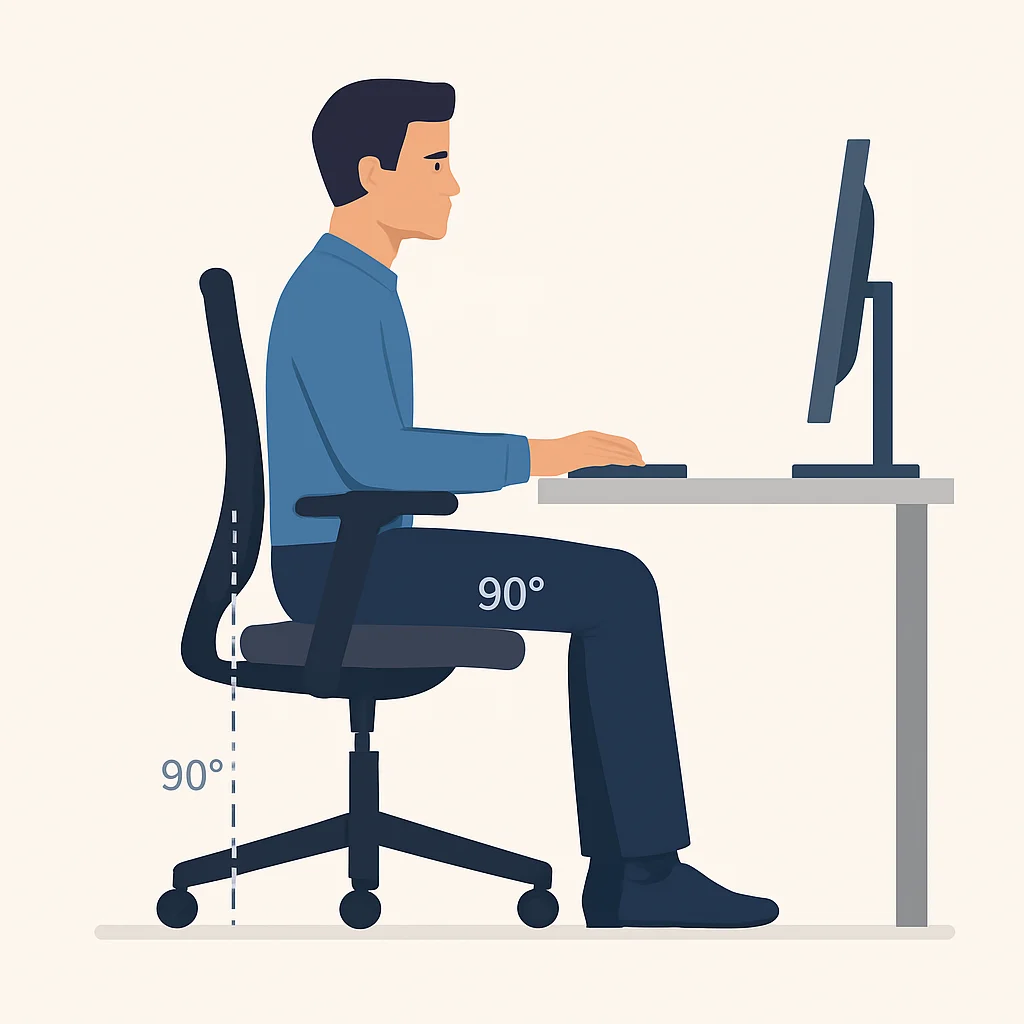
Height Adjustment: Your feet should be flat on the floor or a footrest, with your knees at roughly a 90-degree angle. Your thighs should be parallel to the floor.
Lumbar Support: The chair’s backrest should support the natural inward curve of your lower back. Many ergonomic chairs allow you to adjust the height and depth of the lumbar support. Aim for a recline of 90-105 degrees to reduce pressure on your spinal discs.
Seat Depth: There should be about 2-4 fingers’ width between the edge of the seat and the back of your knees. This prevents pressure on the back of your legs, which can restrict blood flow.
Armrests: Your armrests should allow your shoulders to relax and your elbows to be at a 90-degree angle while typing. They should support your forearms, not your wrists or hands. If they’re too high or too low, they can create shoulder or wrist strain.
KEY POINT
A quality ergonomic chair with adjustable lumbar support, seat depth, and armrests is paramount. Proper adjustment ensures your spine maintains its natural S-curve, minimizing strain on your back and neck.
2.2. Desk Height & Monitor Placement: Eye-Level Comfort
After your chair, your desk and monitor setup are critical for preventing neck and eye strain. Adjustable standing desks have gained immense popularity in 2026, and for good reason.
Desk Height:
Sitting: When seated, the desk height should allow your forearms to be parallel to the floor when your elbows are at a 90-degree angle. This means your keyboard and mouse are at a comfortable height without shrugging your shoulders.
Standing: If you have a standing desk, the same principle applies: your elbows should be at a 90-degree angle, and your forearms parallel to the floor when standing.
Monitor Placement:
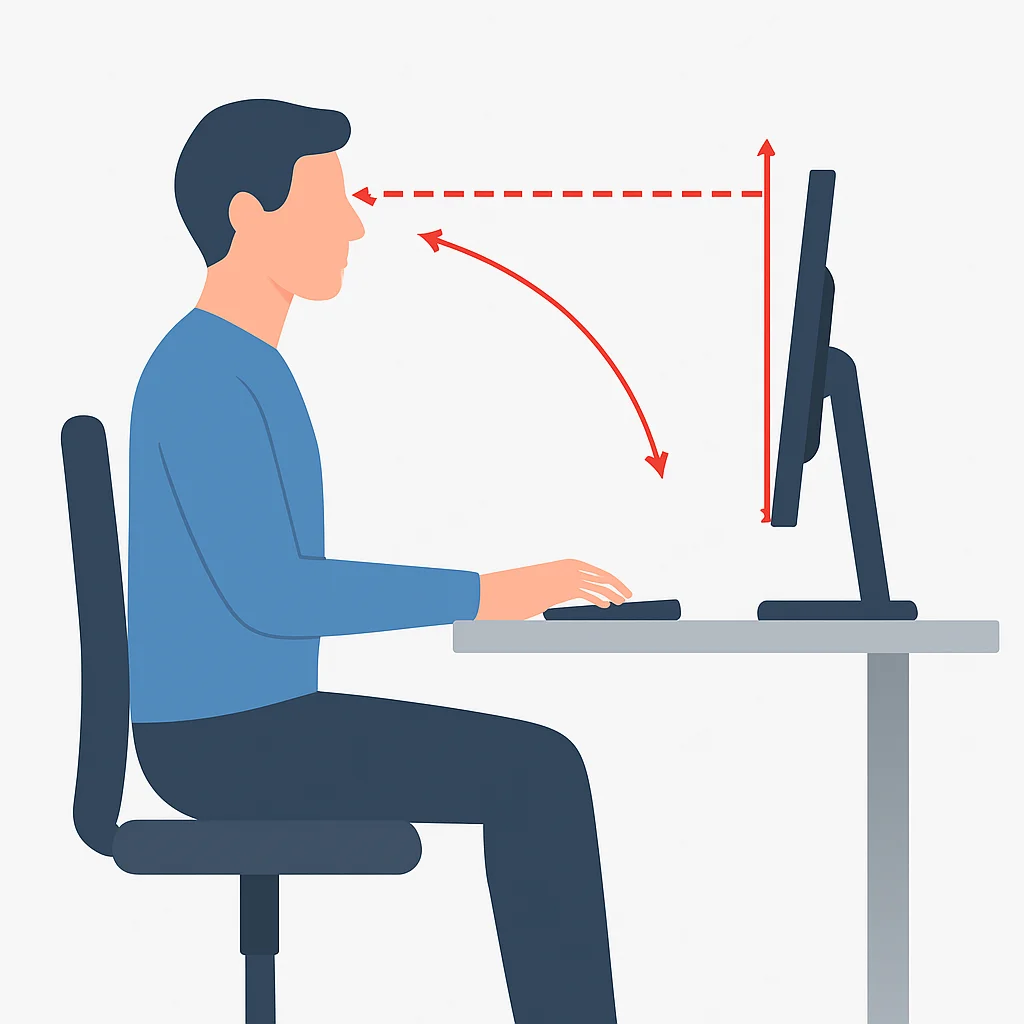
Distance: Your monitor should be about an arm’s length (20-30 inches or 50-75 cm) away from your eyes. This distance can vary based on screen size and your vision.
Height: The top of your monitor screen should be at or slightly below eye level. This prevents you from tilting your head up or down excessively, which can strain your neck. For dual monitor setups, ensure both screens are positioned similarly, with the primary monitor directly in front of you.
Angle: Tilt your monitor slightly upwards (about 10-20 degrees) to match your natural line of sight.
KEY POINT
Proper monitor placement (arm’s length, top at eye level) is crucial for preventing neck strain and eye fatigue. Remember the 20-20-20 rule: every 20 minutes, look at something 20 feet away for 20 seconds to rest your eyes.
2.3. Keyboard & Mouse Ergonomics: Neutral Wrist, Happy Hands
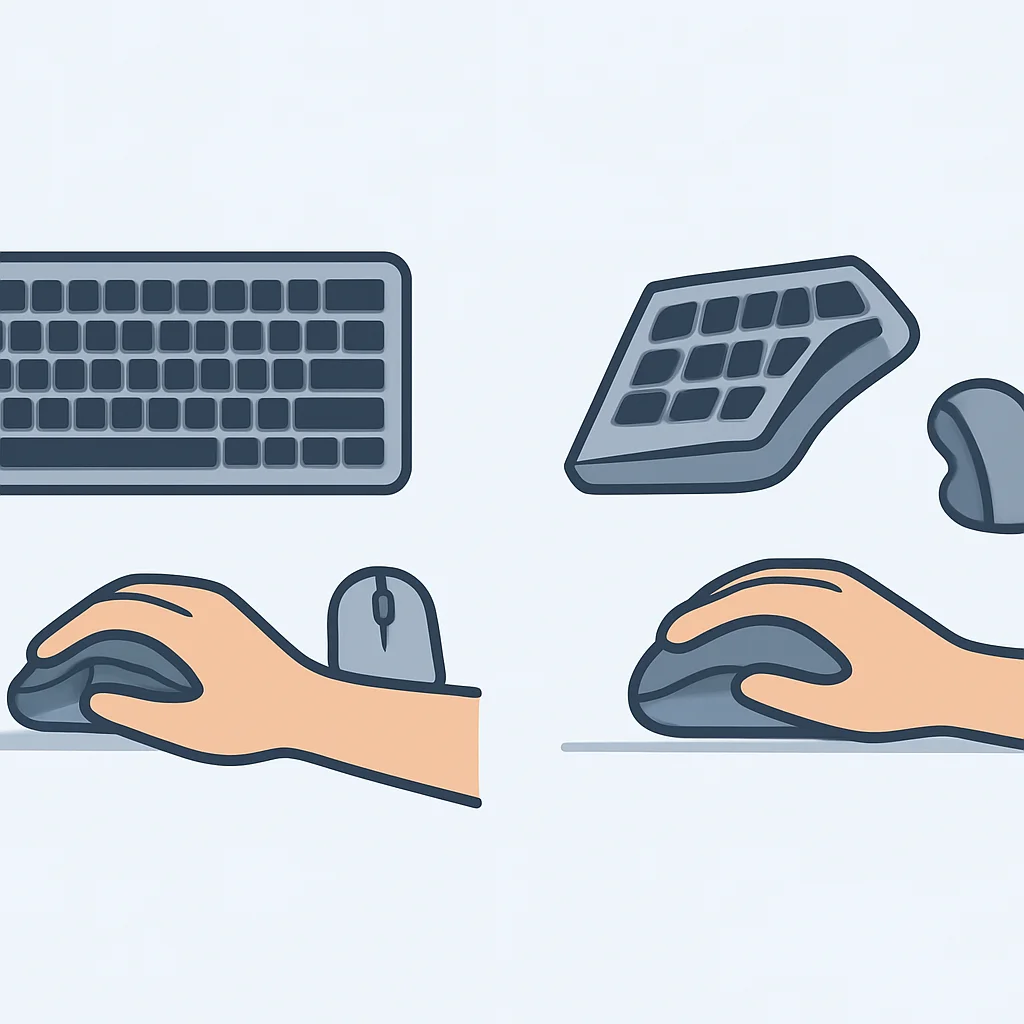
Your keyboard and mouse are your primary tools, and improper use is a leading cause of wrist and hand issues like carpal tunnel syndrome and RSI. The goal is to maintain a neutral wrist position, avoiding bending them up, down, or sideways.
Keyboard:
Placement: Position your keyboard directly in front of you, centered with your body. Keep it close enough so you don’t have to reach.
Angle: Avoid using the keyboard’s tilt legs, which elevate the back of the keyboard and force your wrists into an unnatural upward bend. Flat or slightly negatively tilted keyboards are generally better.
Type: Consider ergonomic keyboards (split, tented, or vertical designs) that encourage a more natural hand and wrist position. Mechanical keyboards can also offer a more satisfying typing experience and potentially reduce strain due to improved tactile feedback.
Mouse:
Placement: Keep your mouse as close to your keyboard as possible to minimize reaching. A compact or tenkeyless keyboard can help achieve this.
Type: Explore ergonomic mice, such as vertical mice (which keep your hand in a “handshake” position) or trackballs (which eliminate wrist movement).
Sensitivity: Adjust your mouse sensitivity (DPI) so you can move the cursor across the screen with minimal physical movement.
KEY POINT
The primary goal for keyboard and mouse use is to maintain a neutral wrist posture. Avoid wrist rests that elevate your wrist, as they can put pressure on the carpal tunnel. Instead, use them to rest your palms during breaks.
2.4. Lighting & Environment: Reducing Eye Strain and Distractions
Beyond your core setup, the surrounding environment plays a significant role in your comfort and focus.
Lighting:
Natural Light: Position your monitor perpendicular to windows to minimize glare. If possible, have natural light coming from the side.
Artificial Light: Use ambient lighting that is evenly distributed and not too bright. Supplement with a task light if needed, but ensure it doesn’t create glare on your screen. Avoid direct overhead lighting that can cause harsh reflections.
Screen Brightness: Adjust your monitor’s brightness to match the ambient lighting of your room. Use “night mode” or blue light filters, especially in the evenings, to reduce eye strain.
Noise & Air Quality:
Noise: Minimize distractions with noise-canceling headphones or by choosing a quiet workspace. White noise generators can also help.
Air Quality: Ensure good ventilation. Consider a small air purifier or some indoor plants (like snake plants or peace lilies) to improve air quality and add a touch of nature.
KEY POINT
Good lighting prevents eye strain, and a quiet, well-ventilated environment enhances focus. Aim for natural light without glare, and adjust screen brightness to match your surroundings for optimal eye comfort.
2.5. Breaks & Movement: Your Body’s Best Friends
Even with the perfect ergonomic setup, prolonged static posture is detrimental. Movement is non-negotiable for developers.
Micro-Breaks: Every 30-60 minutes, take a 5-minute break. Stand up, stretch, walk around, or simply look away from your screen. This helps reset your posture, improve blood circulation, and reduce eye fatigue. Set a timer if you need a reminder!
Longer Breaks: Every 2-3 hours, take a 15-30 minute break. Step away from your desk completely. Go for a short walk, prepare a healthy snack, or do some light exercise.
Stretching: Incorporate simple stretches for your neck, shoulders, wrists, and back throughout the day. There are many great desk stretch routines available online.
Standing Desks: If you have a standing desk, alternate between sitting and standing throughout the day. A good rule of thumb is to stand for 15-30 minutes for every 30-45 minutes of sitting. Don’t stand all day, as that can also lead to fatigue.
KEY POINT
Movement is medicine. Regular micro-breaks and longer breaks, coupled with stretching, are crucial for counteracting the effects of prolonged sitting. Even a perfectly ergonomic setup cannot replace the need for physical activity.
WARNING
Ignoring pain is a critical mistake. If you experience persistent discomfort, numbness, or tingling, consult a healthcare professional. These could be early signs of serious conditions like RSI or carpal tunnel syndrome that require professional intervention.
3. Real-World Ergonomic Setups: Adapting to Your Environment
Not everyone has the luxury of a fully customized, top-tier ergonomic setup. Let’s look at how to apply these principles to different common developer environments in 2026.
3.1. Case Study: The Remote Developer’s Home Office
Scenario: Sarah, a Backend Developer
Sarah works full-time from her home office. She has a dedicated space but needs to balance budget with functionality.
Step 1
Prioritize the Chair
Sarah invested in a mid-range ergonomic office chair (around $300-$500) that offered adjustable lumbar support, armrests, and seat height. She reasoned that this was the most critical piece for her back health.
Step 2
Elevate Her Laptop
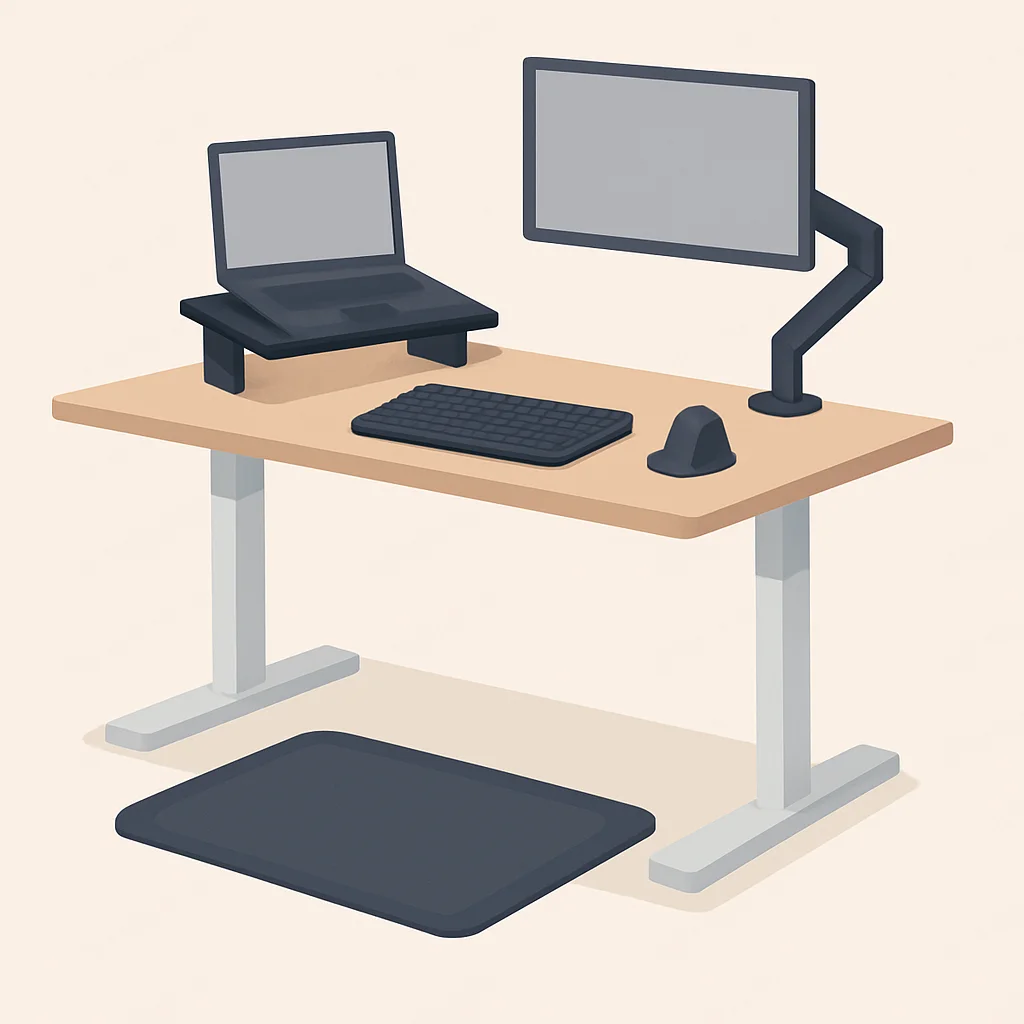
Instead of a full standing desk, Sarah bought a laptop stand (approx. $30) to raise her laptop screen to eye level. She then connected an external keyboard and mouse (approx. $50 for both) to maintain neutral wrist posture.
Step 3
Natural Light & Breaks
She positioned her desk near a window, ensuring the monitor was perpendicular to avoid glare. She also set up a recurring timer on her phone for 5-minute stretch breaks every hour.
3.2. Case Study: The Office Developer’s Cubicle
Scenario: David, a Frontend Engineer
David works in a traditional office cubicle with standard-issue furniture. He wants to improve his setup without buying expensive personal items.
Step 1
Optimize Existing Chair
David learned how to adjust his existing office chair (height, recline, armrests). He requested a lumbar support pillow from his HR department, which was provided by the company as a workplace accommodation.
Step 2
Monitor Risers & Footrest
He used a stack of old textbooks (or office-provided monitor risers) to elevate his monitor to eye level. Since his chair couldn’t go low enough for his feet to be flat, he requested and received a footrest from his company.
Step 3
Personal Peripherals
David brought in his own ergonomic keyboard and vertical mouse, which were small enough to fit within his cubicle space and significantly reduced his wrist pain.
KEY POINT
Even with limited resources, significant ergonomic improvements can be made. Don’t hesitate to inquire about employer-provided ergonomic equipment or accommodations, as many companies have budgets for employee wellness.
4. Essential Tools & Gadgets for an Ergonomic Workspace
While understanding principles is key, the right tools can certainly elevate your ergonomic setup. Here are some categories to consider for your 2026 workspace:
4.1. Ergonomic Chairs (Investment Piece)
What to look for: Highly adjustable components (seat height, depth, tilt, lumbar support, armrests), breathable material, durable construction.
Brands to consider: Herman Miller (e.g., Aeron, Embody), Steelcase (e.g., Gesture, Leap), Autonomous (e.g., ErgoChair Pro), Secretlab (gaming chairs with ergonomic features). Prices typically range from $300 to $1,500+.
4.2. Standing Desks & Converters (Movement Promotion)
What to look for: Electric height adjustment for seamless transitions, sturdy frame, sufficient surface area. Converters are a good budget option for existing desks.
Brands to consider: Uplift Desk, Fully (now Herman Miller), FlexiSpot, Varidesk (for converters). Full standing desks can range from $400 to $1,000+, converters from $150 to $400.
4.3. Ergonomic Keyboards & Mice (Wrist & Hand Health)
Keyboards: Split designs (e.g., Kinesis Advantage, ErgoDox EZ), tented designs (e.g., Microsoft Sculpt Ergonomic), or compact mechanical keyboards. Look for low-profile keys or quiet switches. Prices vary widely, from $50 to $300+.
Mice: Vertical mice (e.g., Logitech MX Vertical), trackballs (e.g., Logitech ERGO M575), or ergonomic contoured mice (e.g., Razer DeathAdder V3 Pro). Prices typically range from $30 to $100+.
4.4. Monitor Arms (Optimized Screen Placement)
What they do: Allow you to easily adjust monitor height, depth, and angle. Essential for multi-monitor setups.
Brands: Ergotron, VIVO, Amazon Basics. Single arms start around $40, dual arms $70+.
4.5. Accessories (Fine-Tuning Comfort)
Footrests: Essential if your feet don’t touch the floor even with your chair at the lowest ergonomic setting. Look for adjustable tilt and height. Prices $20-$60.
Anti-Fatigue Mats: For standing desk users, these reduce pressure on your feet, knees, and back. Prices $30-$100.
Task Lighting: Dimmable desk lamps with adjustable color temperature can reduce eye strain. Prices $20-$100.
Blue Light Filtering Glasses: Can help reduce eye strain, especially during long coding sessions or late-night work. Prices $15-$50.
KEY POINT
Consider ergonomic tools as an investment in your health and career longevity. Start with the most impactful items (chair, monitor setup) and gradually upgrade other peripherals as your budget allows. Research reviews and try products if possible before committing.
5. Caveats & Common Mistakes to Avoid
While ergonomics offers fantastic benefits, it’s not a magic bullet. Be aware of these common pitfalls:
PROBLEM 01
Over-reliance on Expensive Gear
Many believe that buying the most expensive ergonomic chair or standing desk will solve all their problems. While good gear helps, improper setup or lack of movement will still lead to issues.
SOLUTION
Focus on principles first. Understand proper posture and adjust your existing equipment as much as possible. Then, strategically invest in gear that addresses your specific needs or pain points.
PROBLEM 02
Ignoring Pain Signals
Many developers push through discomfort, attributing it to “just part of the job.” This can escalate minor issues into chronic conditions.
SOLUTION
Listen to your body. If something hurts, stop, adjust, and take a break. Persistent pain (lasting more than a few days) warrants a consultation with a doctor or physical therapist. Early intervention is key.
PROBLEM 03
Static Posture, Even if “Correct”
Maintaining the “perfect” ergonomic posture for hours on end is still detrimental. The human body is designed for movement, not static positions.
SOLUTION
Integrate movement throughout your workday. Take frequent micro-breaks, stretch regularly, and if you have a standing desk, alternate between sitting and standing. Vary your position often.
KEY POINT
Ergonomics is an ongoing process of adjustment and self-awareness. There’s no one-size-fits-all solution, and your body’s needs may change over time. Regularly evaluate your setup and habits.
Frequently Asked Questions (FAQ)
Q. How often should I take breaks when coding?
A. Aim for a 5-minute micro-break every 30-60 minutes to stand, stretch, and look away from your screen. Additionally, take a longer 15-30 minute break every 2-3 hours to step away from your desk completely.
Q. Can I achieve good ergonomics with just a laptop?
A. It’s challenging but possible. For prolonged use, it’s highly recommended to use a laptop stand to elevate the screen to eye level, combined with an external keyboard and mouse to maintain neutral wrist posture.
Q. What’s the most important piece of ergonomic equipment to invest in first?
A. An ergonomic office chair with excellent adjustability and lumbar support is generally considered the most impactful first investment, as it forms the foundation of your seated posture and spinal health.
Q. How can I convince my employer to provide ergonomic equipment?
A. Document any discomfort you’re experiencing and research specific equipment that would help. Frame your request in terms of increased productivity and reduced health risks, which benefits the company. Many companies have a process for ergonomic assessments and equipment provision.
6. Wrap-Up: Invest in Your Health, Boost Your Code
As developers, our minds are our most powerful tools, but they operate within our bodies. Neglecting your physical well-being is like trying to run a high-performance application on faulty hardware – it just won’t perform optimally, and eventually, it will break down. By dedicating time and effort to setting up an ergonomic workspace in 2026, you’re not just preventing pain; you’re actively enhancing your focus, energy levels, and overall job satisfaction.
Remember, ergonomics isn’t a one-time fix. It’s an ongoing practice of self-awareness, adjustment, and movement. Start small, make gradual changes, and most importantly, listen to your body. Your future self (and your code!) will thank you for it. Happy coding, comfortably!
Thanks for reading, Kwonglish!
We hope this guide helps you create a healthier, more productive workspace. Your well-being is key to sustainable success in the fast-paced world of development.
Got questions or your own ergonomic tips? Drop a comment below and share your insights with the Kwonglish community!