
SUMMARY
The Ultimate Ergonomic Desk Setup for Developers in 2026
This is a comprehensive guide for developers to create an ergonomic workstation, focusing on preventing strain, improving posture, and boosting productivity in 2026.
Keywords: ergonomic desk setup, developer ergonomics, standing desk benefits
TABLE OF CONTENTS
1. Overview: Why Ergonomics Matter More Than Ever for Developers in 2026
2. The Core Components of an Ergonomic Workstation
3. Fine-Tuning Your Setup: Beyond the Basics
4. Real-World Ergonomic Setup Examples
5. Common Pitfalls and Important Caveats
6. Frequently Asked Questions (FAQ)
7. Wrap-Up: Invest in Your Health, Boost Your Code
1. Overview: Why Ergonomics Matter More Than Ever for Developers in 2026
Hello, fellow coders! Kwonglish here, and today we’re diving deep into a topic that’s often overlooked but critically important for anyone spending hours in front of a screen: ergonomics. As developers, we’re at the forefront of innovation, but our bodies often pay the price for our dedication. Long hours hunched over a keyboard, intense focus, and repetitive motions can lead to a host of issues, from nagging back pain and stiff necks to more serious conditions like carpal tunnel syndrome and repetitive strain injuries (RSIs).
In 2026, with the rapid evolution of remote work and the increasing demands of the tech industry, a well-optimized ergonomic desk setup isn’t just a luxury; it’s a necessity. It’s about more than just comfort; it’s about safeguarding your long-term health, maintaining your productivity, and ensuring your career as a developer is sustainable. Think of your body as your most important tool – you wouldn’t neglect your development environment or your codebase, so why neglect the physical environment that enables you to do your best work?
This comprehensive guide from Kwonglish will walk you through everything you need to know to transform your workstation into a haven of health and efficiency. We’ll cover the essential components, discuss proper setup techniques with concrete numbers, and share practical tips to keep you feeling great, even on the longest coding sprints. Let’s get started on building a healthier, more productive you!
KEY POINT
An ergonomic setup is a proactive investment in your health, preventing common developer ailments like back pain, neck strain, and RSIs, ultimately boosting your career longevity and daily productivity.
2. The Core Components of an Ergonomic Workstation
Building an ergonomic workstation is like assembling a high-performance machine – each part plays a crucial role. Let’s break down the essential components and how to optimize them.
2.1. The Ergonomic Chair: Your Foundation of Support
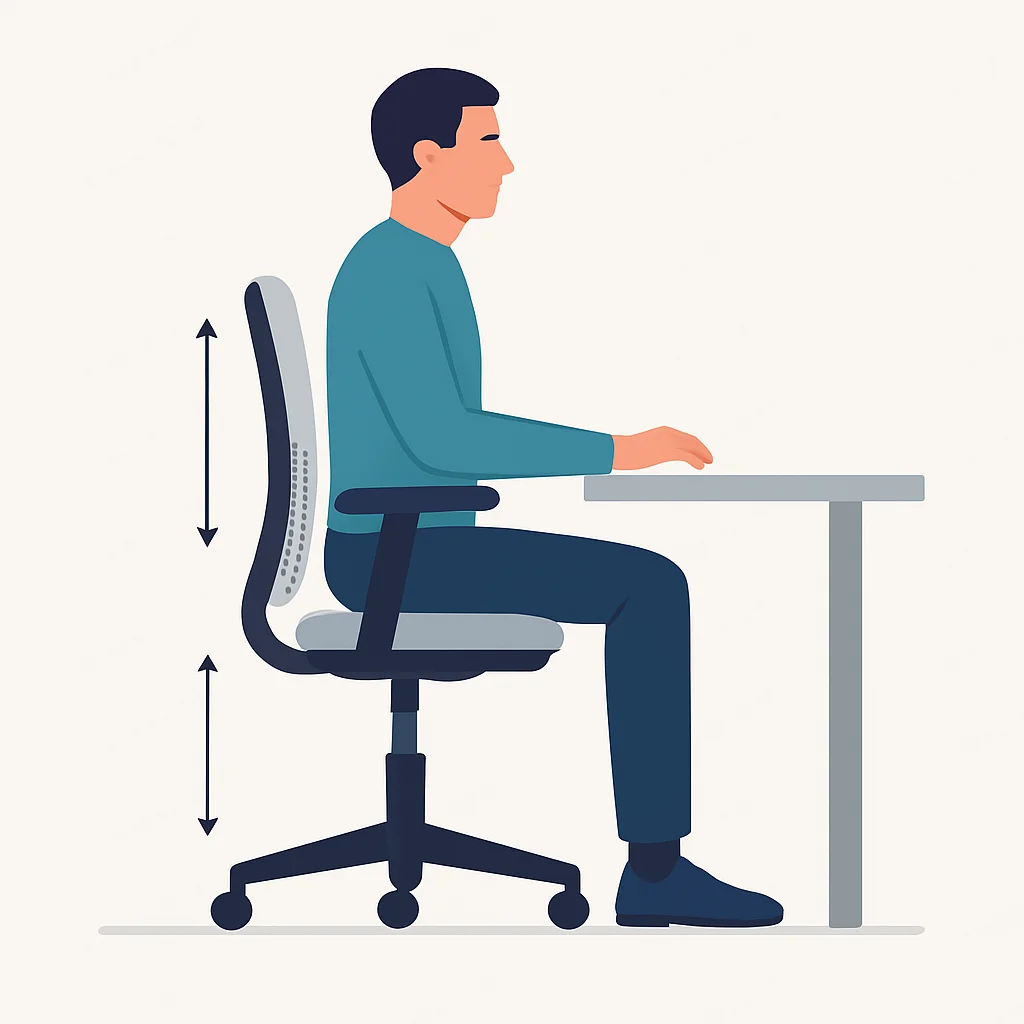
Your chair is arguably the most critical piece of your ergonomic puzzle. A good ergonomic chair supports your body’s natural curves and allows for a variety of adjustments to fit your unique physique. Don’t skimp here; consider it an investment in your spine.
Key features to look for in 2026:
- Adjustable Seat Height: This is non-negotiable. Your feet should be flat on the floor or on a footrest, with your knees at roughly a 90-degree angle. For most individuals, this translates to a seat height between 16 to 21 inches (40-53 cm) from the floor.
- Lumbar Support: The chair should support the natural inward curve of your lower back. Many high-quality chairs offer adjustable lumbar support, allowing you to position it precisely where you need it.
- Armrests: Adjustable armrests are crucial. They should allow your elbows to rest at a 90-degree angle, close to your body, taking pressure off your shoulders and wrists. Ensure they don’t force your shoulders up.
- Seat Depth and Width: The seat should be wide enough to support you comfortably and deep enough so that you can use the backrest, but with about 2-4 inches (5-10 cm) between the edge of the seat and the back of your knees.
- Backrest Recline: A backrest that reclines and locks into various positions can help you shift your posture throughout the day, reducing static load on your spine. A slight recline of 100-110 degrees is often recommended.
2.2. The Desk: Standing, Sitting, or Both?
The debate between sitting and standing is ongoing, but the consensus in 2026 is clear: movement is key. A height-adjustable standing desk is the gold standard, allowing you to seamlessly transition between sitting and standing throughout your workday.
Benefits of a standing desk:
- Reduced Sedentary Time: Studies show prolonged sitting is linked to various health risks. Standing helps burn more calories and improves circulation.
- Improved Focus and Energy: Many users report feeling more alert and focused when standing.
- Back Pain Relief: For some, standing can alleviate lower back pain associated with prolonged sitting.
Proper desk height: Whether sitting or standing, the desk height should allow your elbows to be at a 90-100 degree angle when your forearms are parallel to the floor, and your shoulders are relaxed. For sitting, this is typically around 28-30 inches (71-76 cm). For standing, it can range from 38-48 inches (96-122 cm) depending on your height. Many standing desks offer memory presets, making it easy to switch between your ideal sitting and standing heights.
KEY POINT
Aim for a sit-stand ratio of 1:1 or 2:1 (e.g., 30 minutes sitting, 30 minutes standing, or 40 minutes sitting, 20 minutes standing). Use a timer or a desk with built-in reminders to facilitate this movement.
2.3. Monitor Setup: The Window to Your Code
Your monitors are where your eyes spend most of their time, making their positioning critical for preventing eye strain, neck pain, and headaches. A monitor arm is highly recommended for optimal flexibility.
Optimal monitor placement:
- Height: The top of your monitor screen should be at or slightly below eye level. This prevents you from craning your neck up or down.
- Distance: Position your monitor arm’s screen at an arm’s length away from you – typically 20-40 inches (50-100 cm). Adjust based on screen size; larger screens may need to be further away.
- Angle: Tilt the monitor back slightly (10-20 degrees) to reduce glare and improve viewing comfort.
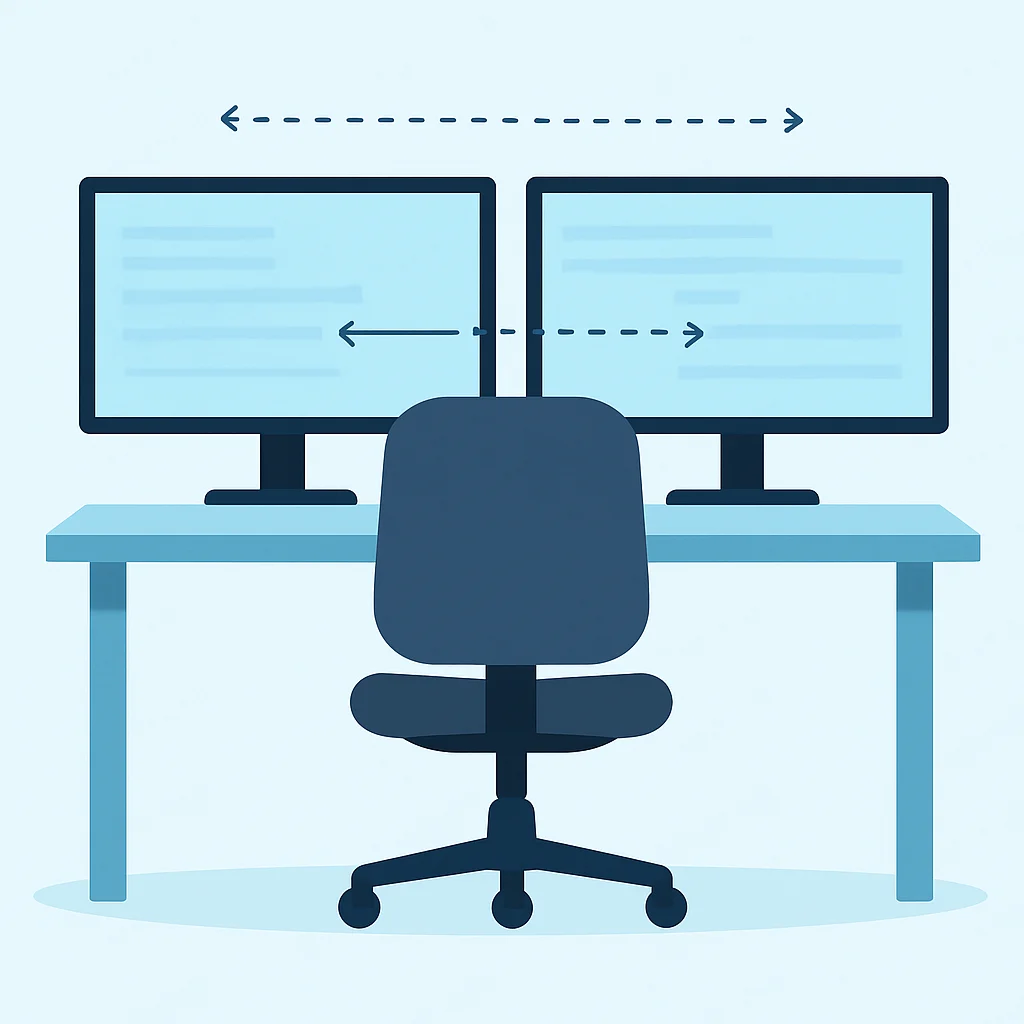
- Multiple Monitors: If you use two monitors, center them directly in front of you with the inner edges touching. If you use one primary and one secondary, position the primary directly in front and the secondary to the side, angled towards you.
2.4. Keyboard and Mouse: Hand and Wrist Health
The tools your hands interact with most frequently are often the culprits behind carpal tunnel syndrome and other RSIs. Proper selection and placement are key.
Ergonomic keyboard considerations:
- Split or Tent Design: These keyboards can reduce ulnar deviation (wrist bending sideways) and pronation (forearm twisting).
- Key Travel and Actuation: Look for keyboards with comfortable key travel that don’t require excessive force. Mechanical keyboards are often preferred by developers for their tactile feedback.
- Placement: Keep your keyboard directly in front of you, centered with your body. Avoid using the keyboard’s kickstands, as they often create an upward angle that can strain your wrists. Your wrists should be straight, not bent up, down, or sideways.
Ergonomic mouse considerations:
- Vertical Mouse: These mice promote a “handshake” grip, which can reduce forearm pronation and wrist strain.
- Trackball Mouse: A trackball allows you to move the cursor with your thumb or fingers, reducing overall arm movement.
- Central Pointing Devices: Devices like roller mice or touchpads placed between the keyboard and user can reduce reaching and shoulder strain.
- Placement: Position your mouse as close to your keyboard as possible to minimize reaching. If using a full-size keyboard with a number pad, consider a tenkeyless (TKL) keyboard to bring your mouse closer.
KEY POINT
Wrist rests are for resting your palms during breaks, not for continuous typing. Your wrists should float above the keyboard while you type to maintain a neutral position.
3. Fine-Tuning Your Setup: Beyond the Basics
Once you have the core components in place, it’s time to optimize your environment and habits for maximum ergonomic benefit.
3.1. Lighting and Environment: Seeing Clearly and Reducing Strain
Good lighting can significantly reduce eye strain and fatigue, which are common complaints among developers.
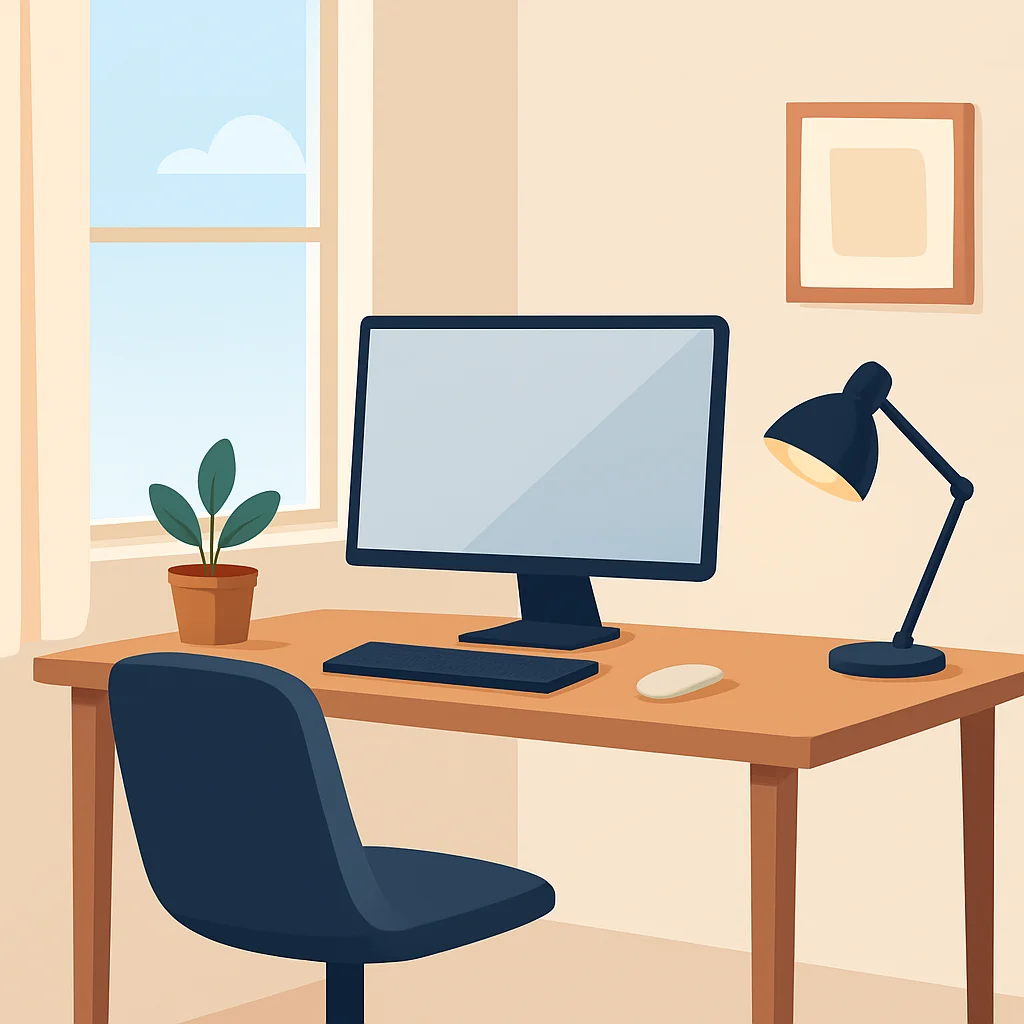
- Ambient Lighting: Aim for soft, diffused ambient light that is evenly distributed across your workspace. Avoid harsh overhead lighting that can cause glare.
- Task Lighting: A good desk lamp can provide focused light for reading documents or notes without illuminating your screen directly. Position it to avoid glare.
- Natural Light: Position your desk to the side of a window rather than directly facing or with your back to it, to minimize glare and harsh contrast. If facing a window, use blinds or curtains.
- Screen Brightness: Adjust your monitor’s brightness to match the ambient light in your room. Use a color temperature of around 6500K for general use. Many operating systems offer “night light” features to reduce blue light in the evenings.
3.2. Cable Management: A Clutter-Free Mind and Space
While not directly ergonomic for your body, good cable management contributes to a clean, organized, and stress-free environment, which indirectly supports focus and well-being. Tangled cables can also be a tripping hazard and make desk adjustments difficult.
Tips for cable management:
- Cable Sleeves/Wraps: Bundle multiple cables together for a cleaner look.
- Cable Trays/Nets: Mount these under your desk to keep power bricks and excess cable length off the floor.
- Velcro Ties: Reusable and adjustable for securing individual cables or small bundles.
- Wireless Peripherals: Where possible, opt for wireless keyboards, mice, and headsets to reduce cable clutter.
3.3. Breaks and Movement: The Unsung Heroes of Ergonomics
Even the most perfectly set up ergonomic workstation won’t save you if you sit or stand rigidly for eight hours straight. Regular movement and micro-breaks are paramount.
The 20-20-20 Rule for Eye Strain: Every 20 minutes, look at something 20 feet away for at least 20 seconds. This helps your eye muscles relax and refocus.
Micro-breaks: Every 30-60 minutes, stand up, stretch, walk around for a minute or two. This can dramatically improve circulation, reduce muscle stiffness, and refresh your mind. Consider a short walk during lunch breaks, even just around the block.
Simple stretches for developers:
- Neck Tilts: Gently tilt your head to one side, bringing your ear towards your shoulder. Hold for 15-20 seconds, then switch sides.
- Shoulder Rolls: Roll your shoulders backward in a circular motion 5-10 times, then forward.
- Wrist Flexor Stretch: Extend one arm forward with your palm up. Use your other hand to gently pull your fingers down towards your body. Hold for 15-20 seconds. Repeat on the other side.
- Chest Opener: Clasp your hands behind your back, straighten your arms, and gently lift your hands to open your chest.

4. Real-World Ergonomic Setup Examples
Let’s look at how these principles can be applied in different scenarios.
Case 1: The Remote Developer in a Small Apartment
Compact & Ergonomic
Optimizing a limited space for health and productivity.
Challenge: Limited space, budget constraints, but a desire for a healthy setup.
Solution:
- Desk: A compact electric standing desk (e.g., 48×24 inches or 120×60 cm) that can easily fit into a corner or against a wall. Look for models with a single motor for cost savings.
- Chair: A high-quality ergonomic office chair, even if it takes up space, is a priority. Consider models with a smaller footprint but full adjustability.
- Monitor: A single 27-inch monitor on a desk-mounted monitor arm, which frees up valuable desk surface area.
- Peripherals: A compact TKL mechanical keyboard and a vertical mouse to minimize desk space usage while maintaining ergonomic principles.
- Lighting: A monitor light bar to illuminate the desk without taking up space, combined with good ambient room lighting.
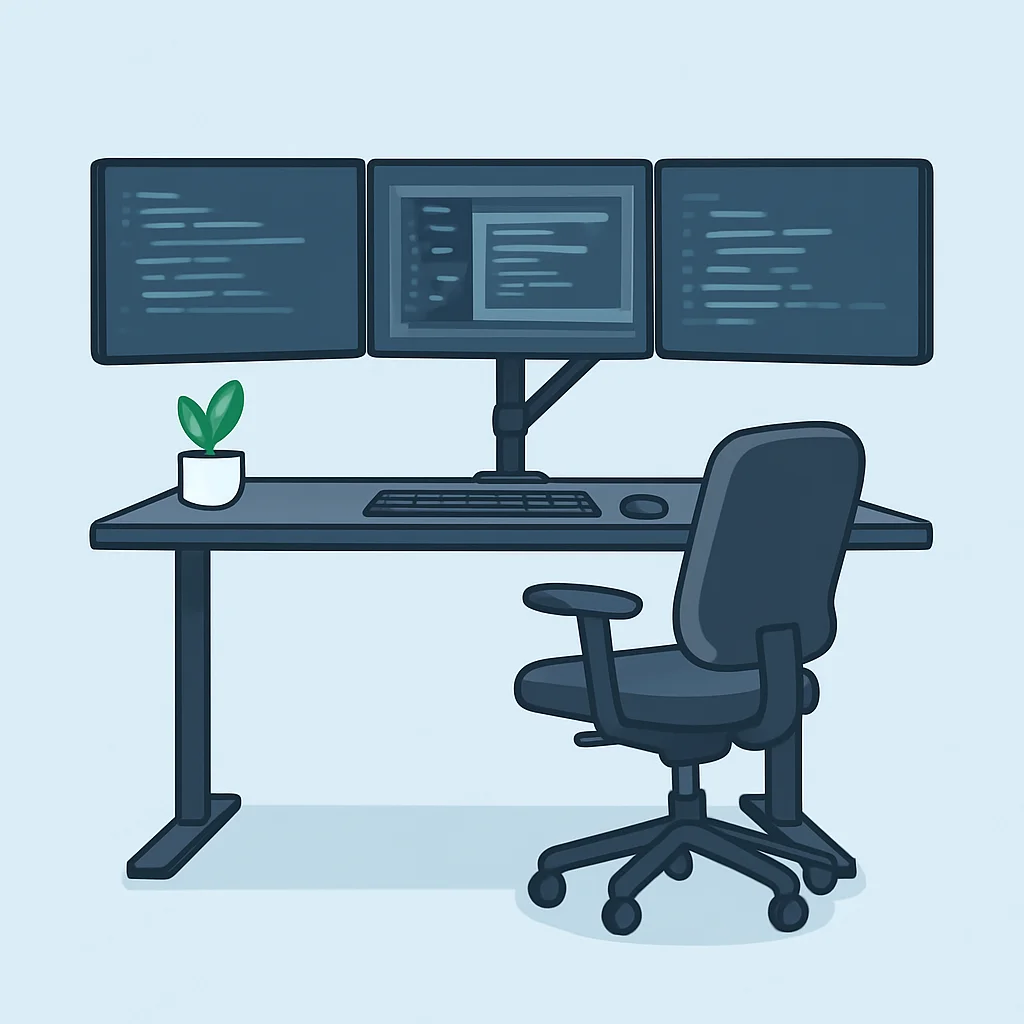
Case 2: The Data Scientist with Multiple Monitors
Multi-Monitor Master
Setting up an expansive display for complex data visualization and coding.
Challenge: Managing multiple large screens without neck strain or excessive eye movement.
Solution:
- Desk: A large electric standing desk (e.g., 72×30 inches or 180×75 cm) to accommodate the width of multiple monitors and provide ample workspace.
- Chair: A premium ergonomic chair with excellent lumbar and armrest adjustability for long hours.
- Monitors: Two 32-inch 4K monitors mounted on a heavy-duty dual monitor arm. The monitors are positioned side-by-side, with the junction directly in front of the user, slightly angled inward. This ensures minimal head turning.
- Peripherals: An ergonomic split keyboard and a trackball mouse, allowing for precise control without extensive arm movement.
- Accessories: An anti-fatigue mat for standing periods to reduce leg and foot strain.
5. Common Pitfalls and Important Caveats
Even with the best intentions, it’s easy to fall into common ergonomic traps. Here’s what to watch out for:
WARNING
Buying expensive ergonomic gear without proper setup or consistent movement negates most of its benefits. A perfect setup is only effective if you use it correctly and move regularly.
5.1. Over-reliance on “Ergonomic” Products
Just because a product is marketed as “ergonomic” doesn’t mean it’s right for you or that it will solve all your problems. Proper posture, frequent movement, and personalized adjustments are far more important than any single piece of gear. Always test products if possible, and listen to your body.
5.2. Ignoring Your Body’s Signals
Pain is your body’s way of telling you something is wrong. Don’t push through discomfort. If you experience persistent pain, numbness, or tingling, consult a healthcare professional, such as a physical therapist or doctor. Early intervention can prevent minor issues from becoming chronic conditions.
5.3. Poor Posture Habits
Even with the best chair, if you slouch, hunch, or cross your legs for hours, you’re undermining your ergonomic efforts. Regularly check in with your posture: are your shoulders relaxed? Is your back supported? Are your feet flat? Are your wrists straight?
5.4. Neglecting Eye Health
Beyond monitor placement, remember to blink frequently to prevent dry eyes. Consider anti-glare screen filters if you struggle with reflections. Regular eye exams are also crucial, especially as you spend more time in front of screens.
6. Frequently Asked Questions (FAQ)
Q. What is the single most important ergonomic adjustment I can make?
The most crucial adjustment is ensuring your chair’s seat height allows your feet to be flat on the floor and your knees at a 90-degree angle, with your elbows also at 90 degrees when typing. This forms the foundation for good posture.
Q. How often should I take breaks from my computer?
Aim for a micro-break every 30-60 minutes where you stand up, stretch, and walk around for 1-2 minutes. Additionally, apply the 20-20-20 rule for your eyes every 20 minutes.
Q. Are standing desks really worth the investment?
Yes, standing desks are a worthwhile investment for most developers. They encourage movement, reduce sedentary time, and can alleviate back pain, contributing significantly to long-term health and productivity.
Q. Can I use a laptop for my primary development setup ergonomically?
It’s challenging but possible. You’ll need an external monitor, keyboard, and mouse. Place the laptop on a stand so its screen is at eye level, then connect the external peripherals to maintain proper posture.
7. Wrap-Up: Invest in Your Health, Boost Your Code
As developers in 2026, our craft demands intense focus and long hours, but it shouldn’t come at the expense of our health. By thoughtfully implementing ergonomic principles into your workstation, you’re not just buying new gear; you’re making a profound investment in your physical well-being, mental clarity, and ultimately, your career longevity.
Remember, ergonomics is an ongoing process, not a one-time fix. Continuously listen to your body, make adjustments as needed, and prioritize movement throughout your day. A truly optimized setup combines the right equipment with healthy habits. Here’s to many more years of comfortable, productive coding!
Thanks for reading, from Kwonglish!
We hope this guide empowers you to build a healthier, more productive workspace. Your body will thank you.
Got questions or your own ergonomic tips? Drop a comment below and share your insights with the Kwonglish community!