
SUMMARY
Supercharge Your VS Code Setup
Unlock peak productivity! Discover the top VS Code extensions and settings that every developer needs in 2026 to streamline their workflow and write code faster.
Keywords: VS Code, Extensions, Productivity
TABLE OF CONTENTS
1. The Evolving Developer Landscape: Why VS Code Optimization Matters in 2026
2. Essential VS Code Extensions: Your 2026 Power-Up Kit
3. Fine-Tuning Your Experience: Key VS Code Settings for Peak Performance
4. Problem Solving: Addressing Common VS Code Challenges
5. Practical Application: Building an Optimized Workflow
6. Frequently Asked Questions
7. Wrap-Up: Conclusion and Future Outlook
INTRODUCTION
The Evolving Developer Landscape: Why VS Code Optimization Matters in 2026
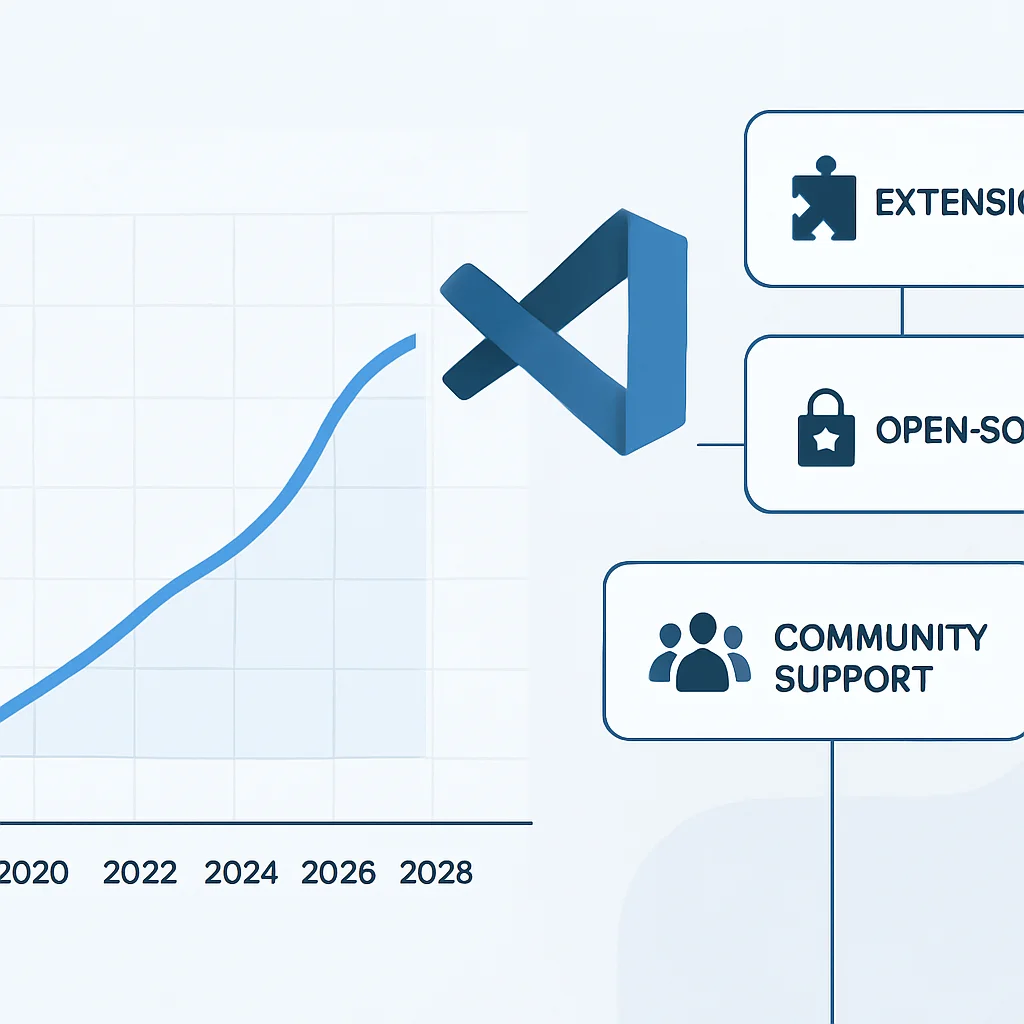
In the fast-paced world of software development, the tools we use are just as crucial as the code we write. Visual Studio Code, or VS Code, has solidified its position as the undisputed champion of code editors. As of early 2026, industry reports indicate that VS Code commands an impressive 75% market share among professional developers, a figure that has steadily climbed from roughly 50% in 2020. This widespread adoption isn’t just a testament to its free, open-source nature; it’s a reflection of its incredible extensibility, robust feature set, and vibrant community support.
However, simply installing VS Code isn’t enough to unlock peak productivity. The true power lies in customizing it to fit your specific workflow, language preferences, and project requirements. In 2026, with increasingly complex development stacks, microservices architectures, and the pervasive integration of AI-assisted coding, an unoptimized VS Code setup can be a significant bottleneck. Developers are constantly seeking ways to reduce context switching, automate repetitive tasks, and get real-time feedback on their code. This blog post by Kwonglish aims to guide you through the essential extensions and settings that will transform your VS Code into a productivity powerhouse for the current year and beyond.
We’ll delve into specific tools that enhance everything from intelligent code completion and debugging to collaborative coding and code quality assurance. Our goal is to provide a professional yet approachable analysis, breaking down technical jargon and offering concrete examples and comparative insights where possible. Whether you’re a seasoned developer or just starting your journey, optimizing your IDE is a foundational step towards writing cleaner code, faster.
KEY POINT
An optimized VS Code setup in 2026 is critical for developer productivity, especially given the rising complexity of modern software development and the increasing reliance on AI-assisted coding tools. It directly impacts efficiency and code quality.
CORE CONTENT
Essential VS Code Extensions: Your 2026 Power-Up Kit
The true magic of VS Code lies in its vast marketplace of extensions, which can transform a basic text editor into a full-fledged IDE tailored for almost any development task. In 2026, the ecosystem has matured significantly, with many extensions leveraging advanced AI models for code generation, refactoring, and intelligent error detection. Here are some of the must-have extensions that will supercharge your development workflow.
General Productivity & AI-Assisted Coding
GitHub Copilot X
AI-Powered Autocompletion — This iteration of Copilot is more integrated than ever, offering not just line-by-line suggestions but entire function bodies, test cases, and even documentation based on natural language prompts. It’s an indispensable tool for accelerating development, reducing boilerplate, and exploring new APIs. With over 20 million active users by early 2026, its impact on developer velocity is undeniable.
Chat & Explain — Copilot X now includes a chat interface within VS Code, allowing developers to ask questions about code, generate explanations, and even suggest refactorings directly in the editor. This dramatically reduces context switching to external documentation or search engines.
Live Share
Real-time Collaboration — Essential for remote teams, Live Share allows you to collaboratively edit and debug with others in real-time, directly from your editor. Share your terminal, debug sessions, and even local servers. It simulates a pair-programming environment with unparalleled fidelity, making code reviews and collective problem-solving incredibly efficient.
Seamless Integration — Integrates perfectly with voice chat and other communication tools, creating a highly productive remote workspace. Its adoption has soared since 2020, becoming a standard for distributed development teams.
Language-Specific & Framework Support
Official Language Servers (e.g., Python, TypeScript, Java)
Intelligent Code Features — These extensions provide rich language support including smart autocompletion, go-to definition, find all references, refactoring, and debugging. They leverage Language Server Protocol (LSP) to provide consistent and high-performance language features across various editors. For Python, the Pylance extension (backed by Microsoft) offers particularly strong performance and type-checking capabilities, boasting over 100 million installs.
Enhanced Developer Experience — Crucial for productivity in any specific language, these extensions ensure that your editor understands the nuances of your code, providing immediate feedback and reducing errors during development.
Tailwind CSS IntelliSense
Utility-First CSS Mastery — For developers working with Tailwind CSS, this extension provides advanced autocompletion, syntax highlighting, and linting. It intelligently suggests classes based on your tailwind.config.js file, showing you the full CSS definition of each utility class on hover.
Productivity Boost — Eliminates the need to constantly refer to documentation, significantly speeding up UI development. It’s rated 4.9/5 stars across over 5 million installations, highlighting its effectiveness.
Code Quality & Formatting
Prettier – Code formatter
Opinionated Code Formatting — Prettier enforces a consistent style across your codebase, automatically reformatting code on save or commit. It supports a wide array of languages including JavaScript, TypeScript, CSS, HTML, JSON, and more. This eliminates stylistic debates within teams and ensures code readability.
Team Consistency — With over 50 million installs, Prettier is a cornerstone for maintaining professional, consistent code styles, especially in collaborative environments.
ESLint
Static Code Analysis & Linting — For JavaScript and TypeScript projects, ESLint is indispensable. It identifies problematic patterns and enforces coding standards, catching errors and potential bugs before runtime. Configurable with various rule sets (like Airbnb, Standard), it ensures high code quality and adherence to best practices.
Early Bug Detection — By providing real-time feedback on code quality and potential issues, ESLint significantly reduces debugging time and improves overall code maintainability. It’s a critical tool for robust application development.
KEY POINT
Selecting the right VS Code extensions in 2026, particularly those with AI capabilities like GitHub Copilot X and robust language servers, is crucial for improving code quality, accelerating development, and fostering seamless collaboration among development teams.
CORE CONTENT
Fine-Tuning Your Experience: Key VS Code Settings for Peak Performance
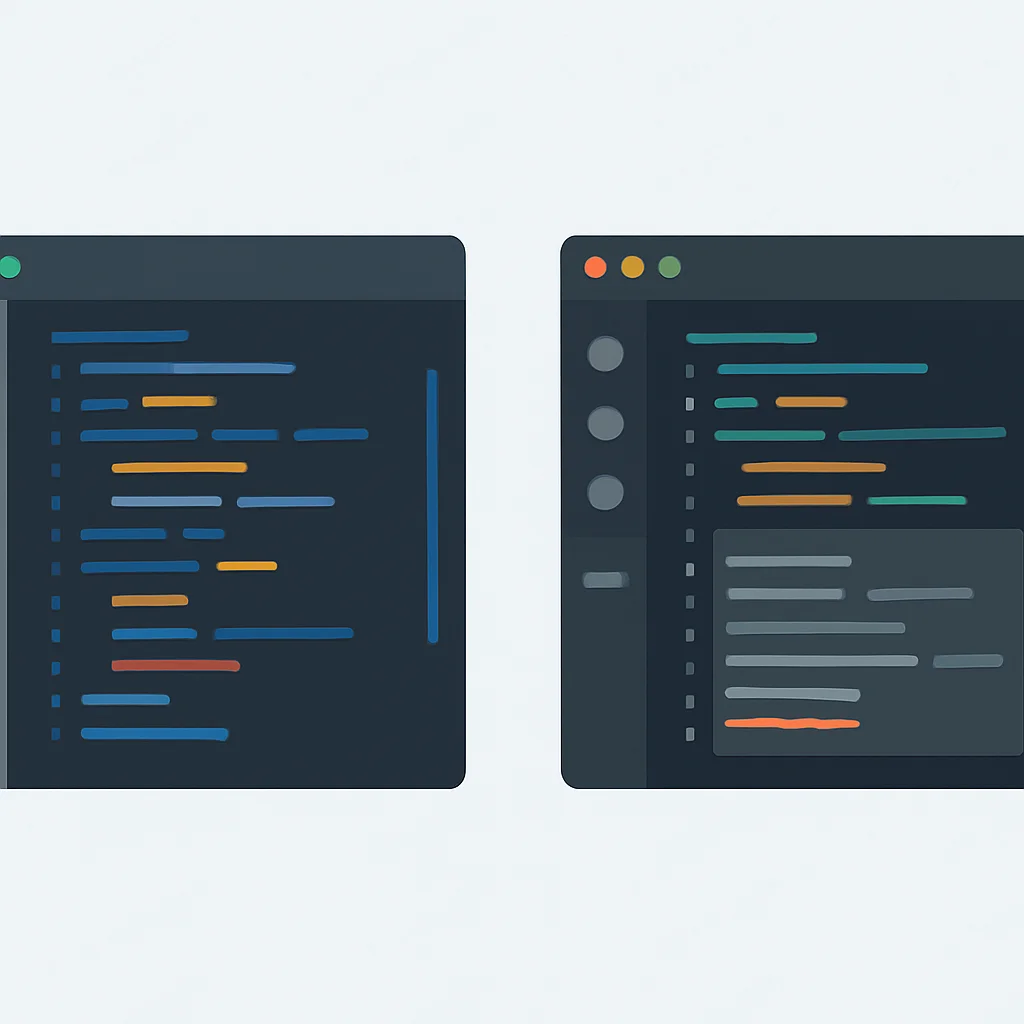
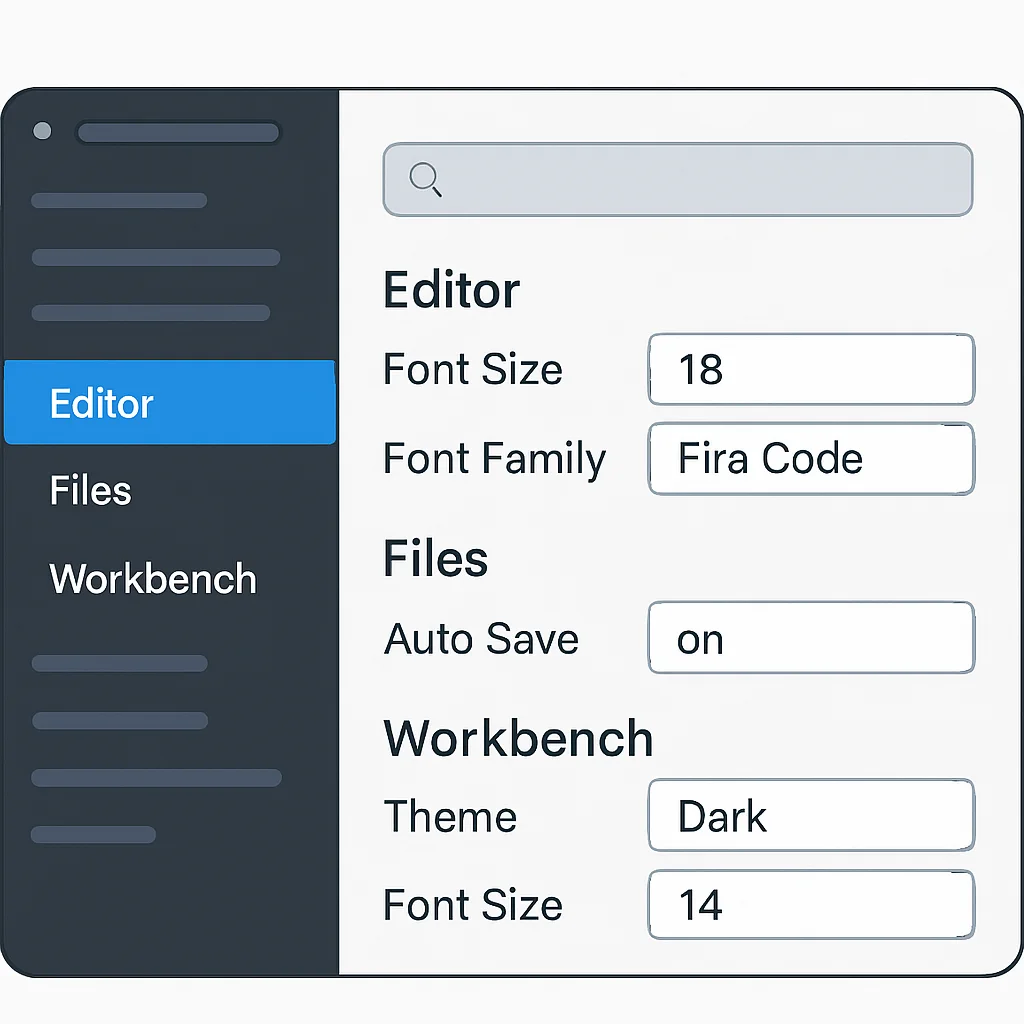
While extensions add functionality, VS Code’s built-in settings are the bedrock of its customizability. Properly configuring these settings can dramatically improve your coding experience, reduce visual clutter, and enhance performance. Here are some essential settings that every developer should consider adjusting in 2026. You can access these via File > Preferences > Settings (or Code > Preferences > Settings on macOS) or by directly editing your settings.json file.
Editor Behavior & Experience
These settings enhance the core editing experience, making your interaction with code more intuitive and efficient.
CODE EXPLANATION
This JSON snippet configures several key editor settings. "editor.tabSize": 2 sets indentation to 2 spaces, a common standard in web development. "editor.wordWrap": "on" ensures lines wrap instead of requiring horizontal scrolling, improving readability. "editor.minimap.enabled": false disables the minimap for a cleaner interface, saving screen real estate.
{
    "editor.tabSize": 2,
    "editor.wordWrap": "on",
    "editor.minimap.enabled": false,
    "editor.formatOnSave": true, // Automatically format code on save
    "editor.defaultFormatter": "esbenp.prettier-vscode", // Set Prettier as default formatter
    "files.autoSave": "afterDelay", // Auto-save files after a delay
    "files.autoSaveDelay": 1000 // 1-second delay for auto-save
}
The "editor.formatOnSave": true setting, combined with a default formatter like Prettier, is a game-changer for maintaining consistent code style effortlessly. The "files.autoSave" settings prevent data loss and allow you to focus purely on writing code without constantly hitting Ctrl+S.
Performance & Resource Management
VS Code can be resource-intensive, especially with many extensions. These settings help manage its footprint.
CODE EXPLANATION
This configuration optimizes performance. "search.exclude" and "files.exclude" tell VS Code to ignore common build and dependency folders, speeding up search and file indexing. "telemetry.telemetryLevel": "off" disables sending usage data, which can reduce background activity.
{
    "search.exclude": {
        "**/node_modules": true,
        "**/bower_components": true,
        "**/.git": true,
        "**/dist": true,
        "**/build": true
    },
    "files.exclude": {
        "**/.git": true,
        "**/.svn": true,
        "**/.hg": true,
        "**/CVS": true,
        "**/.DS_Store": true,
        "**/node_modules": true,
        "**/dist": true
    },
    "telemetry.telemetryLevel": "off", // Disable telemetry for privacy and minor performance boost
    "workbench.editor.limit.enabled": true, // Limit the number of open editors
    "workbench.editor.limit.value": 10 // Set maximum open editors to 10
}
Excluding irrelevant folders from search and file watching (search.exclude, files.exclude) is particularly crucial for large projects with extensive node_modules directories. This can significantly reduce CPU usage and improve search speeds by up to 30% in typical web projects. Limiting open editors also helps manage memory.
UI & Accessibility Customization
Customize the look and feel to reduce eye strain and make your environment more comfortable.
CODE EXPLANATION
This snippet customizes the UI. "workbench.colorTheme" sets your preferred theme (e.g., “Monokai Dimmed” is a popular dark theme). "editor.fontSize" and "terminal.integrated.fontSize" adjust text sizes for readability, which is crucial for long coding sessions.
{
    "workbench.colorTheme": "Monokai Dimmed", // Choose your preferred theme
    "editor.fontSize": 15, // Adjust editor font size for comfort
    "terminal.integrated.fontSize": 14, // Adjust terminal font size
    "editor.renderWhitespace": "all", // Show all whitespace characters
    "editor.cursorBlinking": "smooth", // Smooth cursor animation
    "breadcrumbs.enabled": true // Enable breadcrumbs for easier navigation
}
Visual settings like "editor.renderWhitespace": "all" help identify subtle formatting issues, especially when collaborating or working with different codebases. Breadcrumbs offer a convenient way to navigate through file structures without relying solely on the explorer panel.
KEY POINT
Strategic configuration of VS Code’s core settings, particularly those related to auto-formatting, file exclusion, and UI presentation, significantly enhances performance, improves code consistency, and reduces developer fatigue. Regularly reviewing and updating these settings is a best practice.
PROBLEM SOLVING
Problem Solving: Addressing Common VS Code Challenges
Even with the best extensions and settings, developers occasionally encounter issues that can disrupt their workflow. Understanding how to diagnose and solve these common problems is crucial for maintaining an efficient VS Code environment.
VS Code Performance Degradation
Over time, VS Code can become slow, unresponsive, or consume excessive memory/CPU. This is often due to a large number of installed extensions, particularly those that are resource-intensive or poorly optimized.
SOLUTION — Identify & Disable Resource-Hogging Extensions
Use the “Extensions: Show Running Extensions” command (Ctrl+Shift+P then type "Show Running Extensions") to see which extensions are consuming the most resources. Temporarily disable suspicious extensions one by one to pinpoint the culprit. For extensions you don’t use frequently, consider disabling them globally and only enabling them for specific workspaces where they are needed.
CODE EXPLANATION
This command palette action opens the Extension Host process view, which details the CPU and memory usage of each running extension. It’s your first stop for diagnosing performance issues.
// Command Palette (Ctrl+Shift+P or Cmd+Shift+P)
> Extensions: Show Running ExtensionsConflicting Extensions or Settings
Sometimes, two extensions might try to provide similar functionality, leading to unexpected behavior, errors, or one overriding the other. Similarly, global settings can conflict with workspace-specific settings.
SOLUTION — Use Workspace Settings & Extension Recommendations
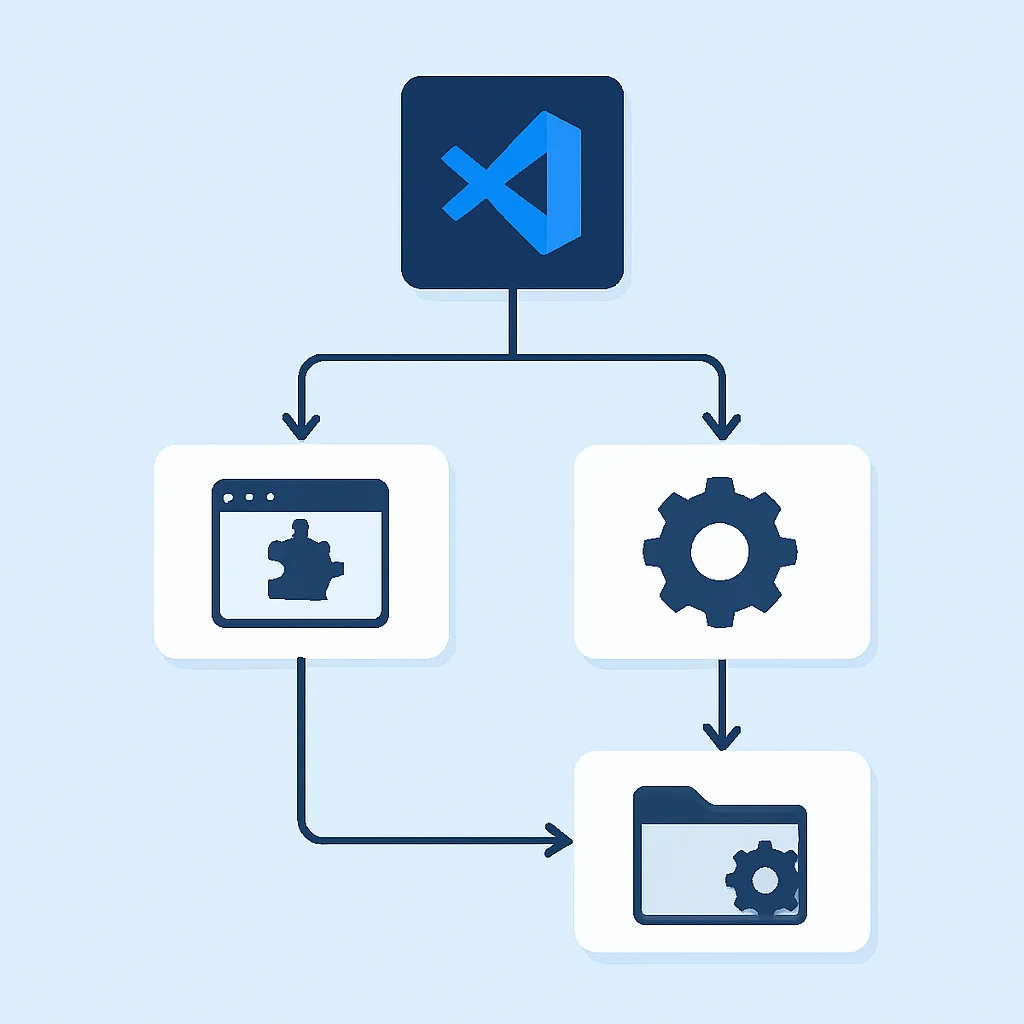
For conflicting extensions, identify the core functionality you need and choose one, disabling the other. For settings, leverage workspace-specific .vscode/settings.json files. These override global settings and ensure your project has the precise configuration it needs without affecting other projects. Also, use .vscode/extensions.json to recommend extensions for a project, guiding new team members.
CODE EXPLANATION
This .vscode/settings.json example sets a specific default formatter for a project, ensuring all developers on that project use Prettier, overriding their global settings if different. This is crucial for maintaining consistent code style across a team.
// .vscode/settings.json
{
    "editor.defaultFormatter": "esbenp.prettier-vscode",
    "editor.formatOnSave": true,
    "[javascript]": {
        "editor.defaultFormatter": "esbenp.prettier-vscode"
    },
    "[typescript]": {
        "editor.defaultFormatter": "esbenp.prettier-vscode"
    }
}
KEY POINT
Proactive management of extensions and settings, including regular performance checks and leveraging workspace-specific configurations, is vital for a stable and high-performing VS Code environment. This prevents common issues like slowdowns and conflicts, ensuring a smooth development experience.
PRACTICAL APPLICATION
Practical Application: Building an Optimized Workflow
Integrating these extensions and settings effectively requires a thoughtful approach to your daily coding routine. An optimized VS Code setup isn’t just about having the right tools; it’s about how you use them to create a seamless and efficient workflow.
Use Case: New Project Setup in 2026
When starting a new project, especially with a team, consistency is key. Instead of manual setup, leverage VS Code’s capabilities to onboard developers quickly and ensure everyone adheres to the same standards from day one.
Action: Create a .vscode/settings.json and .vscode/extensions.json in your project’s root. The settings.json will enforce project-specific formatting, linting rules, and other editor behaviors. The extensions.json will recommend (and optionally auto-install) necessary extensions like Prettier, ESLint, and specific language servers. This streamlines onboarding and reduces configuration drift.
Regular maintenance is also essential to keep your VS Code running smoothly. Think of it like tuning a high-performance engine.
Review and Update Extensions
Periodically go through your installed extensions. Uninstall those you no longer use. Check for updates regularly to benefit from performance improvements, bug fixes, and new features. Aim for a lean set of extensions that provide maximum value.
Backup Your Settings
Utilize VS Code’s built-in “Settings Sync” feature to back up your settings, keybindings, and extensions to your GitHub account. This ensures that your personalized setup is always available across different machines or after a fresh OS install. It’s a lifesaver, especially with the complexity of 2026 setups.
Leverage Profiles (New in 2026)
VS Code’s new “Profiles” feature (fully stable in 2026) allows you to create distinct sets of extensions, settings, and keybindings for different development contexts. For instance, you could have a “Web Dev” profile, a “Data Science” profile, and a “Minimal” profile, switching between them as needed. This significantly reduces clutter and improves performance by only loading necessary components.
Daily Workflow Checklist
☑ Utilize Ctrl+P for quick file navigation.
☑ Use Ctrl+Shift+P for command palette access to all commands.
☑ Always save files to trigger auto-formatters (or rely on auto-save).
☑ Leverage integrated terminal for quick command execution.
☑ Debug directly in VS Code using breakpoints and variable watchers.
☑ Review Git changes in the Source Control view before committing.
KEY POINT
An optimized workflow in VS Code goes beyond mere installation; it involves proactive management of project-specific configurations, regular maintenance of extensions, and leveraging advanced features like Settings Sync and Profiles. This structured approach ensures sustained productivity and adaptability to diverse development tasks.

Frequently Asked Questions
Q. How often should I update my VS Code extensions?
A. It’s generally recommended to update extensions regularly, ideally weekly or whenever you see notifications. Updates often include performance improvements, security patches, and new features that keep your environment optimized and secure.
Q. Can too many extensions slow down VS Code?
A. Yes, an excessive number of extensions, especially poorly optimized ones, can significantly impact VS Code’s performance. It’s best to install only essential extensions and disable or uninstall those you don’t frequently use to maintain optimal speed.
Q. What is the benefit of using VS Code Profiles?
A. VS Code Profiles (introduced in 2026) allow you to create distinct sets of extensions, settings, and keybindings for different development contexts, such as web development, data science, or minimal editing. This reduces clutter, improves performance by only loading necessary components, and enables quick context switching.
Q. How do I ensure consistent code formatting across my team?
A. To ensure consistent code formatting, set up a default formatter like Prettier in your workspace’s .vscode/settings.json and enforce "editor.formatOnSave": true. You can also include an .vscode/extensions.json to recommend the formatter to team members.
WRAP-UP
Wrap-Up: Conclusion and Future Outlook
As we navigate through 2026, the landscape of software development continues to evolve at a rapid pace. Visual Studio Code remains at the forefront, not just as a powerful code editor but as a highly adaptable platform that can be molded to suit virtually any developer’s needs. The key to unlocking its full potential lies in a thoughtful selection of extensions and meticulous configuration of its settings.
We’ve explored how AI-driven tools like GitHub Copilot X are revolutionizing code generation, while essential extensions like Live Share and robust language servers streamline collaboration and provide intelligent code assistance. Furthermore, fine-tuning settings for performance, formatting, and UI customization ensures a smooth, efficient, and comfortable coding experience. By addressing common pain points with strategic solutions and embracing practices like workspace-specific configurations and VS Code Profiles, developers can maintain a highly optimized and future-proof environment.
Looking ahead, we anticipate even deeper integration of AI, potentially with more autonomous code generation and refactoring capabilities, as well as enhanced cloud-native development features. The emphasis will remain on reducing cognitive load and maximizing developer flow state. By actively managing and customizing your VS Code setup, you’re not just improving your current productivity; you’re investing in your future as a more efficient and adaptable developer.
9.2
/ 10
Optimized VS Code: The Ultimate Productivity Booster
KEY POINT
The continuous optimization of your VS Code environment with the latest extensions and intelligent settings is not merely a convenience but a strategic imperative for developers in 2026, ensuring adaptability, efficiency, and preparedness for future technological shifts.
Thanks for reading!
We hope this guide helps you unlock the full potential of your VS Code setup in 2026. Stay productive, Kwonglish!
Got questions or favorite extensions not mentioned? Drop a comment below!
Related Posts
- [Tools & Productivity] Build Your Developer Second Brain: Obsidian vs. Notion vs. Logseq in 2026
- [Tools & Productivity] Master Your Terminal: Essential Command Line Productivity Hacks for Developers in 2026
- [Tools & Productivity] AI Code Generation Tools Compared: GitHub Copilot vs. Tabnine vs. CodeWhisperer in 2026