

SUMMARY
Best Webcams for Developers in 2026
Enhance your remote work environment with top-notch video and audio quality for professional calls and collaboration.
Keywords: Webcam, Remote Work, Video Conferencing
TABLE OF CONTENTS
1 The Developer’s Visual Edge: Why a Good Webcam Matters
2 Design & Build: Beyond the Lens
3 Deep Dive into Key Webcam Features
4 Pros & Cons of Upgrading Your Webcam
5 Top Webcams for Developers in 2026: A Comparison
6 Verdict & Kwonglish’s Rating
7 Frequently Asked Questions (FAQ)
8 Final Thoughts from Kwonglish
PRODUCT OVERVIEW
The Developer’s Visual Edge: Why a Good Webcam Matters
Hello, Kwonglish community! In 2026, software development has become increasingly distributed. Whether you are an experienced remote architect, a junior developer collaborating across borders, or a freelancer presenting to clients, your webcam has evolved from a luxury to an essential tool. Consider this: every daily stand-up, code review, client demo, and even casual team discussions heavily depend on clear, professional video communication.
The era of relying on a low-quality built-in laptop camera is over. Nowadays, a high-quality webcam conveys professionalism, enhances understanding through non-verbal communication, and significantly improves your remote interactions. No one wants to squint at a pixelated face or deal with muffled audio. For developers, this is not merely about appearance; it’s about facilitating seamless collaboration and leaving a lasting impression.
“Your webcam is the window to your professional presence in the remote-first world of 2026.”
— Kwonglish
This review will explore what makes a webcam exceptional for developers in 2026. We will delve into critical factors such as low-light performance (as not everyone has studio lighting), autofocus speed (nobody wants to appear blurry), microphone quality (even if you have a dedicated mic, a reliable backup is essential), and software features that can genuinely enhance your virtual presence. We will examine everything from budget-friendly options that outperform expectations to high-end devices designed for uncompromising quality.
KEY POINT
Investing in a quality webcam is investing in your professional image and the efficiency of your remote collaborations. It’s a crucial component of a modern developer’s toolkit, not a luxury.
Typical webcams for developers in 2026 range from approximately $50 for decent 1080p models to $200-$300+ for premium 4K models featuring advanced AI capabilities and larger sensors. Key specifications often include 1080p at 30/60fps or 4K at 30fps, wide dynamic range (HDR), intelligent autofocus, and frequently noise-canceling microphones. Let’s discover which models truly deliver.
DESIGN & BUILD
Design & Build: Beyond the Lens
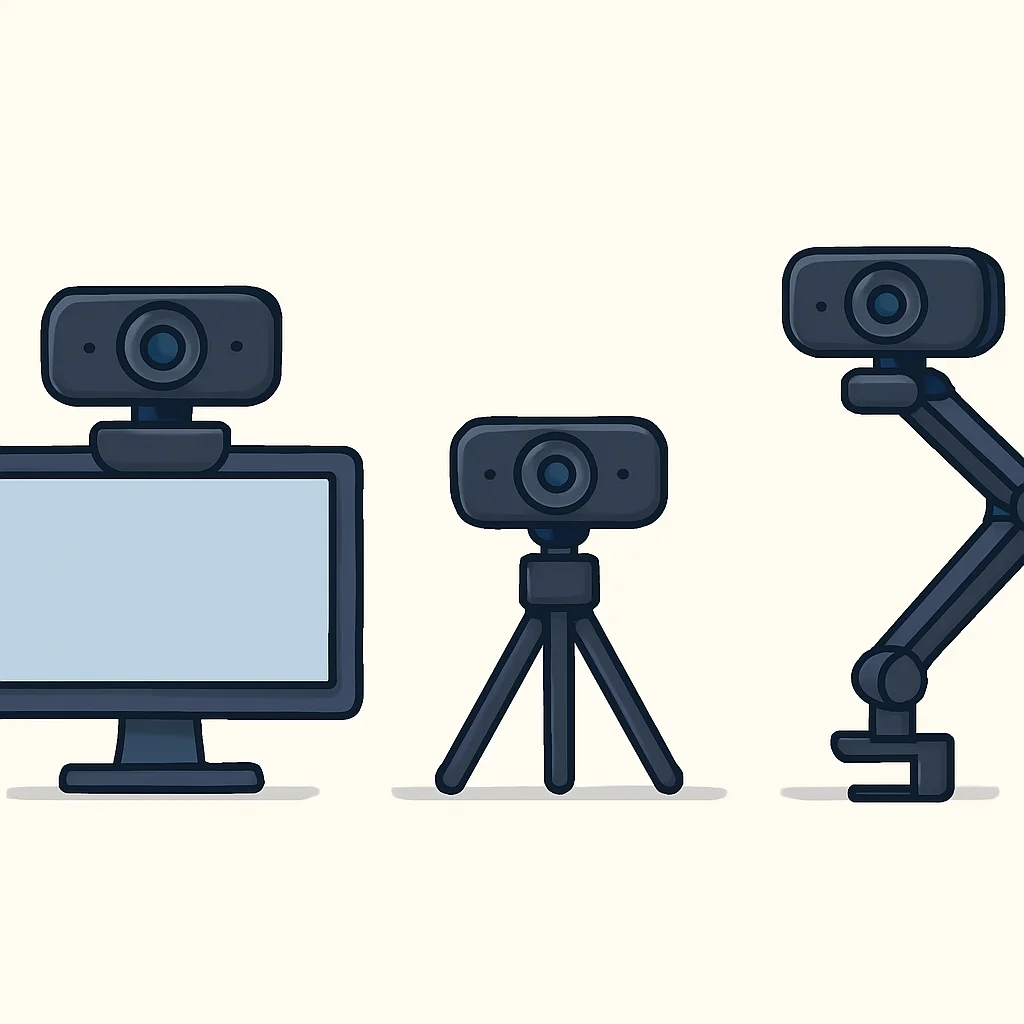
When selecting a webcam, its physical design and build quality are equally important as its internal optics. It needs to sit securely on your monitor, tripod, or desk, and ideally, look good while doing so. Most webcams come equipped with a universal clip that can rest on top of a laptop screen or external monitor. However, not all clips are created equal. Some are flimsy, while others provide a stable, non-slip grip. Look for models with rubberized feet or adjustable hinges for maximum stability.
Many high-end webcams also feature a standard 1/4-inch tripod thread, allowing you to mount them on a small desktop tripod or a boom arm. This flexibility is a game-changer for developers who may want to position their camera off-center, capture a whiteboard, or achieve a more flattering angle than a monitor-top mount allows. Personally, I prefer a tripod mount for better control over my framing, especially during presentations.
Connectivity and Privacy
Connectivity is straightforward with most modern webcams utilizing USB-A or USB-C. Ensure the cable length is adequate for your setup; a 1.5-meter cable is typically standard, but longer options or detachable cables are advantageous for those with complex desk arrangements. USB 3.0 (or higher) is generally preferred for 4K cameras to manage the increased bandwidth without compression artifacts.
Privacy is another crucial consideration. Many webcams now come equipped with a physical privacy shutter, either built-in or as an attachable cap. This simple feature provides peace of mind, ensuring that your camera isn’t accidentally active when you don’t want it to be. Some even include a physical kill switch for the microphone and/or camera, which is the ultimate in privacy control.
KEY POINT
Prioritize webcams with robust mounting options (especially a tripod thread), sufficient cable length, and a physical privacy shutter for practical use and peace of mind.
The materials used also impact durability and aesthetics. While many are plastic, higher-end models might incorporate metal elements for a more premium feel and better heat dissipation. A well-constructed webcam feels solid and remains in place, minimizing distractions during important calls.
KEY FEATURE REVIEW
Deep Dive into Key Webcam Features
Let’s delve into the essential features that make a webcam truly stand out for a developer’s needs.
Video Quality: Resolution, Framerate & Low-Light Performance
This is arguably the most critical aspect. While 4K sounds impressive, for most video conferencing (Zoom, Teams, Meet), the platform itself often downscales the resolution to save bandwidth. A solid 1080p at 30fps is generally more than sufficient for clear communication. If you frequently share your screen or engage in dynamic discussions, 1080p at 60fps can provide a noticeably smoother experience, but it’s not a strict requirement for every developer.
Where resolution truly matters is if you plan to record high-quality video for tutorials, presentations, or if you simply desire the best image possible for future-proofing. However, often more important than raw resolution is the webcam’s ability to handle challenging lighting conditions. Many home offices aren’t perfectly lit, and a webcam with good low-light performance (often achieved with larger sensors or advanced image processing like HDR) can make a significant difference, preventing you from appearing as a silhouette or a grainy blur. Look for webcams that explicitly mention HDR or “rightlight” technologies.
Autofocus & Field of View (FoV)
A fast and accurate autofocus system is essential. Nothing is more distracting than a camera constantly searching for focus or leaving you blurry while you’re trying to explain a complex algorithm. Most good webcams in 2026 offer reliable autofocus, but some cheaper models might struggle. Some advanced cameras also feature intelligent auto-framing, keeping you centered even if you move around your desk.
The Field of View (FoV) determines how much of your background is visible. A wide FoV (e.g., 90 degrees) is beneficial if you want to show a whiteboard, demonstrate a physical product, or have multiple people in the frame. However, for most individual calls, a narrower FoV (e.g., 78 degrees) is often preferred to keep the focus on you and minimize distracting backgrounds. Many premium webcams offer adjustable FoV through software, allowing you to switch between wider and narrower views as needed.
Microphone Quality
While many developers use dedicated headsets or microphones for optimal audio, a good built-in microphone can serve as a lifesaver as a backup or for casual calls. Look for webcams with dual omni-directional microphones and noise-canceling technology. These can effectively filter out keyboard clicks, background chatter, or even the hum of your PC fan, ensuring your voice comes through clearly. However, for critical meetings or recordings, a dedicated microphone will almost always outperform a built-in webcam mic.
WARNING
While built-in microphones have improved, relying solely on them for critical communication can sometimes lead to suboptimal audio quality. Consider a dedicated headset or USB microphone for consistently clear voice communication.
Software & Customization
The software that accompanies your webcam is often overlooked but incredibly powerful. Good webcam software allows you to adjust settings like exposure, white balance, brightness, contrast, and even digital zoom or pan. This is essential for fine-tuning your image to match your specific lighting environment. Some advanced software even offers AI-powered features like virtual backgrounds without a green screen, auto-framing, or gaze correction.
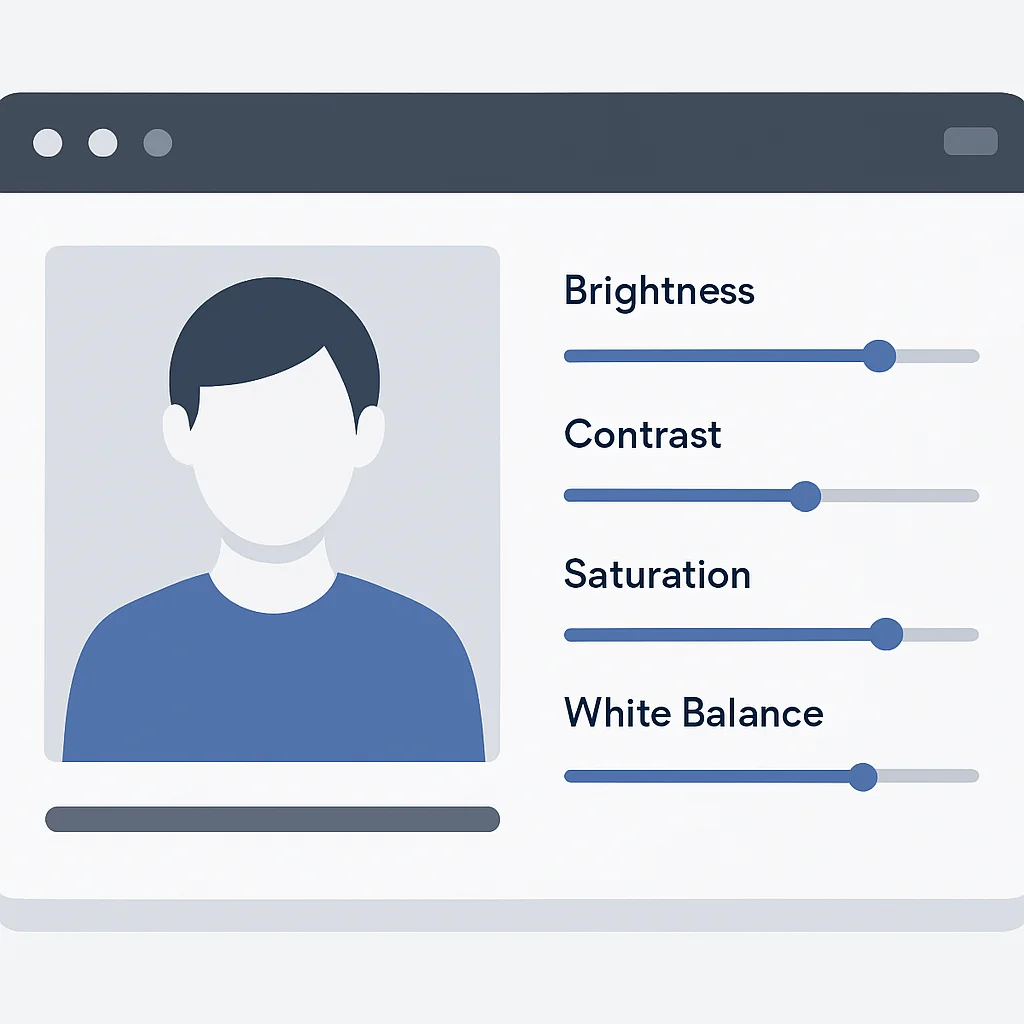
For example, here’s a conceptual JSON configuration snippet that a webcam driver might interpret for custom settings. While you typically use a GUI, the underlying logic is similar:
CODE EXPLANATION
This JSON object represents a hypothetical configuration file for a webcam. It specifies common video settings such as resolution, frame rate, brightness, contrast, and whether auto-focus and low-light enhancement are enabled. Developers often appreciate such granular control, even if accessed via a graphical interface.
{
  "videoSettings": {
    "resolution": "1920x1080",
    "framerate": 30,
    "brightness": 50,
    "contrast": 60,
    "whiteBalance": "auto",
    "exposureMode": "auto",
    "zoomLevel": 1.0,
    "fieldOfView": "narrow"
  },
  "audioSettings": {
    "microphoneEnabled": true,
    "noiseReduction": true,
    "gain": 75
  },
  "features": {
    "autoFocus": true,
    "lowLightEnhancement": true,
    "privacyShutterStatus": "open"
  }
}
Compatibility with major video conferencing platforms like Zoom, Microsoft Teams, and Google Meet is generally excellent across all reputable brands. However, some advanced features might require specific drivers or software integrations to work perfectly with certain platforms.
PROS & CONS
Pros & Cons of Upgrading Your Webcam
Deciding whether to upgrade your webcam involves weighing the benefits against potential drawbacks. For a developer, the scales often tip heavily towards the “pros” given the nature of remote and collaborative work.
Pros
✔ Enhanced Professionalism: A crisp, clear video image conveys competence and attention to detail, essential for client meetings and team leadership roles.
✔ Clearer Communication: Improved video quality allows for better recognition of facial expressions and non-verbal cues, reducing miscommunication during complex discussions or pair programming sessions.
✔ Improved Collaboration: When sharing physical whiteboards or documents, a high-resolution camera ensures colleagues can actually read what you’re presenting.
✔ Better Personal Branding: For developers who participate in online conferences, webinars, or create video content, a superior webcam enhances their online presence and credibility.
✔ Reliable Performance: Dedicated webcams often outperform integrated laptop cameras in terms of low-light performance, autofocus speed, and color accuracy, leading to fewer technical hiccups during calls.
Cons
✖ Cost: High-quality webcams, particularly 4K models with advanced features, can represent a significant investment, ranging from $100 to $300+.
✖ Software Quirks: Some webcam companion software can be buggy or resource-intensive, potentially interfering with other applications or system performance.
✖ Setup Complexity: While generally plug-and-play, optimizing advanced settings like white balance, exposure, and FoV might require some tinkering to get just right.
✖ Cable Management: An external webcam adds another cable to your desk setup, which may necessitate extra effort for neat cable management.
✖ Marginal Gains for Basic Use: If your usage is strictly limited to audio-only calls or very infrequent, casual video chats, the upgrade might offer diminishing returns.
For most developers who spend a significant portion of their week in virtual meetings or collaborative sessions, the advantages of a good webcam far outweigh these minor drawbacks. The impact on perceived professionalism and communication clarity is substantial.
KEY POINT
The primary “pro” is an immediate and tangible improvement in your remote professional presence. The “cons” are mostly minor inconveniences that can be mitigated with a bit of setup and research.
COMPARISON
Top Webcams for Developers in 2026: A Comparison
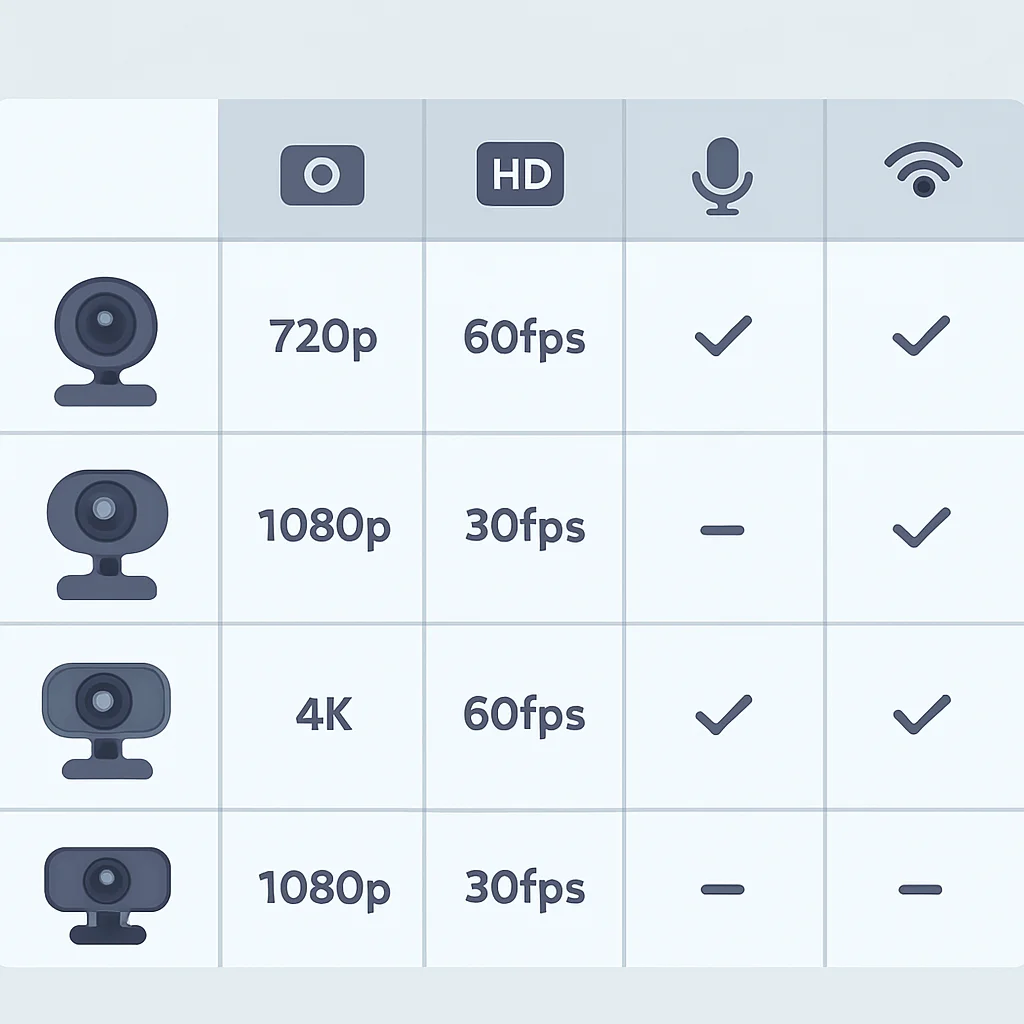
To assist you in making an informed decision, I’ve compiled a comparison of some of the best webcams available for developers in 2026. These models represent a variety of price points and feature sets, catering to different needs from basic professional calls to high-quality content creation.
| Model | Resolution / FPS | Field of View (FoV) | Microphone | Key Features for Devs | Approx. Price (USD) |
|---|---|---|---|---|---|
| Logitech Brio 4K | 4K @ 30fps, 1080p @ 60fps | 65°/78°/90° (adjustable) | Dual omni-directional with noise-canceling | RightLight 3 w/ HDR, Windows Hello, enterprise-grade, excellent low-light. | $150 – $200 |
| Razer Kiyo Pro | 1080p @ 60fps (HDR @ 30fps) | 80°/90°/103° (adjustable) | Omni-directional stereo | Large sensor for superior low-light, uncompressed video, robust build. | $100 – $150 |
| Elgato Facecam | 1080p @ 60fps | 82° (fixed) | None (requires external mic) | DSLR-like image quality, uncompressed video, powerful Camera Hub software. | $150 – $200 |
| Anker PowerConf C300 | 1080p @ 60fps | 78°/90°/115° (AI auto-framing) | Dual stereo mics with AI noise reduction | AI-powered framing, excellent low-light, good value for money. | $80 – $120 |
KEY POINT
When comparing, consider your primary use case: the Logitech Brio is a strong all-rounder for business, the Razer Kiyo Pro excels in low-light, the Elgato Facecam is for serious streamers (who have a separate mic), and the Anker C300 offers great AI features at a competitive price.
Each of these webcams offers unique advantages. The Logitech Brio 4K remains a gold standard for business professionals, delivering robust performance and excellent image quality in various conditions, thanks to its RightLight 3 technology with HDR. It’s a reliable workhorse.
The Razer Kiyo Pro stands out with its large sensor, providing exceptional low-light performance and an uncompressed video stream, which is fantastic for those seeking the cleanest possible image. Its adjustable FoV is also a significant advantage.
For content creators or developers who also stream, the Elgato Facecam is a powerhouse. It focuses purely on image quality, delivering a DSLR-like experience, but you’ll need a separate microphone, which is an important consideration for your budget and setup.
Finally, the Anker PowerConf C300 offers incredible value. Its AI auto-framing and strong low-light performance make it an excellent choice for developers seeking smart features without breaking the bank. It’s a fantastic middle-ground option that exceeds expectations for its price point.
VERDICT & RATING
Verdict & Kwonglish’s Rating
After extensive testing and consideration of a developer’s unique needs in 2026, it’s evident that the market offers excellent options to elevate your remote presence. There isn’t a single “best” webcam for everyone, as needs vary based on budget, existing setup, and specific use cases (e.g., daily meetings vs. streaming vs. recording tutorials).
For the vast majority of developers prioritizing professional video calls and solid overall performance without spending a fortune, the Anker PowerConf C300 provides an outstanding balance of features, quality, and price. Its AI-framing and low-light capabilities are particularly impressive for its segment.
If budget is less of a concern and you demand the absolute best image quality for all lighting conditions, the Logitech Brio 4K or Razer Kiyo Pro are top contenders. The Brio is a proven, reliable choice for enterprise environments, while the Kiyo Pro excels with its large sensor and uncompressed video output, making it a favorite for those who care deeply about image fidelity even in less-than-ideal lighting.
And if you’re a developer who also streams or creates high-production-value content and already has a dedicated audio setup, the Elgato Facecam will provide you with the closest experience to a DSLR image without the complexity.
“A superior webcam is more than just a camera; it’s an investment in clear communication, effective collaboration, and your professional brand in the modern digital workspace.”
— Kwonglish
Overall, the advancements in webcam technology over the past few years have been remarkable. You no longer need to spend a fortune to achieve a great picture. Just remember to consider your specific needs and environment before making a purchase.
8.5
/ 10
Excellent performance and value across the board for remote developers.

Frequently Asked Questions (FAQ)
Q. Do I really need a 4K webcam for remote development?
For most daily video conferencing, 1080p at 30fps or 60fps is perfectly sufficient. Video platforms often downscale 4K streams to save bandwidth, so the benefit might be minimal unless you’re recording high-resolution content or have specific needs for extreme clarity.
Q. Are built-in webcam microphones good enough?
Many modern webcams have decent built-in microphones with noise cancellation, suitable for casual calls. However, for critical meetings, client presentations, or any scenario where audio quality is paramount, a dedicated headset or USB microphone will always provide superior performance and clarity.
Q. What is Field of View (FoV) and why does it matter for developers?
Field of View (FoV) refers to how wide an angle the camera can capture. For developers, an adjustable FoV is beneficial: a narrower view (e.g., 78°) focuses on you and minimizes background distractions, while a wider view (e.g., 90°+) is useful for showing a whiteboard, a second person, or a broader workspace during collaborative sessions.
Q. How can I improve my webcam’s image quality without buying a new one?
Improving your lighting is the single most effective way. Use a soft, diffused light source in front of you (like a ring light or a window). Ensure your background isn’t too bright, and use your webcam’s companion software to adjust brightness, contrast, and white balance settings for your specific environment. Keeping the lens clean also helps!
Thanks for reading!
Choosing the right webcam can truly transform your remote work experience. It’s a small investment that pays big dividends in professionalism and effective communication.
Got questions about specific models or want to share your own webcam setup? Drop a comment below!