
GUIDE SUMMARY
Maximize Your FPS in 2026: The Ultimate PC Gaming Performance Guide
Are you struggling with frame rates? This guide provides essential settings, hardware tips, and software tweaks to enhance your PC gaming performance and achieve higher FPS in 2026.
Keywords: PC Gaming, FPS Boost, Performance Optimization
TABLE OF CONTENTS
1. The FPS Imperative: Why Every Frame Matters in 2026
2. Your Rig Check: Hardware Foundations for High FPS
3. Master Your Settings: In-Game Graphics Optimization
4. Beyond the Game: OS, Drivers, and Background Apps
5. Advanced Tweaks and Troubleshooting
6. The Kwonglish Verdict: Is the FPS Hunt Worth It?
7. Frequently Asked Questions
1. The FPS Imperative: Why Every Frame Matters in 2026
Hello, Kwonglish crew! Kwonglish here, and today we are diving deep into the holy grail of PC gaming: Frame Rate Per Second, or FPS. In 2026, with games pushing visual boundaries like never before, maintaining a silky-smooth experience isn’t just a luxury; it’s a necessity. Whether you’re battling it out in a competitive shooter, exploring vast open worlds, or immersing yourself in a narrative masterpiece, stuttering frame rates can shatter the illusion and even cost you the match.
Consider this: a high refresh rate monitor is useless if your GPU can’t push enough frames to keep up. A few years ago, 60 FPS was the golden standard. Now, with 144Hz, 240Hz, and even 360Hz displays becoming increasingly common, gamers are chasing those triple-digit frame counts. More frames mean more responsive input, smoother animations, and a clearer picture of what’s happening on screen. It gives you a competitive edge and a far more enjoyable gaming session.
KEY POINT
High FPS isn’t just about pretty visuals; it directly impacts responsiveness, input lag, and your overall competitive performance, making it crucial for a top-tier gaming experience in 2026.
This guide isn’t merely about turning down every setting to “low.” We’re going to strategically optimize your system, from hardware to software, to squeeze out every possible frame without sacrificing too much visual fidelity. We’ll cover everything from vital hardware considerations in 2026 to the nuanced dance of in-game graphics settings, and even deep dives into operating system tweaks and driver optimizations. Get ready to transform your gaming rig!

2. Your Rig Check: Hardware Foundations for High FPS
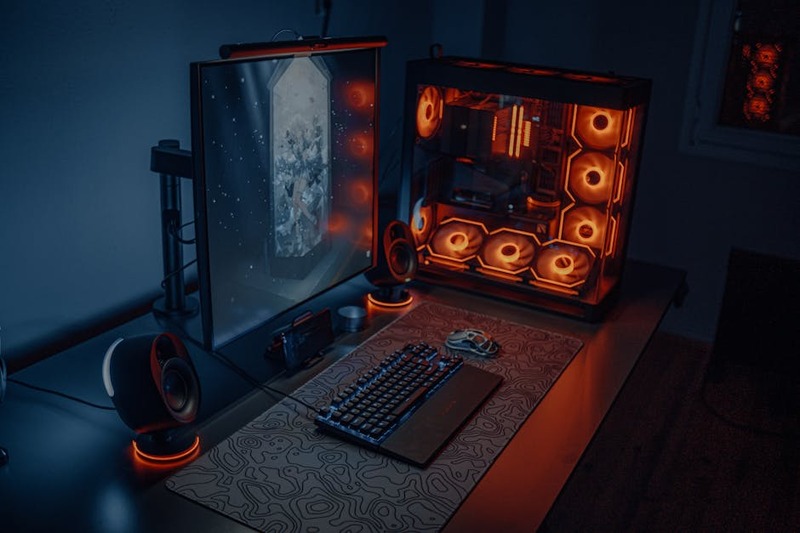
Before we even touch a single setting, let’s talk about the beating heart of your gaming experience: your hardware. In 2026, hardware has evolved significantly, and understanding its role is paramount to achieving those coveted high frame rates. You can tweak all you want, but if your components are bottlenecking, you’re fighting an uphill battle.
Graphics Card (GPU): The FPS Powerhouse
Your GPU is undoubtedly the single most important component for gaming FPS. In 2026, we’re seeing incredible advancements in GPU architecture, with dedicated AI cores for technologies like NVIDIA’s DLSS and AMD’s FSR becoming standard. These upscaling technologies are game-changers, rendering games at a lower internal resolution and then intelligently reconstructing them to your monitor’s native resolution, often with minimal visual compromise and significant FPS gains.
GPU Optimization Essentials
Latest Drivers — Always keep your GPU drivers updated. NVIDIA and AMD release Game Ready drivers frequently, often providing significant performance boosts for new titles.
VRAM — For 1440p and 4K gaming in 2026, aim for at least 12GB-16GB of VRAM. High-resolution textures and complex effects will quickly gobble up VRAM.
Cooling — Ensure your GPU has adequate cooling. Overheating can lead to thermal throttling, which drastically reduces performance.
Central Processing Unit (CPU): The Game’s Brain
While the GPU handles the bulk of graphics rendering, your CPU is responsible for everything else: game logic, AI, physics, draw calls, and preparing frames for the GPU. A weak CPU can bottleneck even the most powerful GPU. Modern games in 2026 are increasingly multithreaded, so CPUs with a high core count (6-8 cores being a sweet spot) are excellent, but strong single-core performance remains crucial for many titles.
KEY POINT
A balanced system is key. An ultra-powerful GPU paired with an older CPU can lead to a CPU bottleneck, where your graphics card is waiting for your processor, limiting your FPS.
Random Access Memory (RAM): The Game’s Short-Term Memory
RAM plays a critical role in storing game assets, textures, and other data that your CPU needs to access quickly. While 8GB was once sufficient, in 2026, 16GB of DDR4 or DDR5 RAM is the absolute minimum for a smooth gaming experience, especially with modern AAA titles and background applications. 32GB is increasingly becoming the recommended sweet spot for enthusiasts and those who multitask while gaming.
Beyond capacity, RAM speed (MHz) and timings (CL latency) also matter. Faster RAM can provide a noticeable FPS boost, particularly in CPU-bound scenarios. Always enable XMP (Extreme Memory Profile) or DOCP (D.O.C.P.) in your BIOS to ensure your RAM runs at its advertised speed.
Storage: NVMe SSDs are King
While storage doesn’t directly impact in-game FPS, it dramatically affects loading times and texture streaming. In 2026, NVMe SSDs (especially PCIe Gen4 and Gen5) are standard. If your games are still on a traditional HDD, upgrading to an NVMe SSD will provide a night-and-day difference in responsiveness and game loading. This is particularly important for games with large open worlds that stream assets dynamically.
3. Master Your Settings: In-Game Graphics Optimization
This is where the real magic happens! Diving into a game’s graphics settings menu can feel overwhelming, but understanding what each option does is crucial for balancing visual fidelity and performance. Let’s break down the most common and impactful settings.
Resolution and Upscaling Technologies (DLSS/FSR)
The easiest way to boost FPS is to lower your resolution, but who wants to do that? Fortunately, in 2026, NVIDIA’s DLSS (Deep Learning Super Sampling) and AMD’s FSR (FidelityFX Super Resolution) are widely adopted. These technologies render the game at a lower internal resolution (e.g., 1080p for a 4K display) and then use AI or advanced algorithms to upscale it to your monitor’s native resolution. The visual quality is often surprisingly good, and the FPS gains can be massive (20-50% or more!). Always try “Quality” or “Balanced” modes first before resorting to “Performance” or “Ultra Performance.”
KEY POINT
Leverage DLSS or FSR whenever available. These upscaling technologies offer the best balance of visual quality and performance, often providing significant FPS boosts with minimal perceived visual degradation.
V-Sync, G-Sync, and FreeSync
V-Sync synchronizes your game’s frame rate with your monitor’s refresh rate to prevent screen tearing. However, it can introduce input lag and cap your FPS at your monitor’s refresh rate. If you have a G-Sync or FreeSync compatible monitor, disable V-Sync in-game and enable G-Sync/FreeSync in your GPU control panel. These adaptive sync technologies provide the best of both worlds: no tearing and minimal input lag, even when your FPS fluctuates below your monitor’s refresh rate.
Anti-Aliasing (AA): Smoothing Jagged Edges
Anti-aliasing smooths out jagged edges on objects. It can be a huge FPS hog. Common types include:
MSAA (Multi-Sample Anti-Aliasing) — Very high quality, but extremely demanding on your GPU. Often the biggest FPS killer.
TAA (Temporal Anti-Aliasing) — Good quality, less demanding than MSAA, but can introduce a slight blur or ghosting effect.
FXAA (Fast Approximate Anti-Aliasing) — Very low performance cost, but also lower quality and can make the image look soft.
If you’re struggling for frames, try turning AA off or using a less demanding option like FXAA. DLSS/FSR often include their own anti-aliasing methods, making separate AA settings less necessary.
Shadows and Lighting: The FPS Black Hole
Shadows and complex lighting are incredibly taxing on your GPU. High-quality shadows, especially those with ray tracing, require immense computational power. Reducing shadow quality (e.g., from “Ultra” to “High” or “Medium”) can yield substantial FPS gains with often minor visual differences, especially in fast-paced gameplay where you won’t notice the fine details of a shadow.
Top FPS Impact Settings (High to Low)
Ray Tracing — Disable or use low settings for massive FPS gains.
Resolution / Upscaling (DLSS/FSR) — Crucial for high-res monitors.
Anti-Aliasing (MSAA) — Often a huge performance hit. TAA is a better balance.
Shadow Quality — Reduce for noticeable gains, especially dynamic shadows.
Global Illumination / Reflections — Very demanding, especially screen space reflections.
Volumetric Fog/Clouds — Can be quite heavy.
Draw Distance / Level of Detail (LOD) — Impacts CPU and GPU, especially in open-world games.
Post-Processing Effects (Bloom, Motion Blur, Depth of Field) — Mostly personal preference, but can add up.
Textures and Anisotropic Filtering
Texture quality primarily impacts VRAM usage. If you have a GPU with ample VRAM (e.g., 12GB+ in 2026), you can generally keep textures on high or ultra without a significant FPS hit. If you’re running low on VRAM, lowering texture quality will free up resources and prevent stuttering. Anisotropic filtering (AF) affects the sharpness of textures viewed at an angle; 8x or 16x AF usually has a negligible performance impact on modern GPUs, so you can often leave it high.
Draw Distance and Level of Detail (LOD)
These settings determine how far away objects and details are rendered. High settings can be very CPU-intensive as your processor has to manage more objects. In open-world games like “Starfield” or “Grand Theft Auto VI” (if it’s out in 2026!), reducing these can provide a decent FPS boost, though it might make distant objects pop in more noticeably.
Post-Processing Effects
Effects like Motion Blur, Bloom, Depth of Field, Chromatic Aberration, and Lens Flares are often toggled on or off under “Post-Processing.” While they can add to immersion, they also consume GPU resources. Motion blur and depth of field, in particular, can be quite demanding. Turning these off often improves clarity and frees up a few frames, and many competitive players prefer them off anyway.
4. Beyond the Game: OS, Drivers, and Background Apps
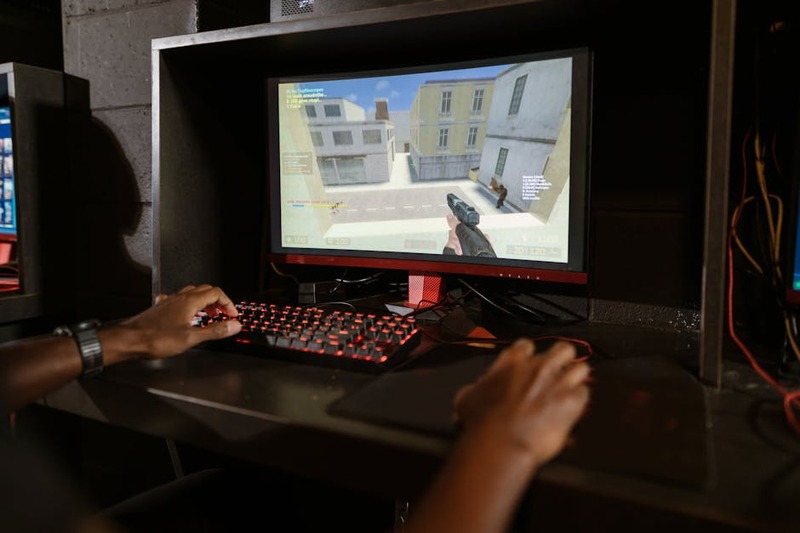
It’s not just about in-game settings; your operating system and how you manage background processes can have a significant impact on your FPS. Let’s optimize your entire PC for gaming.
Keep Your GPU Drivers Razor Sharp
We mentioned this in the hardware section, but it bears repeating: always keep your GPU drivers updated! NVIDIA and AMD regularly release optimized drivers for new game launches, often providing substantial performance improvements. Use NVIDIA GeForce Experience or AMD Adrenalin Software to manage your drivers and even optimize game settings automatically. However, sometimes a “clean installation” using DDU (Display Driver Uninstaller) can resolve lingering driver issues.
KEY POINT
Regularly updating your GPU drivers is the easiest and often most impactful free FPS boost you can get. Don’t overlook this critical step!
Windows Power Plan and Game Mode
Make sure your Windows power plan is set to “High Performance” or “Ultimate Performance.” You can find this in Control Panel > Hardware and Sound > Power Options. This ensures your CPU and GPU are always running at their maximum potential, not trying to save power.
Windows’ “Game Mode” (Settings > Gaming > Game Mode) is designed to optimize your PC for gaming by prioritizing game processes and suspending background tasks. For most users, leaving it on is beneficial. However, some specific setups or older games might see better performance with it off. Experiment to see what works best for you.
Tame Background Processes and Startup Apps
Every program running in the background, even if minimized, consumes CPU cycles and RAM. Before gaming, open Task Manager (Ctrl+Shift+Esc), go to the “Processes” tab, and close any unnecessary applications like web browsers with many tabs, streaming apps, or download managers. Also, check the “Startup” tab and disable programs that don’t need to launch with Windows. Less clutter means more resources for your game.
Quick Background Cleanup Checklist
☑ Close web browsers, especially with many tabs open.
☑ Exit streaming apps (Discord, Spotify, Netflix) if not actively using them.
☑ Pause large downloads or cloud sync services (OneDrive, Google Drive).
☑ Disable unnecessary startup programs via Task Manager.
☑ Ensure your antivirus isn’t running a full system scan during gameplay.
Disable Xbox Game Bar and Game DVR
While useful for some, the Xbox Game Bar and its Game DVR recording features can consume resources even when not actively used. If you don’t use them, disable them in Windows Settings > Gaming > Xbox Game Bar and Captures. This can free up a small but noticeable amount of CPU and GPU overhead.
Optimize Game Launcher Overlays
Steam Overlay, Epic Games Launcher Overlay, Discord Overlay, etc., can all add a slight overhead. While convenient, if you’re chasing every last frame, consider disabling them for your most demanding games. You can usually find these options in the respective launcher’s settings.

5. Advanced Tweaks and Troubleshooting
For those who want to go the extra mile, or are still facing stubborn performance issues, these advanced tips and troubleshooting steps can help.
Overclocking (Use with Caution!)
Overclocking your CPU, GPU, or RAM means making them run faster than their factory settings. This can provide significant FPS gains, but it comes with risks: increased heat, potential system instability, and the need for robust cooling solutions. If you’re new to overclocking, research thoroughly and proceed with extreme caution. Tools like MSI Afterburner (for GPU) and your motherboard’s BIOS (for CPU/RAM) are typically used.
WARNING
Overclocking can potentially damage your hardware if done incorrectly and may void warranties. Always prioritize system stability and monitor temperatures closely if you choose to overclock.
Monitor Your System
Knowledge is power! Use monitoring tools like MSI Afterburner (with RivaTuner Statistics Server), HWMonitor, or the built-in Windows Task Manager to keep an eye on your CPU and GPU usage, temperatures, and VRAM/RAM utilization while gaming. This data is invaluable for identifying bottlenecks. If your GPU usage is consistently at 99-100% and your FPS is low, you’re GPU-bound. If your CPU usage is high and your GPU usage is low, you’re likely CPU-bound.
KEY POINT
Identifying your system’s bottleneck (CPU, GPU, or RAM) is crucial for targeted optimization. Monitoring tools provide the data you need to make informed decisions.
Keep Your PC Clean (Physically and Digitally)
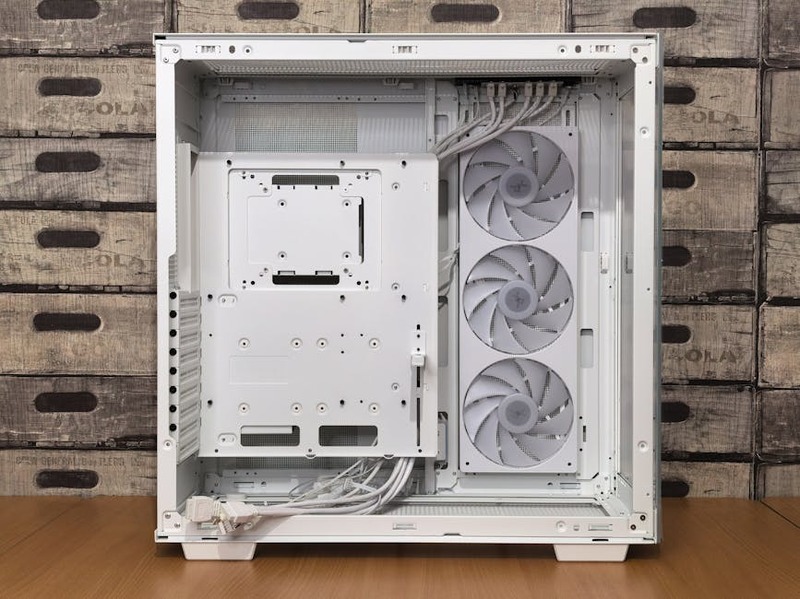
Dust is the enemy of performance! Dust buildup in your CPU cooler, GPU heatsink, and case fans can severely restrict airflow, leading to higher temperatures and thermal throttling. Regularly clean your PC with compressed air. Digitally, ensure your Windows installation is relatively clean. Uninstall old programs you don’t use and periodically run disk cleanup.
BIOS/UEFI Settings
Beyond enabling XMP/DOCP for your RAM, there are a few other BIOS settings to check. Ensure virtualization settings (like Intel VT-d or AMD-V) are off if you don’t use them, as they can sometimes introduce minor overhead. Make sure your PCIe slot for your GPU is running at its full speed (e.g., PCIe x16 Gen4 or Gen5, depending on your hardware). Consult your motherboard manual for specific settings.
Game-Specific Optimization Guides
Every game is different. While this guide provides general principles, many demanding titles have specific community-made optimization guides or developer recommendations. A quick search for “[Game Name] FPS guide 2026” can yield valuable, tailored advice for your favorite games.
6. The Kwonglish Verdict: Is the FPS Hunt Worth It?
After all these tweaks, settings adjustments, and hardware considerations, you might be asking: is chasing those extra frames truly worth the effort? From my experience, absolutely! The difference between 45 FPS and a stable 60 FPS, or between 90 FPS and a buttery-smooth 144 FPS, is tangible. It transforms your gaming experience from merely playable to truly immersive and competitive.
In 2026, with games like “Elden Ring: Shadow of the Erdtree” (if it’s out!) or the next-gen “Call of Duty” pushing graphical fidelity, maximizing your FPS ensures you’re not just playing the game, but truly experiencing it as the developers intended. The goal isn’t always to hit the absolute highest numbers, but to find that sweet spot where visual quality meets exceptional performance on your specific hardware.
Pros of FPS Optimization
✓ Significantly smoother and more responsive gameplay.
✓ Competitive advantage in fast-paced multiplayer games.
✓ Enhanced immersion in single-player titles.
✓ Better utilization of high refresh rate monitors.
✓ Potentially extends the lifespan of your current hardware by avoiding upgrades.
Cons & Challenges
✗ Requires time and experimentation to find optimal settings.
✗ Can lead to minor visual compromises in some settings.
✗ Overclocking carries risks of instability or hardware damage.
✗ Some older hardware may have inherent limitations that cannot be fully overcome.
9.2
/ 10
A comprehensive guide to unlocking your PC’s full gaming potential.
Frequently Asked Questions
Q. What is the most important setting to change for more FPS?
The most impactful settings are usually resolution (or enabling DLSS/FSR), followed by Anti-Aliasing (especially MSAA), Shadow Quality, and Ray Tracing. Start by adjusting these to see the biggest gains.
Q. How much RAM do I need for gaming in 2026?
For a smooth gaming experience in 2026, 16GB of DDR4 or DDR5 RAM is the minimum. However, 32GB is increasingly recommended for modern AAA titles, especially if you run background applications or stream.
Q. Should I always update my GPU drivers immediately?
Generally, yes. NVIDIA and AMD drivers often include critical performance optimizations for new games and bug fixes. While rare, very occasionally a driver update might introduce new issues, so it’s wise to check community feedback briefly before updating if you’re concerned.
Q. What is a CPU bottleneck and how do I fix it?
A CPU bottleneck occurs when your CPU cannot process game data fast enough for your GPU, causing your GPU to wait and not reach full utilization. You can identify it by monitoring your system: if your CPU usage is high (e.g., 90-100%) and your GPU usage is low (e.g., 50-70%) while gaming, you’re likely CPU-bound. Fixing it often involves upgrading your CPU or reducing CPU-intensive settings like draw distance and crowd density.
Q. Is it safe to overclock my components?
Overclocking can provide performance benefits but carries risks. It can increase component temperatures, potentially lead to system instability, and might void warranties. If you choose to overclock, proceed with caution, research thoroughly for your specific hardware, and ensure you have adequate cooling and monitoring.