
SUMMARY
Essential PS5 Tips & Tricks for New Owners in 2026
Maximize your next-gen PlayStation 5 experience with this comprehensive guide for new owners in 2026.
Keywords: PS5, PlayStation 5, Gaming Tips
TABLE OF CONTENTS
1. Welcome to the Next-Gen: Your PS5 Journey Starts Here!
2. Initial Setup & Must-Tweak Settings
3. Unleash Visual & Audio Power: Optimization Tips
4. Conquering the Storage Challenge
5. Hidden Gems & Quality of Life Features
6. Master Your DualSense Controller
7. Elevate Your Online Experience
8. Keeping Your PS5 Primed: Maintenance & Security
9. Verdict: My Take on the PS5 Experience
10. Frequently Asked Questions
INTRODUCTION
Welcome to the Next-Gen: Your PS5 Journey Starts Here!
Alright, fellow gamers! If you’re reading this, chances are you’ve just unboxed that beautiful, sleek PlayStation 5, or maybe you’re finally thinking of making the leap in 2026. Either way, welcome to the future of gaming! The PS5 isn’t just a console; it’s a gateway to incredibly immersive worlds, lightning-fast load times, and a controller that literally changes how you feel games. But here’s the thing: just plugging it in and booting up is only scratching the surface. To truly maximize your next-gen experience, there are a ton of hidden gems, crucial settings, and optimization tricks you absolutely need to know.
As a seasoned Kwonglish gamer, I’ve spent countless hours exploring every nook and cranny of the PS5 since its launch. This isn’t just a list of basic settings; it’s a comprehensive guide packed with insights from real-world gaming, designed to help you, a new PS5 owner in 2026, get the absolute most out of your console. From tweaking visual settings for that perfect HDR pop to managing your precious SSD space and discovering handy quality-of-life features, we’re covering it all. Let’s dive in and transform your PS5 from a great console into an epic gaming powerhouse!
ESSENTIAL SETTINGS
Initial Setup & Must-Tweak Settings
The moment you power on your PS5 for the first time, you’re greeted with a setup wizard. While most of it is straightforward, there are a few critical settings that are often overlooked but can dramatically improve your experience from day one. Let’s get these squared away!
Power Options & Rest Mode
Rest Mode is your best friend. Seriously. It allows your PS5 to download updates, charge controllers, and even install games in the background while consuming minimal power. But you need to configure it correctly. Head to Settings > System > Power Saving > Features Available in Rest Mode. Here, ensure you have Stay Connected to the Internet checked. This is crucial for automatic game and system updates. Also, make sure Supply Power to USB Ports is set to Always or 3 Hours if you want your DualSense controllers to charge while the console is in standby. Trust me, nothing’s worse than picking up a dead controller when you’re ready to game!
Properly configuring Rest Mode ensures your PS5 is always up-to-date and your controllers are charged, ready for your next gaming session without any frustrating delays.
Game Presets: Set It and Forget It!
This is a game-changer! The PS5 lets you set global preferences for new games, so you don’t have to adjust them every single time. Go to Settings > Saved Data and Game/App Settings > Game Presets. Here you can set default difficulty (Easy, Normal, Hard), performance mode (Performance Mode or Resolution Mode), and even how you prefer to play first-person or third-person games (e.g., inverted camera). I always set mine to Performance Mode for that silky-smooth 60fps (or higher!) experience, unless a game is absolutely stunning visually and I don’t mind a lower frame rate.
Privacy Settings: Control Your Digital Footprint
In today’s interconnected world, privacy is paramount. Head to Settings > Users and Accounts > Privacy > View and Customize Your Privacy Settings. You can choose from predefined profiles like “Social and Open” or “Focused on Friends,” or customize every aspect yourself. Decide who can see your activity, your trophies, your friend list, and even who can send you messages or friend requests. Take a few minutes to tailor this to your comfort level; it’s worth it for peace of mind.
Accessibility Options: Gaming for Everyone
The PS5 offers robust accessibility features, making gaming enjoyable for a wider audience. Explore Settings > Accessibility. You’ll find options for text size, high contrast, button assignments, chat transcription, and even haptic feedback intensity. These features aren’t just for those with specific needs; many gamers find small tweaks here improve their overall comfort and experience. For example, adjusting controller vibration strength can sometimes help with hand fatigue during long sessions.
System Software Updates: Stay Current
While Rest Mode handles automatic updates, it’s good practice to manually check occasionally, especially if you’re experiencing any odd behavior. Navigate to Settings > System > System Software > System Software Update and Settings. Ensure Download Update Files Automatically and Install Update Files Automatically are enabled. Sony frequently releases stability improvements and new features, so staying updated is key to a smooth experience in 2026.
OPTIMIZATION
Unleash Visual & Audio Power: Optimization Tips
The PS5 is a graphical beast and an audio marvel, but you need to make sure your display and sound system are playing nicely with it. Let’s fine-tune those settings to get the most immersive experience possible.
Variable Refresh Rate (VRR) & 120Hz Output
If you have a compatible HDMI 2.1 TV or monitor, VRR and 120Hz are absolute must-haves. VRR dynamically adjusts your display’s refresh rate to match the game’s frame rate, eliminating screen tearing and stuttering for incredibly fluid gameplay. Head to Settings > Screen and Video > Video Output. Make sure VRR is set to Automatic. For 120Hz, ensure Enable 120Hz Output is also set to Automatic. Remember, not all games support 120Hz, but for those that do, it’s a buttery-smooth dream!
HDR Calibration: Get Those Colors Popping!
High Dynamic Range (HDR) can make your games look absolutely stunning, with deeper blacks, brighter whites, and a wider range of colors. However, it needs to be calibrated correctly for your specific TV. Go to Settings > Screen and Video > Video Output > Adjust HDR. Follow the on-screen instructions carefully, adjusting the brightness levels until the PlayStation logo is barely visible. Do this in a dimly lit room for the most accurate results. A properly calibrated HDR setup makes a huge difference in visual fidelity.
Always calibrate your HDR settings by following the on-screen prompts. Incorrect HDR settings can make games look washed out or overly dark, defeating the purpose of the feature.
3D Audio for Headphones: A Game-Changer
The PS5’s Tempest 3D AudioTech is truly revolutionary, especially with headphones. It creates an incredibly immersive soundscape, allowing you to pinpoint sounds from all directions. To enable it, navigate to Settings > Sound > Audio Output > Enable 3D Audio for Headphones. You can then adjust the 3D Audio Profile to find the best fit for your ears. Even with standard stereo headphones, the difference is noticeable, adding another layer of immersion to your gaming.
STORAGE MANAGEMENT
Conquering the Storage Challenge
Let’s be real: PS5 games are HUGE. That 825GB internal SSD (with about 667GB usable) fills up fast. But fear not, new owner! There are excellent solutions to expand your storage and keep your digital library growing.
M.2 SSD Expansion: The Ultimate Upgrade
This is where you can truly future-proof your storage. The PS5 allows you to install an internal M.2 NVMe SSD, significantly boosting your available space for PS5 and PS4 games. It’s a bit of a DIY project, but totally worth it. You’ll need a PCIe Gen4 x4 NVMe SSD with a sequential read speed of 5,500MB/s or faster, and crucially, it needs a heatsink (or you need to add one). I recommend a 1TB or 2TB drive for a substantial upgrade. Installation involves carefully removing the PS5’s side plate and inserting the drive into a dedicated slot. Check out a reliable tutorial video if you’re unsure, but it’s surprisingly straightforward.
When choosing an M.2 SSD, ensure it’s a PCIe Gen4 x4 NVMe SSD with speeds of 5,500MB/s or more, and it absolutely must have a heatsink to prevent throttling and ensure optimal performance.
External USB Drive for PS4 Games
For your extensive library of PS4 games, an external USB HDD or SSD is a fantastic, cost-effective solution. PS4 games can be played directly from an external drive, freeing up your internal and M.2 SSDs for PS5 titles. Simply plug in a USB 3.0 or later drive, and the PS5 will prompt you to format it for extended storage. Navigate to Settings > Storage > Extended Storage to manage it. Remember, you cannot play PS5 games directly from an external USB drive, but you can store them there and move them to your internal SSD when you want to play.
Managing Your Game Installs
Even with expanded storage, it’s wise to regularly review your installed games. Go to Settings > Storage > Console Storage (or M.2 SSD Storage if installed) to see what’s taking up space. You can easily delete games you’re not currently playing. Don’t worry, your save data is stored separately (and backed up to the cloud if you have PlayStation Plus), so deleting a game won’t erase your progress.
QUALITY OF LIFE
Hidden Gems & Quality of Life Features
Beyond the core settings, the PS5 is packed with clever features designed to make your gaming life easier and more enjoyable. These are the little things that often go unnoticed but become indispensable once you discover them.
The Control Center: Your Quick Access Hub
Pressing the PlayStation button on your DualSense controller brings up the Control Center, a customizable overlay that’s much more useful than the old PS4 XMB. You can quickly access notifications, friends, downloads, sound settings, and more. Even better, you can customize which controls appear here! Scroll to the end of the Control Center bar, select the … icon, and you can reorder, add, or remove controls. Put your most frequently used functions (like Party, Game Base, or Accessibility shortcuts) right at your fingertips.
Personalize your Control Center by reordering and adding essential shortcuts. This allows for lightning-fast access to features like Party Chat, Downloads, or Mute Mic without diving into deep menus.
Game Base: Social Hub on Steroids
The Game Base (accessible via the Control Center) is your social headquarters. It’s not just for parties; you can quickly see which friends are online, what they’re playing, and even join their game directly. Group chats allow for easy communication, and you can share screenshots and video clips directly within these chats. It’s a seamless way to connect and coordinate with your squad.
Share Button Customization
The Create button (formerly Share) on the DualSense is incredibly powerful. You can customize its behavior by going to Settings > Captures and Broadcasts > Captures > Shortcuts for Create Button. Choose between Easy Screenshots (quick press for menu, long press for screenshot) or Function Button Layout (quick press for screenshot, long press for video clip). You can also adjust video clip length and format here. Get those epic moments captured perfectly!
Remote Play: Game Anywhere
Want to play your PS5 games on your phone, tablet, PC, Mac, or even another PS4/PS5? Remote Play lets you stream your PS5 gameplay over your local network or the internet. Download the free PlayStation Remote Play app on your device, link it to your PS5 (via Settings > System > Remote Play > Enable Remote Play), and you’re good to go. It’s fantastic for when the main TV is occupied or you just want to game in another room.
Game Switching: Jump Between Titles Instantly
The PS5’s SSD isn’t just for fast loading; it enables incredibly quick switching between multiple games. You can have several games suspended in the background and jump between them in seconds without fully closing and reloading. Just press the PS button, select another game from your home screen or the game switcher in the Control Center, and the PS5 will usually pick up right where you left off. It’s a small but powerful feature for multi-game enthusiasts.
DUALSENSE MAGIC
Master Your DualSense Controller
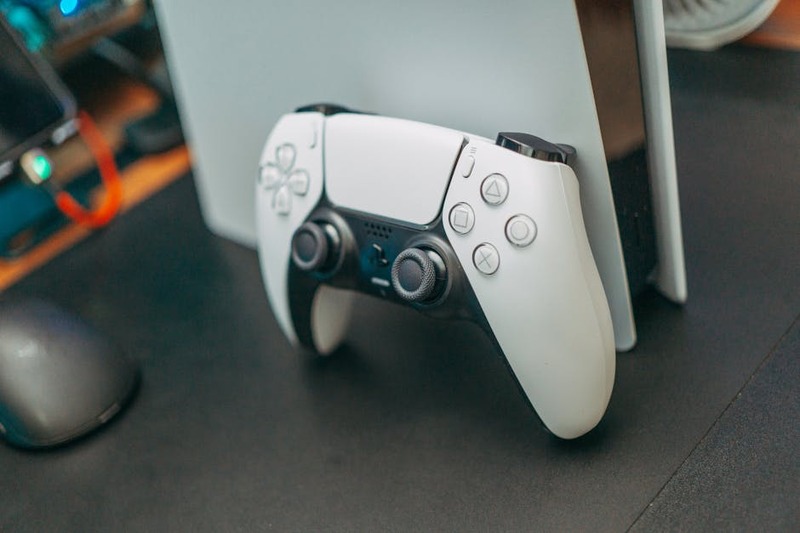
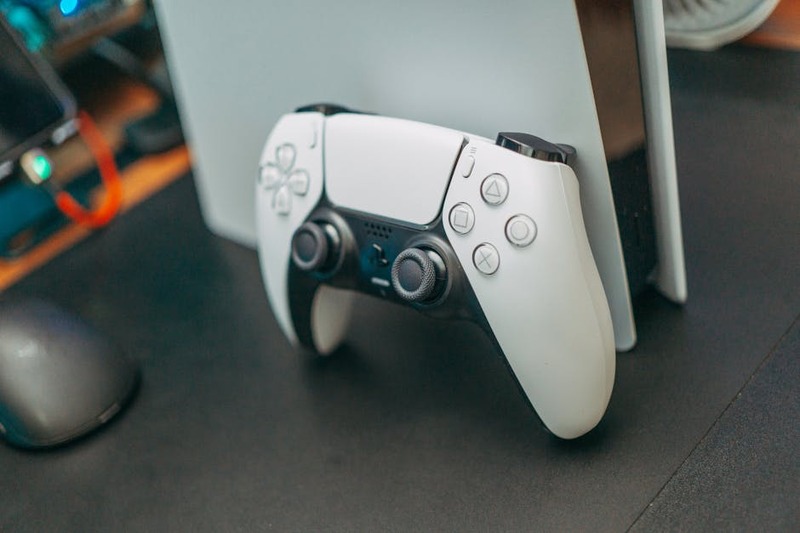
The DualSense controller is a marvel of haptic feedback and adaptive triggers, truly elevating immersion. But you can also tweak it to your personal preference and even extend its battery life.
Adaptive Triggers & Haptic Feedback Intensity
While these features are incredible, some players might find them too intense or draining on battery. You can adjust their strength! Head to Settings > Accessories > Controllers (General) > Vibration Intensity and Trigger Effect Intensity. You can set them to Strong, Medium, Weak, or even Off. Experiment to find what feels best for you in different games. Sometimes a weaker setting can still provide feedback without being distracting.
Extending DualSense Battery Life
The DualSense battery isn’t the longest-lasting. Here are a few tricks to squeeze more juice out of it:
● Dim the Light Bar: In Settings > Accessories > Controllers (General) > Brightness of Controller Indicators, set it to Dim. It makes a surprising difference.
● Lower Speaker Volume: The built-in controller speaker can be immersive, but it also consumes power. Adjust its volume in Settings > Sound > Volume > Controller Speaker.
● Disable Vibration/Triggers: As mentioned above, turning these down or off will save significant battery.
● Auto Power Off: Set the controller to turn off automatically after inactivity in Settings > System > Power Saving > Set Time Until Controllers Turn Off. Even 10 minutes can help.
To maximize DualSense battery life, dim the light bar, reduce controller speaker volume, and consider lowering the intensity of haptic feedback and adaptive triggers.
CONNECTIVITY
Elevate Your Online Experience
For many, online multiplayer is the heart of gaming. Ensuring a stable, fast connection is crucial. Here’s how to optimize your PS5 for the best online performance in 2026.
Wired vs. Wireless: Choose Stability
This is the golden rule for online gaming: if you can, use a wired Ethernet connection. Wi-Fi is convenient, but it’s prone to interference and can lead to higher latency and dropped packets, which translates to lag and frustration in competitive games. Connect your PS5 directly to your router with an Ethernet cable for the most stable and fastest connection possible. You’ll thank me later when your ping is consistently low.
Always prioritize a wired Ethernet connection for your PS5 over Wi-Fi for superior stability, lower latency, and faster download/upload speeds, especially for online multiplayer.
DNS Settings (Advanced)
For some users, changing DNS servers can improve connection speeds and stability, especially if your ISP’s default DNS is slow. You can manually configure this in Settings > Network > Settings > Set Up Internet Connection > Wi-Fi/LAN > Advanced Settings. Common public DNS servers include Google DNS (Primary: 8.8.8.8, Secondary: 8.8.4.4) or Cloudflare DNS (Primary: 1.1.1.1, Secondary: 1.0.0.1). Experiment to see if it helps your specific network setup.
PlayStation Plus: More Than Just Online Play
If you’re serious about gaming on your PS5, a PlayStation Plus subscription is almost essential. Beyond enabling online multiplayer, it offers:
● Monthly Free Games: Two to three PS4/PS5 titles every month.
● Game Catalog: Hundreds of PS4/PS5 games available to download and play (Extra tier and above).
● Classics Catalog: A growing library of classic PlayStation titles (Premium tier).
● Cloud Streaming: Play select games via cloud streaming (Premium tier).
● Cloud Storage for Saves: Automatically backs up your game saves, so you never lose progress.
Consider which tier (Essential, Extra, Premium) best suits your gaming habits. The value proposition, especially with the Game Catalog, is huge.
MAINTENANCE
Keeping Your PS5 Primed: Maintenance & Security
Your PS5 is an investment, and like any high-performance machine, it needs a little TLC to keep running optimally for years to come. Don’t neglect these crucial aspects!
Physical Cleaning: Keep It Cool!
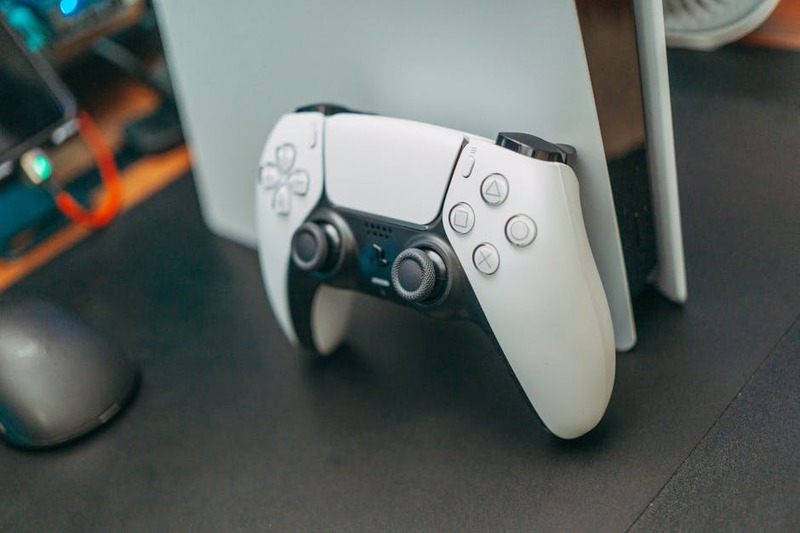
Dust is the enemy of electronics. Over time, dust buildup can clog your PS5’s vents and fan, leading to overheating and reduced performance. Regularly (every 3-6 months, depending on your environment) clean your PS5. Use a can of compressed air to gently blow dust out of the vents and ports. You can also carefully remove the side plates (as you would for an M.2 SSD install) to access and clean the fan blades and surrounding areas. Make sure the console is unplugged before you start!
Database Rebuild (Safe Mode)
If you notice your PS5 feeling a bit sluggish, experiencing crashes, or seeing slow loading times, a database rebuild can often help. This reorganizes the data on your hard drive, making it more efficient. Don’t worry, it won’t delete your games or save data. To do this:
1. Turn off your PS5 completely (not Rest Mode).
2. Press and hold the power button until you hear two beeps (about 7 seconds) to enter Safe Mode.
3. Connect your DualSense controller via USB cable.
4. Select option 5. Rebuild Database.
This process can take anywhere from a few minutes to an hour, depending on how much data you have.
Account Security: Enable 2-Step Verification
Protect your PlayStation Network account! Two-step verification (2SV) adds an extra layer of security, requiring a code from your phone in addition to your password when signing in. Go to Settings > Users and Accounts > Security > 2-Step Verification and follow the prompts. It’s a simple step that can prevent unauthorized access to your account and all your digital purchases.
Always enable 2-Step Verification on your PlayStation Network account to protect your digital library and personal information from unauthorized access.
VERDICT
Verdict: My Take on the PS5 Experience
The PlayStation 5, even in 2026, continues to be a phenomenal piece of gaming hardware. With its blazing-fast SSD, stunning graphics capabilities, and the revolutionary DualSense controller, it delivers an unparalleled immersive experience. While the initial setup might seem daunting with all the options, taking the time to implement these tips and tricks will truly unlock its full potential.
From ensuring your games are running at optimal performance settings and expanding your storage, to leveraging quality-of-life features and keeping your console in peak condition, every step contributes to a smoother, more enjoyable gaming journey. The PS5 isn’t just about playing games; it’s about experiencing them in a whole new way. By following this guide, you’re not just a new owner; you’re a savvy next-gen gamer ready to dive deep into everything the PlayStation ecosystem has to offer.
So go forth, explore these settings, fine-tune your console, and prepare to be amazed. The next generation of gaming is here, and it’s spectacular!
9.2
/ 10
An essential guide to unlocking the full power of your PlayStation 5!
Frequently Asked Questions
Q. What is the most important setting for new PS5 owners to change first?
A. The most crucial setting is configuring Rest Mode under Power Saving options. Ensure “Stay Connected to the Internet” is enabled for automatic updates and “Supply Power to USB Ports” is set to “Always” or “3 Hours” for controller charging.
Q. Can I really play PS5 games from an external USB drive?
A. No, you cannot play PS5 games directly from an external USB drive. PS5 games require the speed of the internal SSD or an installed M.2 NVMe SSD. However, you can store PS5 games on an external USB drive and transfer them to your internal SSD when you want to play them.
Q. What kind of M.2 SSD should I buy for my PS5 in 2026?
A. For PS5 M.2 SSD expansion, you need a PCIe Gen4 x4 NVMe SSD with a sequential read speed of 5,500MB/s or faster. It is also essential that the drive comes with a heatsink or you install one yourself to prevent overheating and ensure optimal performance.
Q. How often should I clean my PS5 to prevent dust buildup?
A. It’s recommended to clean your PS5 every 3-6 months, depending on your environment. Use compressed air to clear vents and ports, and consider carefully removing the side plates for a deeper clean of the fan blades if you’re comfortable doing so.
Q. Is PlayStation Plus necessary for a good PS5 experience?
A. While not strictly “necessary” to use the console, PlayStation Plus is highly recommended. It enables online multiplayer, provides monthly free games, access to extensive game catalogs, cloud save storage, and other benefits that significantly enhance the overall PS5 gaming experience.
Thanks for reading, Kwonglish Fam!
I hope these tips help you unlock the true potential of your PlayStation 5. The next-gen experience is truly something special, and with a few tweaks, you can make it even better.
Got any personal PS5 tips or tricks you swear by? Or maybe a question about something I missed? Drop a comment below and let’s keep the conversation going!