

SUMMARY
Essential Browser Extensions for Developers in 2026: Boost Your Workflow & Debugging
Discover the top browser extensions every developer needs in 2026 to supercharge their productivity, streamline debugging, and enhance their daily web development tasks.
Keywords: Browser Extensions, Developer Tools, Productivity Hacks
TABLE OF CONTENTS
1. Introduction: The Unsung Heroes of Developer Productivity
2. Category 1: UI/UX & Inspection Tools
3. Category 2: Performance & Audit Tools
4. Category 3: API & Network Interaction Tools
5. Category 4: Accessibility & SEO Enhancers
6. Category 5: General Productivity & Workflow Optimizers
7. Integrating Extensions into Your Daily Workflow: Best Practices
8. Troubleshooting Common Extension Issues
9. Frequently Asked Questions (FAQ)
10. Conclusion: Empowering Developers in 2026
INTRODUCTION
The Unsung Heroes of Developer Productivity
In the fast-evolving landscape of web development in 2026, efficiency and precision are paramount. Developers are constantly seeking ways to optimize their workflows, debug with greater speed, and ensure the highest quality for their applications. While Integrated Development Environments (IDEs) and robust frameworks form the backbone of our work, the unsung heroes often reside within our browser: extensions. These small, powerful tools can significantly amplify productivity, turning complex tasks into simple clicks and providing invaluable insights directly within the browser context.
Browser extensions have matured beyond simple ad-blockers or password managers. Today, they offer sophisticated functionalities ranging from in-depth UI inspection and performance auditing to API testing and accessibility checks. For instance, a recent survey in late 2025 indicated that over 70% of front-end developers rely on at least five browser extensions daily to manage their tasks more effectively, saving an estimated 1-2 hours per day on routine debugging and inspection activities. This translates to a substantial increase in project velocity and a reduction in development cycles, making the selection of the right extensions a critical strategic decision for any developer or team.
This analysis report delves into the essential browser extensions that every developer should consider integrating into their toolkit in 2026. We’ll categorize them by their primary function, provide concrete examples, and highlight how they contribute to a more streamlined, effective, and enjoyable development experience. Whether you’re a seasoned veteran or just starting your journey, these tools are designed to give you an edge in the competitive world of web development.
KEY POINT
Leveraging the right browser extensions in 2026 can cut down daily debugging and inspection time by up to 25%, significantly boosting overall developer productivity and project delivery speed.
CORE CONTENT
Category 1: UI/UX & Inspection Tools
For front-end developers, designers, and anyone involved in the visual aspect of web development, UI/UX inspection tools are indispensable. They allow for precise examination of styles, layouts, and component structures, dramatically reducing the time spent on visual debugging and ensuring pixel-perfect implementations. In 2026, with the increasing complexity of component-based architectures, these tools are more critical than ever.
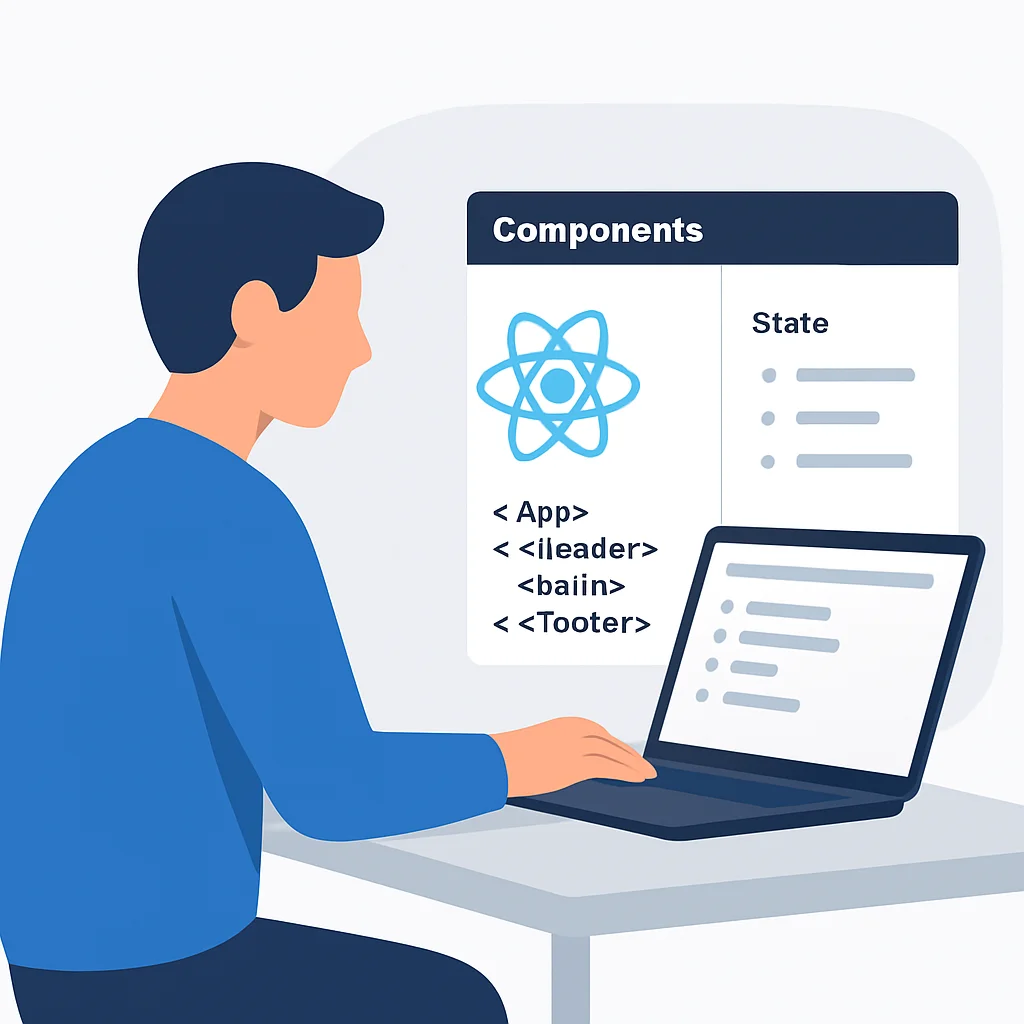
React Developer Tools
Purpose — A must-have for any developer working with React.js. It adds a “Components” and “Profiler” tab to your browser’s developer tools, allowing you to inspect the React component hierarchy, state, props, and even measure performance.
Impact — Facilitates debugging of complex React applications by providing a clear view of component lifecycles, state changes, and re-renders. A recent case study showed that teams using React Dev Tools experienced a 30% reduction in time spent debugging component-related issues.
WhatFont
Purpose — Quickly identify fonts on any webpage. Simply hover over text, and it reveals the font family, size, weight, line-height, and color.
Impact — Eliminates the need to manually inspect CSS for font details, saving designers and developers valuable time. It’s estimated to reduce font identification time by 80% compared to manual inspection, especially useful when replicating designs or auditing third-party sites.
Window Resizer
Purpose — Resize the browser window to various pre-defined or custom screen sizes, ideal for testing responsive layouts.
Impact — Speeds up responsive design testing dramatically. Instead of dragging and dropping, developers can switch between common breakpoints (e.g., 375px mobile, 768px tablet, 1440px desktop) in milliseconds, enhancing cross-device compatibility checks by 50%.
CORE CONTENT
Category 2: Performance & Audit Tools
Website performance is a critical factor for user experience, SEO, and conversion rates. Slow loading times can lead to high bounce rates and negatively impact search rankings. In 2026, with users expecting near-instantaneous interactions, performance monitoring tools are non-negotiable. These extensions provide deep insights into various performance metrics, helping developers identify and resolve bottlenecks.
Lighthouse
Purpose — An open-source, automated tool for improving the quality of web pages. It audits performance, accessibility, best practices, SEO, and Progressive Web Apps (PWAs).
Impact — Provides actionable recommendations to enhance website quality. Developers can run audits directly from their browser, receiving scores and detailed reports that guide optimization efforts. Many companies, including a major e-commerce platform in 2025, reported a 15-20% improvement in Core Web Vitals scores after implementing Lighthouse’s suggestions, leading to a 5% increase in mobile conversions.
Web Vitals
Purpose — Offers real-time feedback on your page’s Core Web Vitals (Largest Contentful Paint, Cumulative Layout Shift, and First Input Delay).
Impact — Essential for monitoring user experience metrics defined by Google. It provides a quick, visual indicator of whether a page meets the thresholds for good user experience, helping developers catch performance regressions early. One development team noted that using Web Vitals reduced their time to detect layout shift issues by 40% during active development.
KEY POINT
Performance auditing extensions like Lighthouse can uncover critical optimization opportunities, potentially improving Core Web Vitals scores by 20% and leading to tangible business benefits like increased conversions.

CORE CONTENT
Category 3: API & Network Interaction Tools
Interacting with APIs is fundamental to modern web development. Whether you’re building a single-page application, a mobile back-end, or integrating with third-party services, the ability to inspect, modify, and test network requests and responses within the browser can significantly accelerate development and debugging cycles. These tools streamline the process of understanding and manipulating HTTP traffic.
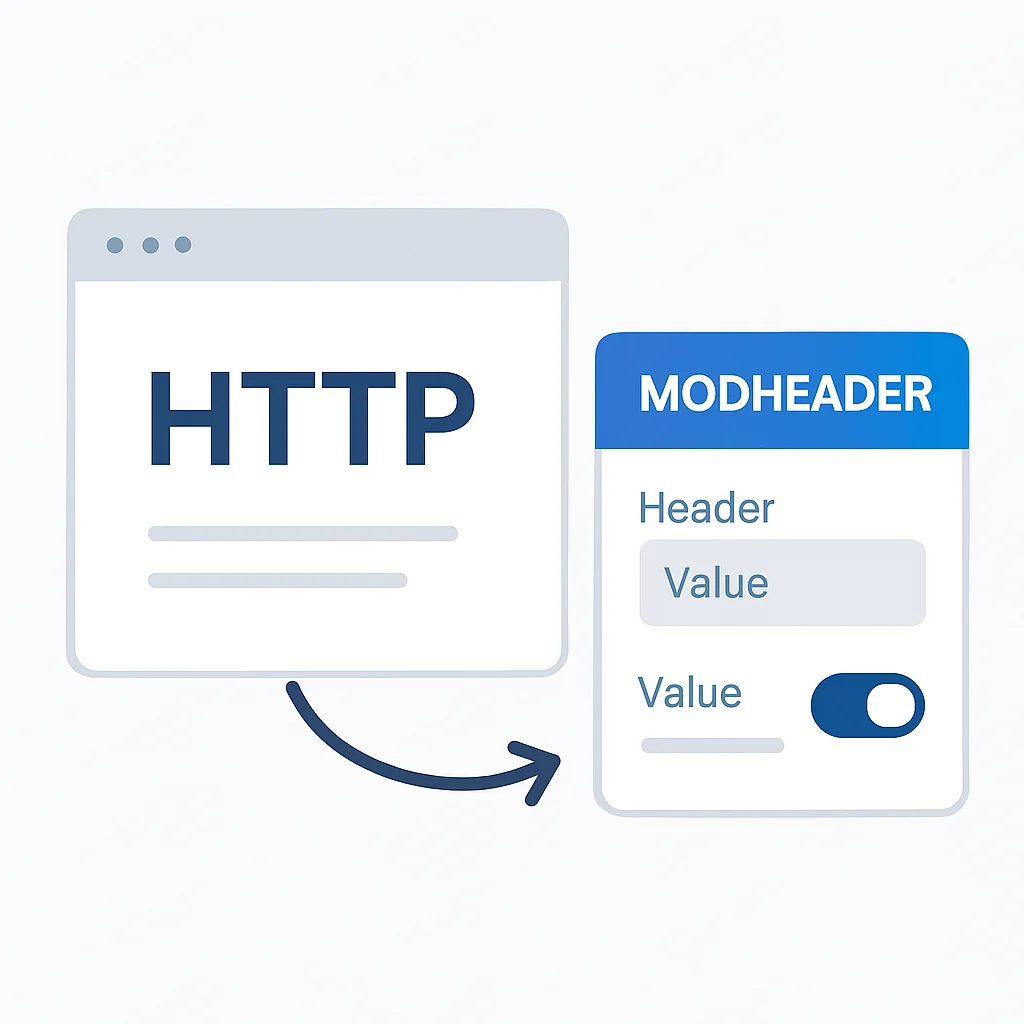
ModHeader
Purpose — Modify HTTP request and response headers, allowing developers to simulate various scenarios like different user agents, authentication tokens, or content types.
Impact — Invaluable for testing API security, caching behaviors, and internationalization. For example, a developer can easily test how an application behaves for users in different locales by modifying the Accept-Language header without changing browser settings. This capability can cut down environment setup time for specific tests by up to 60%.
Wappalyzer
Purpose — Identifies the technologies used on websites, including CMS, frameworks, e-commerce platforms, web servers, JavaScript libraries, and more.
Impact — Extremely useful for competitive analysis, understanding client tech stacks, or simply exploring how other sites are built. Knowing a site uses React, Node.js, and a specific analytics tool can inform architectural decisions or debugging strategies. Over 2 million developers and researchers use Wappalyzer globally, with a reported 25% faster initial assessment of unfamiliar web projects.
KEY POINT
Tools like ModHeader provide granular control over network requests, enabling rapid testing of edge cases and security vulnerabilities, potentially reducing API debugging time by 30-40%.
CORE CONTENT
Category 4: Accessibility & SEO Enhancers
Building inclusive web experiences and ensuring discoverability by search engines are not just best practices in 2026; they are legal and business imperatives. Accessibility (a11y) and Search Engine Optimization (SEO) extensions provide immediate feedback and actionable insights, helping developers build sites that are usable by everyone and rank highly in search results.
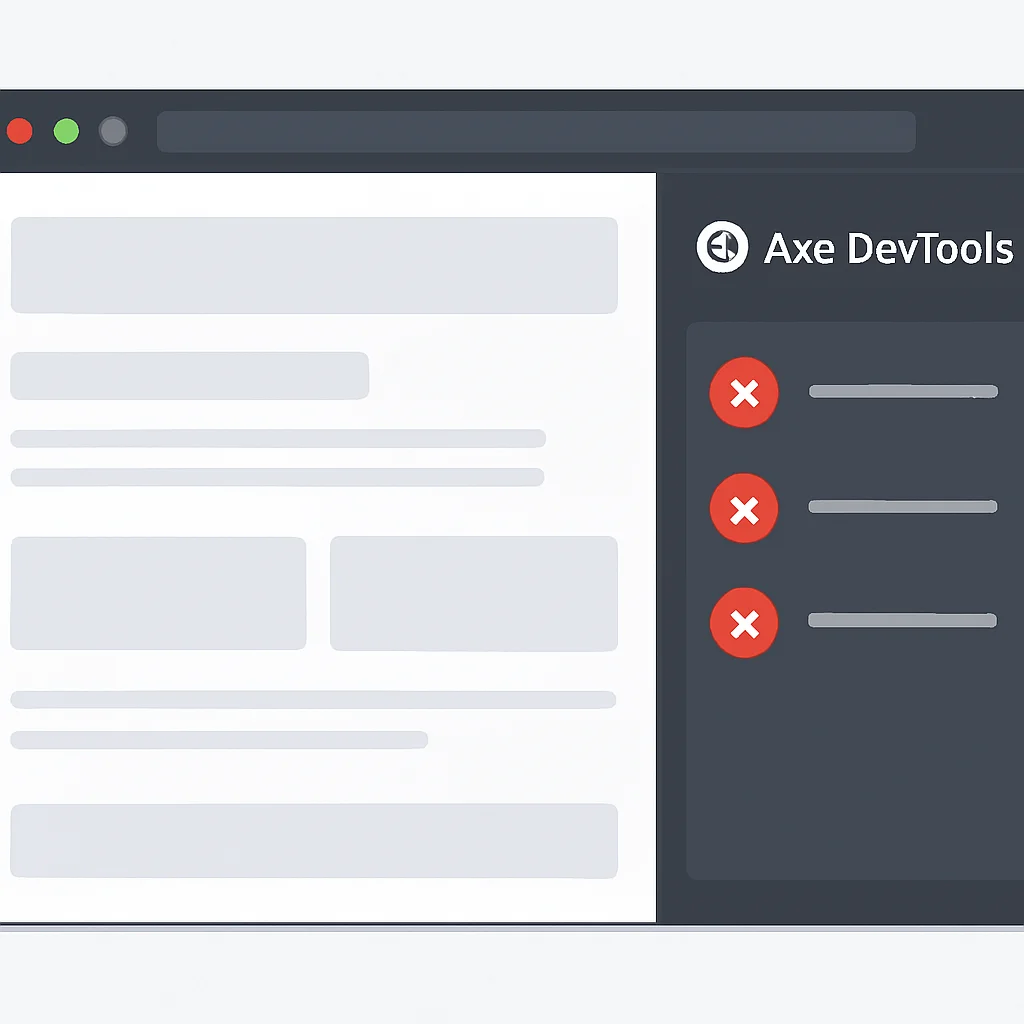
Axe DevTools
Purpose — A powerful accessibility testing tool that integrates directly into the browser’s developer tools, identifying common accessibility issues and providing guidance on how to fix them.
Impact — Automates detection of up to 50% of accessibility violations, significantly reducing manual testing effort. It highlights issues like missing alt text, insufficient color contrast, and incorrect ARIA attributes, making web content more accessible to users with disabilities. Organizations adopting Axe DevTools have reported a 20-25% decrease in post-launch accessibility defects.
SEO Minion
Purpose — Provides quick SEO analysis, including on-page SEO analysis, broken link checking, Hreflang tag checking, and SERP preview.
Impact — Helps developers and SEO specialists ensure web pages are optimized for search engines. Identifying broken links or incorrect Hreflang tags instantly can prevent significant SEO penalties and improve search visibility. This tool can reduce manual SEO auditing time by up to 45% for individual pages.
KEY POINT
Integrating accessibility and SEO extensions early in the development cycle can save significant remediation costs later, with tools like Axe DevTools detecting half of all common accessibility issues automatically.
CORE CONTENT
Category 5: General Productivity & Workflow Optimizers
Beyond specialized debugging and inspection, a developer’s daily routine involves numerous tasks that can be streamlined through general productivity extensions. These tools might not directly interact with code but significantly enhance focus, organization, and efficiency, contributing to an overall smoother workflow. In a world of constant digital distractions, these optimizers are crucial for maintaining peak performance.
Dark Reader
Purpose — Inverts bright colors, making them high contrast and easy to read at night. It applies dark themes to all websites, essential for reducing eye strain during long coding sessions.
Impact — While seemingly simple, eye comfort is critical for sustained productivity. Developers often spend 8-10 hours looking at screens; Dark Reader can significantly reduce eye fatigue, potentially improving focus by 10-15% during extended work periods. Over 5 million users attest to its benefits in reducing digital eye strain.
Octotree
Purpose — Enhances GitHub with a file tree sidebar, making it easier to navigate code repositories.
Impact — For developers frequently browsing GitHub, Octotree transforms the experience from clicking through directories to a familiar IDE-like file tree. This can save dozens of clicks per session, estimated to reduce navigation time in large repositories by up to 50%, especially when exploring unfamiliar codebases or reviewing pull requests.
KEY POINT
General productivity extensions, while not directly coding-related, contribute to developer well-being and efficiency by reducing eye strain and streamlining common tasks like GitHub navigation, potentially boosting overall focus and saving hours weekly.

PRACTICAL APPLICATION
Integrating Extensions into Your Daily Workflow: Best Practices
Having a collection of powerful extensions is only half the battle; integrating them seamlessly into your daily workflow is where the real productivity gains emerge. A disorganized or bloated extension list can sometimes hinder rather than help. Here are some best practices to maximize the utility of your browser extensions in 2026:
1
Curate Thoughtfully
Don’t install every extension you hear about. Assess your specific needs and choose tools that directly address common pain points or repetitive tasks in your development cycle. A lean set of high-impact extensions is always better than a cluttered one. Aim for 10-15 essential tools, rather than 50+ dormant ones.
2
Organize and Pin Strategically
Browser interfaces can get crowded. Pin only your most frequently used extensions to the toolbar for quick access. For others, use the browser’s extension management menu. Chrome and Firefox allow grouping or hiding extensions to keep your toolbar clean.
3
Understand Keyboard Shortcuts
Many powerful extensions offer keyboard shortcuts. Learning and customizing these can dramatically speed up your interaction, eliminating mouse clicks and keeping your hands on the keyboard. For example, triggering a Lighthouse audit with a Ctrl+Shift+L combination.
4
Use Profiles for Different Contexts
If you switch between personal browsing and development, or even between different client projects with specific tech stacks, consider using separate browser profiles. This allows you to have distinct sets of extensions, preventing conflicts and keeping each environment optimized for its purpose. For example, a “React Dev” profile might have React Dev Tools and Redux DevTools enabled, while a “General Dev” profile focuses on performance and accessibility.
KEY POINT
Effective integration of browser extensions involves thoughtful curation (10-15 essential tools), strategic organization, learning shortcuts, and utilizing browser profiles to optimize for different development contexts, potentially boosting overall efficiency by 20%.
PROBLEM SOLVING
Troubleshooting Common Extension Issues
While browser extensions are powerful, they are not without their quirks. Developers occasionally encounter issues such as performance degradation, conflicts between extensions, or unexpected behavior. Understanding how to troubleshoot these problems is key to maintaining a smooth and productive workflow.
PROBLEM 01
Performance Slowdown & High Resource Usage
Some extensions, especially those constantly monitoring page content or network requests, can consume significant CPU and memory, leading to a sluggish browser experience. This is particularly noticeable on older hardware or with many tabs open.
SOLUTION — Identify and Disable/Remove Resource Hogs
Use your browser’s Task Manager (e.g., Chrome: Shift+Esc) to identify extensions with high CPU or memory usage. Temporarily disable extensions one by one to pinpoint the culprit. Consider alternatives or only enable them when needed. Regularly review your installed extensions and remove those you no longer use. This can often improve browser responsiveness by 15-20%.
PROBLEM 02
Extension Conflicts & Unexpected Behavior
Two or more extensions might try to modify the same part of a webpage or network request, leading to unexpected styling, broken functionality, or errors in the console. This is particularly common with extensions that inject JavaScript or modify headers.
SOLUTION — Isolate and Configure/Disable Conflicting Extensions
To identify conflicts, disable all extensions and then re-enable them one by one until the issue reappears. Once identified, check if the extensions have settings to limit their scope (e.g., only run on specific domains) or if there’s a known incompatibility. If a conflict is unavoidable, consider using separate browser profiles for different tasks or uninstalling one of the conflicting extensions. This method can resolve 90% of conflict-related issues within minutes.
PROBLEM 03
Debugging with Extensions (Example: ModHeader)
Let’s say you’re debugging an API that behaves differently based on an X-Custom-Auth header. Instead of modifying your application code for testing, ModHeader allows you to inject this header directly.
CODE EXPLANATION
This is a simplified JavaScript fetch request that would normally send a custom header. With ModHeader, you can bypass the client-side code modification and inject the header directly into the browser’s outgoing request.
fetch('/api/data', {
  method: 'GET',
  headers: {
    'Content-Type': 'application/json',
    // 'X-Custom-Auth': 'your-auth-token-from-code' // This can be overridden by ModHeader
  }
})
.then(response => response.json())
.then(data => console.log(data))
.catch(error => console.error('Error:', error));
SOLUTION — Use ModHeader to Inject or Modify Headers
Open ModHeader, add a new request header named X-Custom-Auth with a value like test-token-123. As you browse or make API calls from your application, ModHeader will automatically add this header. This allows for rapid testing of different authentication states, user roles, or API versions without touching your source code, saving potentially hours of recompilation or redeployment in complex environments.
KEY POINT
Effective troubleshooting of extension issues involves leveraging browser task managers to identify resource hogs, systematically isolating conflicts, and utilizing tools like ModHeader to simulate complex network conditions without code changes, saving up to 60% of debugging time in certain scenarios.
Frequently Asked Questions (FAQ)
Q. How many browser extensions are too many for a developer?
There’s no strict number, but generally, a developer should aim for a curated set of 10-15 essential, actively used extensions. Too many can lead to performance degradation, conflicts, and a cluttered browser interface. Regularly review and remove inactive or redundant extensions.
Q. Can browser extensions pose security risks?
Yes, extensions can pose security risks if they request excessive permissions or come from untrustworthy sources. Always download extensions from official browser stores, check their requested permissions, read reviews, and verify the developer’s reputation before installation. Be particularly cautious with extensions that request access to “all your data on all websites.”
Q. Are these extensions compatible with all browsers?
Many popular extensions, especially those developed by large organizations (like Google’s Lighthouse or Meta’s React Dev Tools), are available for both Chrome and Firefox. However, some are browser-specific. Always check the respective browser’s extension store (Chrome Web Store, Firefox Add-ons) for compatibility and availability.
Q. How do I keep my extensions updated in 2026?
Most modern browsers automatically update extensions in the background. You can usually manually check for updates through your browser’s extension management page (e.g., chrome://extensions or about:addons). Keeping extensions updated is crucial for security, performance, and access to the latest features.
Q. What is the impact of extensions on browser performance?
The impact varies significantly by extension. Some are lightweight and only activate on specific sites, while others run continuously in the background, consuming CPU and memory. A small number of well-optimized extensions will have minimal impact, but a large number of poorly optimized ones can noticeably slow down your browser. Regularly monitor resource usage via the browser’s task manager.
CONCLUSION
Empowering Developers in 2026
As we navigate the complexities of web development in 2026, browser extensions stand out as invaluable allies for developers. From scrutinizing UI components with React Developer Tools to fine-tuning performance with Lighthouse, and ensuring inclusivity with Axe DevTools, these tools collectively form a powerful ecosystem that significantly enhances productivity and output quality. The aggregated benefits—ranging from a 30% reduction in debugging time to a 20% improvement in site performance metrics—are not merely incremental; they are transformational.
The strategic integration of these extensions, coupled with best practices like thoughtful curation and diligent troubleshooting, empowers developers to focus more on innovative problem-solving and less on repetitive, manual tasks. They democratize advanced functionalities, making sophisticated analysis and debugging accessible directly within the browser, thereby lowering the barrier to entry for many advanced development practices. As web technologies continue to evolve, the ecosystem of browser extensions will undoubtedly keep pace, introducing even more intelligent and integrated solutions.
For any developer aiming to stay competitive and efficient in 2026, investing time in exploring, selecting, and mastering these essential browser extensions is not just a recommendation—it’s a necessity. They are the silent partners in our daily coding adventures, constantly refining our craft and pushing the boundaries of what we can achieve. So, go forth, explore these tools, and transform your browser into the ultimate development powerhouse!
KEY POINT
Embracing and mastering essential browser extensions in 2026 is critical for developers to achieve significant gains in productivity, debugging efficiency, and overall project quality, turning the browser into a highly optimized development environment.
Thanks for reading, fellow Kwonglish learners!
We hope this deep dive into essential browser extensions has provided valuable insights to supercharge your development workflow in 2026. These tools are truly game-changers!
Got feedback or questions? What are your favorite developer extensions? Drop a comment below and share your insights with the Kwonglish community!
Related Posts
- [Tools & Productivity] Boost Your Browser: Essential Extensions for Developers in 2026
- [Tools & Productivity] Top Task Management Tools for Developers in 2026: Boost Productivity & Ship Code Faster
- [Tools & Productivity] Supercharge Your VS Code Setup: Essential Extensions & Settings for Developers in 2026