

SUMMARY
Getting Started with Jetpack Compose: Modern Android UI in 2026
A comprehensive beginner’s guide to Jetpack Compose, covering the fundamentals of building modern, declarative Android UIs with Kotlin.
Keywords: Jetpack Compose, Android UI, Kotlin
TABLE OF CONTENTS
1. Introduction: The Dawn of Declarative UI in Android
2. Why Jetpack Compose in 2026? Key Advantages and Trends
3. Core Concepts of Jetpack Compose: Composables, State, and Recomposition
4. Setting Up Your Development Environment
5. Building Your First Compose UI: A Step-by-Step Guide
6. Handling User Input and State Management
7. Common Challenges and Solutions in Compose Development
8. Practical Use Cases and Best Practices
9. FAQ
10. Conclusion: Embracing the Future of Android UI
1. Introduction: The Dawn of Declarative UI in Android
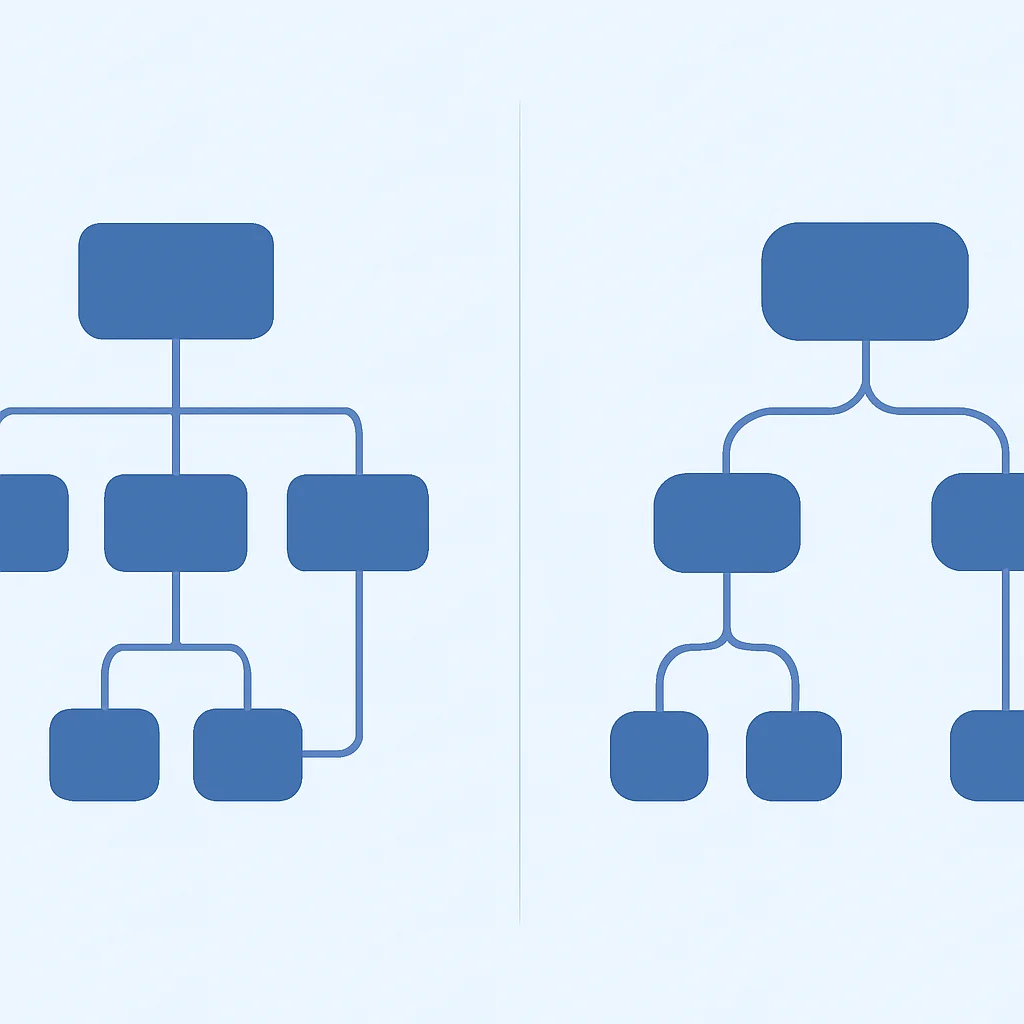
Welcome to 2026, where the landscape of Android UI development has fundamentally shifted. For years, Android developers meticulously crafted user interfaces using XML layouts, a verbose and imperative approach that often led to complex, hard-to-maintain codebases. This traditional method required developers to explicitly tell the system how to draw each UI element and then manually update its state. However, the advent of Jetpack Compose has ushered in a new era: declarative UI development.
Jetpack Compose, Google’s modern toolkit for building native Android UI, empowers developers to describe what the UI should look like for a given state, and the framework handles the rest. This paradigm shift, heavily influenced by frameworks like React and Flutter, has revolutionized how we think about and build Android applications. By leveraging Kotlin’s expressive power, Compose dramatically reduces boilerplate code, accelerates development cycles, and fosters a more intuitive and enjoyable development experience.
In the past few years, we’ve seen a rapid acceleration in Compose adoption. Major tech companies and independent developers alike are increasingly choosing Compose for their new projects, and even migrating existing XML-based applications. This guide aims to provide a comprehensive, beginner-friendly introduction to Jetpack Compose, ensuring you have the foundational knowledge to confidently dive into modern Android UI development in 2026. Whether you’re a seasoned Android developer looking to update your skills or a newcomer eager to learn the latest, this post will equip you with the insights to build beautiful, reactive, and efficient Android applications.
KEY POINT
Jetpack Compose represents a fundamental shift from imperative XML-based UI to a declarative, Kotlin-driven approach, significantly simplifying UI development and improving maintainability.
2. Why Jetpack Compose in 2026? Key Advantages and Trends
By 2026, Jetpack Compose has solidified its position as the de facto standard for Android UI development. The reasons for its widespread adoption are compelling, offering significant advantages over traditional XML layouts. Understanding these benefits is crucial for any developer looking to stay relevant and efficient in the Android ecosystem.
Key Advantages Driving Compose Adoption
Core Benefits of Jetpack Compose
Faster Development Cycle — Compose drastically reduces the amount of code needed to build UIs. Studies from Google itself have shown up to a 50% reduction in UI code compared to XML, leading to quicker iteration and feature delivery.
Intuitive Declarative Paradigm — Instead of managing view hierarchies, you describe your UI as a function of your application state. This makes UI code easier to read, reason about, and debug, especially for complex interactions.
Seamless Integration — Compose integrates perfectly with existing Android libraries and architecture components like ViewModel, LiveData, and Room. This allows for gradual migration of existing projects and leverages established patterns.
Improved Performance — Compose’s intelligent recomposition system only updates the parts of the UI that have changed, rather than redrawing entire views. This leads to more efficient rendering and smoother user experiences, particularly on lower-end devices.
Powerful Tooling & Ecosystem — Android Studio offers robust support for Compose, including Live Previews, Interactive Previews, and a dedicated Layout Inspector. The community around Compose is also thriving, providing abundant resources, libraries, and solutions.
Current Trends in 2026
The trends observed over the past few years indicate a clear trajectory:
Industry Standard for New Projects: A significant majority, estimated at over 70% of new Android applications initiated in 2025-2026, are being built with Jetpack Compose. This makes it a critical skill for any aspiring or current Android developer.
Kotlin-First Approach: Compose is intrinsically linked with Kotlin, leveraging its features like extension functions, coroutines, and sealed classes to provide a powerful and concise development experience. This reinforces Kotlin’s position as the preferred language for Android.
Expanding Cross-Platform Potential: While primarily for Android, the underlying principles and components of Compose are extending to other platforms through Compose Multiplatform. This allows developers to share UI code not just between Android and desktop, but also increasingly with iOS and web targets, offering a compelling alternative to frameworks like Flutter or React Native for certain use cases.
Accessibility and Theming Focus: Google has continuously invested in making Compose highly accessible and customizable. Advanced theming capabilities, including Material Design 3 components, ensure that apps built with Compose are inclusive and adhere to modern design standards with minimal effort.
KEY POINT
By 2026, Jetpack Compose is not merely an alternative; it’s the predominant method for Android UI development, offering superior efficiency, maintainability, and a future-proof foundation for mobile applications.
3. Core Concepts of Jetpack Compose: Composables, State, and Recomposition
To effectively build UIs with Jetpack Compose, it’s essential to grasp its fundamental building blocks and how they interact. These core concepts — Composables, State, and Recomposition — form the backbone of the declarative UI paradigm.
Composables: The Building Blocks
At the heart of Jetpack Compose are Composable functions. These are regular Kotlin functions marked with the @Composable annotation. Unlike traditional Android views which are objects, Composables are functions that describe a part of your UI. They take some data as input and emit UI elements. These functions can be nested, allowing you to build complex UIs from smaller, reusable components.
Think of Composables as LEGO bricks. Each brick (Composable) has a specific shape and purpose (e.g., a button, a text field, an image). You combine these bricks to build larger structures (your app’s UI). The beauty is that these functions are stateless by default and only focus on what to display.
State: The Data That Drives UI
Since Composables are functions, they don’t inherently store state. For a UI to be interactive and dynamic, it needs to react to changes in data. This data is referred to as state. In Compose, state is typically managed using observable state holders, most commonly MutableState. When the value held by a MutableState object changes, Compose automatically detects it and triggers a UI update.
To make a state observable within a Composable function, you use the remember utility. This tells Compose to “remember” the state across recompositions. For state that needs to persist across configuration changes (like screen rotations), rememberSaveable is used.
Recomposition: Efficient UI Updates
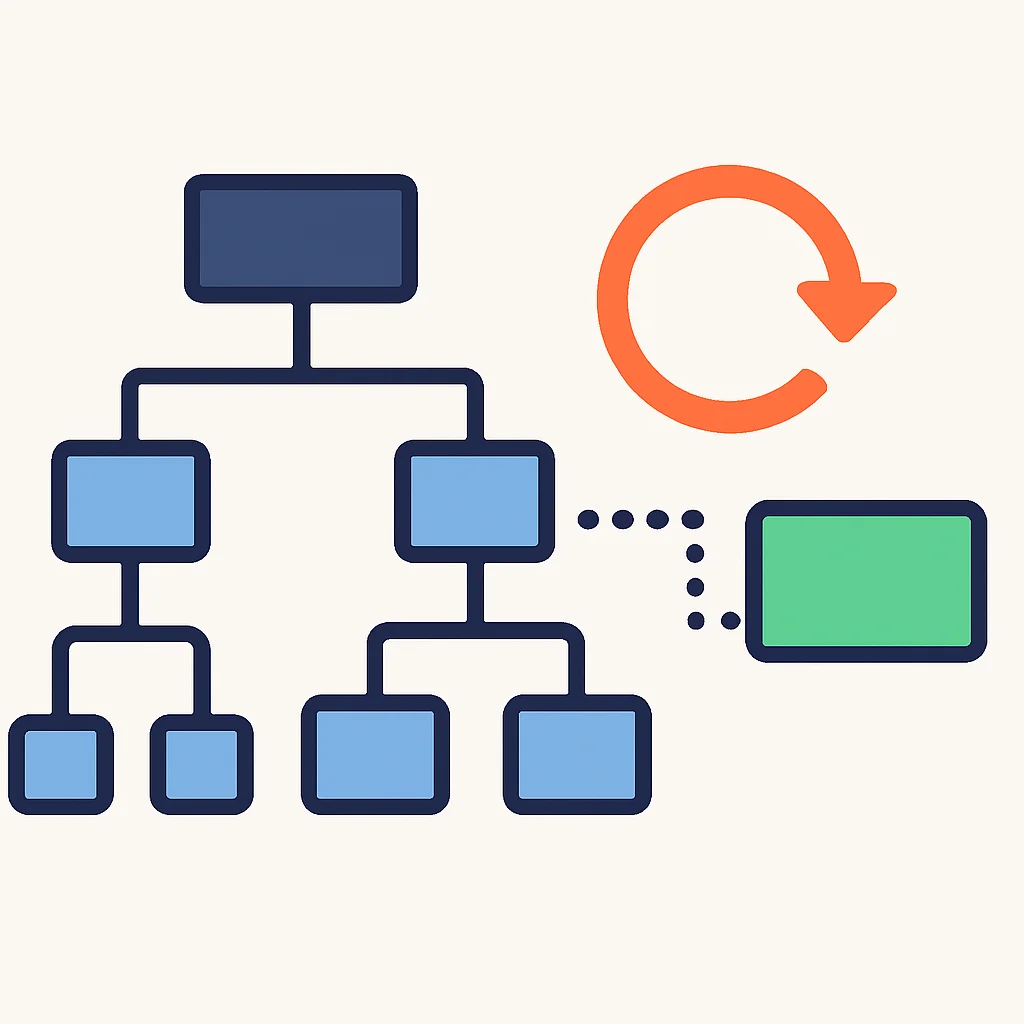
Recomposition is the process by which Compose re-executes Composable functions when their inputs (state) change. Instead of rebuilding the entire UI tree, Compose intelligently identifies which Composables are affected by the state change and only re-renders those specific parts. This is a highly efficient process, leading to smoother animations and better overall application performance.
When a state variable changes, any Composable that reads that state variable is marked for recomposition. Compose then runs these marked Composables again, updating the UI to reflect the new state. This automatic update mechanism is what makes Compose truly reactive and declarative.
CODE EXPLANATION
This code demonstrates a basic Composable function GreetingMessage that takes a name as input. It then uses remember and mutableStateOf to manage an internal count state. Every time the button is clicked, the count updates, triggering a recomposition of the Text element displaying the count.
import androidx.compose.foundation.layout.Column
import androidx.compose.foundation.layout.padding
import androidx.compose.material3.Button
import androidx.compose.material3.Text
import androidx.compose.runtime.Composable
import androidx.compose.runtime.getValue
import androidx.compose.runtime.mutableStateOf
import androidx.compose.runtime.remember
import androidx.compose.runtime.setValue
import androidx.compose.ui.Modifier
import androidx.compose.ui.unit.dp

@Composable
fun GreetingMessage(name: String, modifier: Modifier = Modifier) {
    // State declaration: 'count' will be remembered across recompositions
    // When 'count' changes, Composables that read it will recompose
    var count by remember { mutableStateOf(0) }

    Column(modifier = modifier.padding(16.dp)) {
        Text(text = "Hello, $name! You've clicked $count times.",
             modifier = Modifier.padding(bottom = 8.dp))
        Button(onClick = { count++ }) {
            Text("Click Me!")
        }
    }
}
KEY POINT
Understanding the interplay between Composables (UI elements), State (data), and Recomposition (UI updates) is absolutely fundamental to building dynamic and efficient user interfaces in Jetpack Compose.
4. Setting Up Your Development Environment
Before you can start writing your first Jetpack Compose application, you need to ensure your development environment is correctly configured. This section will guide you through the necessary steps, focusing on what’s current and relevant in 2026.
1. Install Android Studio (Latest Stable Version)
Jetpack Compose development is best done with Android Studio. As of 2026, you should download and install the latest stable version of Android Studio from the official developer website. This ensures you have the most up-to-date tooling, including the Compose Preview, Layout Inspector, and other optimizations specific to Compose. Previous versions like Hedgehog or Iguana might work, but the latest release will offer the best experience and compatibility with current Compose libraries.
During installation, make sure to select the Android SDK components. Specifically, you’ll need at least Android API Level 21 (Lollipop) or higher, as Compose apps target a minimum SDK version of 21 (though most modern apps target 24 or higher).
2. Create a New Compose Project
Once Android Studio is installed, open it and choose “New Project”. In the project templates, select the “Empty Activity” template under the “Phone and Tablet” tab. Ensure the “Language” is set to Kotlin and the “Build configuration language” is set to Kotlin DSL (which is becoming the standard over Groovy DSL for Gradle in new projects). The template will automatically configure the necessary Compose dependencies.
3. Configure Gradle Dependencies
Even with the template, it’s good practice to understand the core dependencies. Open your build.gradle.kts (Module :app) file. You should find entries similar to these:
CODE EXPLANATION
This snippet shows the essential Jetpack Compose dependencies within your module-level build.gradle.kts file. compose.ui provides the core UI toolkit, compose.material3 brings modern Material Design components, and compose.uiToolingPreview enables the powerful Android Studio previews. The platform("androidx.compose:compose-bom:...") ensures all Compose libraries use compatible versions.
// build.gradle.kts (Module :app)

plugins {
    id("com.android.application")
    id("org.jetbrains.kotlin.android")
}

android {
    // ... other configurations ...
    buildFeatures {
        compose = true
    }
    composeOptions {
        kotlinCompilerExtensionVersion = "1.5.1" // Adjust to your Kotlin version
    }
    packaging {
        resources {
            excludes += "/META-INF/{AL2.0,LGPL2.1}"
        }
    }
}

dependencies {
    // Import the Compose BOM (Bill of Materials) to manage all Compose library versions
    implementation(platform("androidx.compose:compose-bom:2024.04.00")) // Example version for 2026, use latest
    implementation("androidx.compose.ui:ui")
    implementation("androidx.compose.ui:ui-graphics")
    implementation("androidx.compose.ui:ui-tooling-preview")
    implementation("androidx.compose.material3:material3") // Modern Material Design components
    implementation("androidx.activity:activity-compose:1.8.2") // For Compose integration with Activity

    // ... other dependencies ...

    // Debugging and tooling
    debugImplementation("androidx.compose.ui:ui-tooling")
    debugImplementation("androidx.compose.ui:ui-test-manifest")
    androidTestImplementation("androidx.compose.ui:ui-test-junit4")
}
Always ensure your compose-bom version is up to date. The BOM (Bill of Materials) helps manage all Compose library versions to prevent compatibility issues. As of 2026, Google regularly releases updates, so keeping your dependencies current is key.
4. Set Up Your MainActivity
Your MainActivity.kt file will look slightly different from a traditional XML-based activity. Instead of calling setContentView(R.layout.activity_main), you’ll use setContent to define your UI directly with Composables.
CODE EXPLANATION
This is the standard setup for a Compose-enabled MainActivity. The setContent block is where your root Composable function will be placed, defining the entire UI hierarchy for that activity. The KwonglishTheme applies your app’s design system.
// MainActivity.kt
package com.kwonglish.composeapp

import android.os.Bundle
import androidx.activity.ComponentActivity
import androidx.activity.compose.setContent
import androidx.compose.foundation.layout.fillMaxSize
import androidx.compose.material3.MaterialTheme
import androidx.compose.material3.Surface
import androidx.compose.material3.Text
import androidx.compose.runtime.Composable
import androidx.compose.ui.Modifier
import androidx.compose.ui.tooling.preview.Preview
import com.kwonglish.composeapp.ui.theme.KwonglishTheme // Your app's theme

class MainActivity : ComponentActivity() {
    override fun onCreate(savedInstanceState: Bundle?) {
        super.onCreate(savedInstanceState)
        setContent {
            KwonglishTheme {
                // A surface container using the 'background' color from the theme
                Surface(
                    modifier = Modifier.fillMaxSize(),
                    color = MaterialTheme.colorScheme.background
                ) {
                    Greeting("Kwonglish Reader") // Our first Composable
                }
            }
        }
    }
}

@Composable
fun Greeting(name: String, modifier: Modifier = Modifier) {
    Text(
        text = "Hello $name!",
        modifier = modifier
    )
}

@Preview(showBackground = true)
@Composable
fun GreetingPreview() {
    KwonglishTheme {
        Greeting("Android")
    }
}
KEY POINT
A smooth start with Jetpack Compose begins with the latest Android Studio, a Kotlin DSL project, correctly configured compose-bom dependencies, and understanding the setContent method in your MainActivity.
5. Building Your First Compose UI: A Step-by-Step Guide
Now that your environment is set up, let’s dive into building a simple UI. We’ll create a basic “Hello, Kwonglish!” screen with a button that changes the greeting. This will introduce you to common Composables and layout structures.
Step 1: Define Your Root Composable
Open your MainActivity.kt file. Inside the setContent block, we’ll replace the default Greeting("Android") with our new root Composable, let’s call it KwonglishGreetingScreen.
CODE EXPLANATION
This is our main screen Composable. It uses Column to arrange elements vertically and centers them on the screen. The key here is the remember { mutableStateOf(...) } for greetingText, which allows the text to change and trigger recomposition.
package com.kwonglish.composeapp

import android.os.Bundle
import androidx.activity.ComponentActivity
import androidx.activity.compose.setContent
import androidx.compose.foundation.layout.Arrangement
import androidx.compose.foundation.layout.Column
import androidx.compose.foundation.layout.fillMaxSize
import androidx.compose.foundation.layout.padding
import androidx.compose.material3.Button
import androidx.compose.material3.MaterialTheme
import androidx.compose.material3.Surface
import androidx.compose.material3.Text
import androidx.compose.runtime.Composable
import androidx.compose.runtime.getValue
import androidx.compose.runtime.mutableStateOf
import androidx.compose.runtime.remember
import androidx.compose.runtime.setValue
import androidx.compose.ui.Alignment
import androidx.compose.ui.Modifier
import androidx.compose.ui.tooling.preview.Preview
import androidx.compose.ui.unit.dp
import com.kwonglish.composeapp.ui.theme.KwonglishTheme

class MainActivity : ComponentActivity() {
    override fun onCreate(savedInstanceState: Bundle?) {
        super.onCreate(savedInstanceState)
        setContent {
            KwonglishTheme {
                Surface(
                    modifier = Modifier.fillMaxSize(),
                    color = MaterialTheme.colorScheme.background
                ) {
                    KwonglishGreetingScreen() // Our new root Composable
                }
            }
        }
    }
}

@Composable
fun KwonglishGreetingScreen(modifier: Modifier = Modifier) {
    // Declare a state variable for the greeting text
    var greetingText by remember { mutableStateOf("Hello, Kwonglish Reader!") }

    Column(
        modifier = modifier.fillMaxSize(),
        verticalArrangement = Arrangement.Center,
        horizontalAlignment = Alignment.CenterHorizontally
    ) {
        Text(
            text = greetingText,
            modifier = Modifier.padding(bottom = 16.dp),
            style = MaterialTheme.typography.headlineMedium
        )
        Button(onClick = {
            greetingText = if (greetingText == "Hello, Kwonglish Reader!") "Welcome to Compose!" else "Hello, Kwonglish Reader!"
        }) {
            Text("Change Greeting")
        }
    }
}

@Preview(showBackground = true, widthDp = 320)
@Composable
fun KwonglishGreetingScreenPreview() {
    KwonglishTheme {
        KwonglishGreetingScreen()
    }
}
Step 2: Understand the Composables Used
Let’s break down the Composables used in KwonglishGreetingScreen:
Key Composables in Action
Column — A layout Composable that arranges its children vertically. It’s similar to LinearLayout with vertical orientation in XML. Here, we use fillMaxSize() to make it take up the entire screen, and Arrangement.Center and Alignment.CenterHorizontally to center its content.
Text — Displays text. It’s the equivalent of TextView. We pass our greetingText state variable to it, so when the state changes, the Text Composable recomposes with the new value.
Button — A clickable button, similar to Button in XML. Its onClick lambda is where we update our greetingText state.
Modifier — A powerful concept in Compose. Modifiers are ordered collections of elements that decorate or augment Composables. They allow you to change a Composable’s size, layout, behavior, and appearance (e.g., padding, background, click listeners). We use Modifier.padding() to add space and Modifier.fillMaxSize() to fill available space.
Step 3: Preview Your UI
Android Studio provides excellent support for Compose Previews. The @Preview annotation allows you to see your Composables render directly within the IDE, without needing to run the app on a device or emulator. The KwonglishGreetingScreenPreview function shows how to create a preview for our screen.
In Android Studio, look for the “Design” or “Split” view in your MainActivity.kt file. You should see a live preview of your KwonglishGreetingScreen. You can even interact with it using the “Interactive Preview” feature by clicking the play button on the preview window.

KEY POINT
Building your first Compose UI involves arranging basic Composables like Column, Text, and Button, managing their state with remember { mutableStateOf(...) }, and utilizing Modifiers for customization.
6. Handling User Input and State Management
Interactive applications require handling user input and managing the state that results from those interactions. Jetpack Compose provides powerful and intuitive mechanisms for this, allowing you to create dynamic UIs that respond smoothly to user actions. Let’s expand on our previous example to include a text input field and a simple counter.
Implementing a Text Input Field
To capture user text input, Compose offers the TextField Composable (or OutlinedTextField for a Material Design outlined style). This Composable requires a state variable to hold the current input value and an onValueChange lambda to update that state whenever the user types.
CODE EXPLANATION
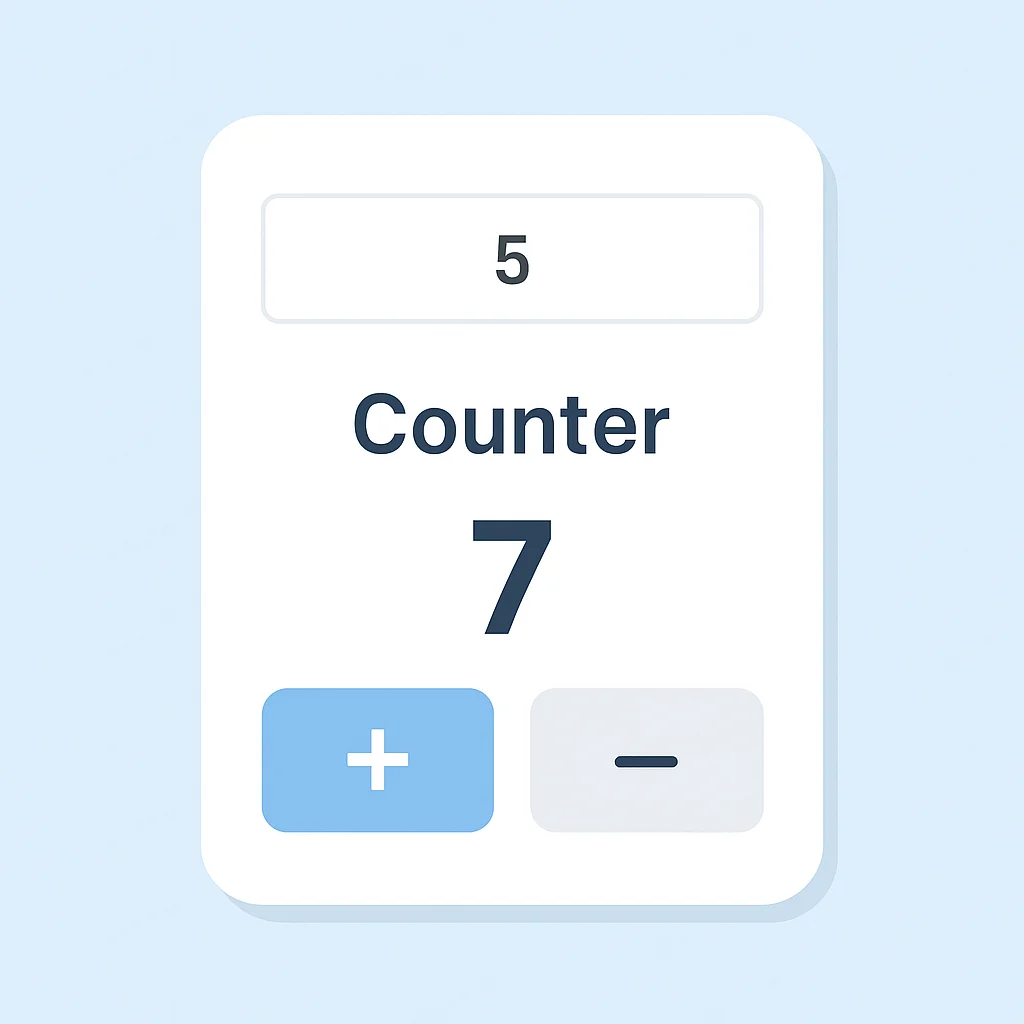
This expanded Composable introduces a TextField for user input. The nameInput state holds the text. As the user types, onValueChange updates nameInput, triggering recomposition of the Text displaying the greeting. The counter functionality is also included, demonstrating how multiple states can coexist.
import androidx.compose.foundation.layout.Column
import androidx.compose.foundation.layout.Spacer
import androidx.compose.foundation.layout.fillMaxWidth
import androidx.compose.foundation.layout.height
import androidx.compose.foundation.layout.padding
import androidx.compose.material3.Button
import androidx.compose.material3.OutlinedTextField
import androidx.compose.material3.Text
import androidx.compose.runtime.Composable
import androidx.compose.runtime.getValue
import androidx.compose.runtime.mutableStateOf
import androidx.compose.runtime.remember
import androidx.compose.runtime.setValue
import androidx.compose.ui.Modifier
import androidx.compose.ui.unit.dp

@Composable
fun InteractiveGreetingScreen(modifier: Modifier = Modifier) {
    var nameInput by remember { mutableStateOf("Kwonglish Reader") }
    var clickCount by remember { mutableStateOf(0) }

    Column(modifier = modifier.padding(16.dp)) {
        OutlinedTextField(
            value = nameInput,
            onValueChange = { newValue -> nameInput = newValue },
            label = { Text("Enter your name") },
            modifier = Modifier.fillMaxWidth().padding(bottom = 16.dp)
        )
        Text(
            text = "Hello, $nameInput! You've clicked the button $clickCount times.",
            modifier = Modifier.padding(bottom = 16.dp)
        )
        Button(onClick = { clickCount++ }) {
            Text("Increment Count")
        }
    }
}
Understanding rememberSaveable for Persistence
What happens if the user rotates their device or the app goes into the background and is later restored? By default, the state managed by remember will be reset. To preserve state across configuration changes (like screen rotations, language changes) or process death, you should use rememberSaveable instead of remember.
PROBLEM 01
Loss of UI State on Configuration Changes
When a device is rotated, or other configuration changes occur, the Android system often recreates the Activity. If UI state (like text in an input field or a counter value) is managed only with remember, this state will be lost, leading to a frustrating user experience where input fields are cleared and counters reset.
SOLUTION
Replace remember with rememberSaveable for any state that needs to persist across configuration changes. rememberSaveable automatically saves and restores the state, similar to onSaveInstanceState in traditional Android views.
CODE EXPLANATION
By changing remember to rememberSaveable for nameInput and clickCount, their values will now be preserved even if the activity is recreated, such as during a device rotation.
import androidx.compose.runtime.saveable.rememberSaveable

@Composable
fun PersistentInteractiveGreetingScreen(modifier: Modifier = Modifier) {
    // Using rememberSaveable for state that needs to persist across configuration changes
    var nameInput by rememberSaveable { mutableStateOf("Kwonglish Reader") }
    var clickCount by rememberSaveable { mutableStateOf(0) }

    Column(modifier = modifier.padding(16.dp)) {
        OutlinedTextField(
            value = nameInput,
            onValueChange = { newValue -> nameInput = newValue },
            label = { Text("Enter your name") },
            modifier = Modifier.fillMaxWidth().padding(bottom = 16.dp)
        )
        Text(
            text = "Hello, $nameInput! You've clicked the button $clickCount times.",
            modifier = Modifier.padding(bottom = 16.dp)
        )
        Button(onClick = { clickCount++ }) {
            Text("Increment Count")
        }
    }
}
KEY POINT
Effective state management with remember for local, transient state and rememberSaveable for persistent UI state is critical for building robust and user-friendly Compose applications.
7. Common Challenges and Solutions in Compose Development
While Jetpack Compose simplifies UI development significantly, like any powerful framework, it comes with its own set of challenges. Understanding these common pitfalls and their solutions is key to writing performant, maintainable, and bug-free Compose applications. Here are a few you might encounter in 2026:
Challenge 1: Over-recomposition and Performance Issues
One of the most common performance concerns in Compose is over-recomposition. This occurs when Composables recompose more often than necessary, leading to wasted CPU cycles and potential UI jank, especially in complex layouts or lists. This often happens when state changes propagate widely or when Composables have unstable parameters.
PROBLEM 02
Unnecessary Recompositions Leading to Performance Degradation
A large Composable function with many children might recompose entirely even if only a small part of its state changes, causing performance bottlenecks. For example, a parent Composable with a Modifier.clickable that updates a simple counter might cause all its children to recompose if not structured carefully.
SOLUTION
1. State Hoisting: Pass state down and events up. This makes Composables stateless and reusable, reducing their recomposition scope. Only the parent managing the state recomposes, and only the affected children get updated.
2. Stable Types: Ensure data classes and other types passed to Composables are “stable” (immutable or marked with @Immutable or @Stable). Compose’s compiler can then skip recomposing Composables if their stable inputs haven’t changed.
3. remember with keys: Use keys with remember to explicitly tell Compose when a remembered value should be recomputed.
4. derivedStateOf: For complex state derivations, use derivedStateOf to ensure the derived value is only recomputed when its underlying dependencies truly change, preventing unnecessary recompositions of Composables that consume it.
Challenge 2: Handling Large, Scrolling Lists Efficiently
Displaying a large number of items in a scrollable list can be memory-intensive and slow if not handled correctly. Simply putting many Text or Card Composables directly inside a Column with Modifier.verticalScroll() will cause all items to be composed at once, consuming excessive resources.
PROBLEM 03
Poor Performance with Long Lists
When a list contains hundreds or thousands of items, composing all of them at once will lead to slow initial load times, increased memory usage, and choppy scrolling, severely impacting the user experience. This is a common issue for apps displaying feeds, product catalogs, or chat histories.
SOLUTION
Use LazyColumn for vertically scrolling lists and LazyRow for horizontally scrolling lists. These Composables are equivalent to RecyclerView in the XML world. They only compose and lay out the items currently visible on screen, plus a small buffer, significantly optimizing performance and memory usage for large datasets. They also provide key support for stable item identities, which improves recomposition performance when items are added, removed, or reordered.
Challenge 3: Integrating with Existing View-based Codebases
Many Android applications developed before 2023 still rely heavily on XML layouts and the traditional View system. Migrating an entire large application to Compose overnight is often impractical. The challenge lies in integrating Compose into an existing View-based project gradually.
PROBLEM 04