
Build Your First Progressive Web App (PWA) in 2026
This guide unpacks the essentials of building modern, installable, and offline-capable web applications for today’s digital landscape.
Keywords: PWA, Web Development, Service Workers
TABLE OF CONTENTS
1. Introduction: The Rise of Progressive Web Apps in 2026
2. Core PWA Components: The Pillars of Modern Web Experiences
3. Building Blocks Deep Dive: Web Manifest
4. Building Blocks Deep Dive: Service Workers and Offline Capabilities
5. PWA vs. Native vs. Responsive Web: A Comparative Analysis
6. Overcoming PWA Challenges: Strategies for Success
7. Your First PWA: A Step-by-Step Implementation Guide
8. Frequently Asked Questions (FAQ)
INTRODUCTION
The Rise of Progressive Web Apps in 2026
In the rapidly evolving digital landscape of 2026, the lines between traditional websites and native mobile applications continue to blur. At the forefront of this convergence are Progressive Web Apps (PWAs) – a technology that promises to deliver fast, reliable, and engaging user experiences directly through the web browser. For developers and businesses alike, understanding and implementing PWAs is no longer a niche skill but a fundamental requirement for reaching a broader audience and offering superior digital products.
The journey of PWAs began almost a decade ago, but it’s in 2026 that their full potential is truly being realized. With advancements in browser capabilities, improved developer tooling, and a growing user expectation for seamless experiences, PWAs offer a compelling alternative to platform-specific native apps. They leverage modern web technologies to provide an app-like experience, complete with offline functionality, push notifications, and home screen installability, all while maintaining the accessibility and discoverability of the web.
“PWAs represent the best of both worlds: the reach and accessibility of the web combined with the rich, interactive experiences typically associated with native applications.”
Consider the statistics from early 2026: over 75% of global internet users access the web primarily via mobile devices. While native apps dominate specific niches, the friction of app store downloads, updates, and storage consumption often deters users. PWAs bypass these hurdles, offering an instant-on experience that can be installed with a single tap, takes up minimal storage, and automatically updates in the background. Major players like Starbucks, Pinterest, and even Twitter (with their “Twitter Lite” PWA) have reported significant engagement increases and conversion rate boosts after adopting PWA strategies, sometimes seeing improvements of over 20% in mobile sessions and a 65% rise in user re-engagement.
KEY POINT
PWAs are crucial for 2026 web development, offering app-like experiences (offline, installable, push notifications) via standard web browsers, reducing user friction and boosting engagement.
CORE COMPONENTS
Core PWA Components: The Pillars of Modern Web Experiences
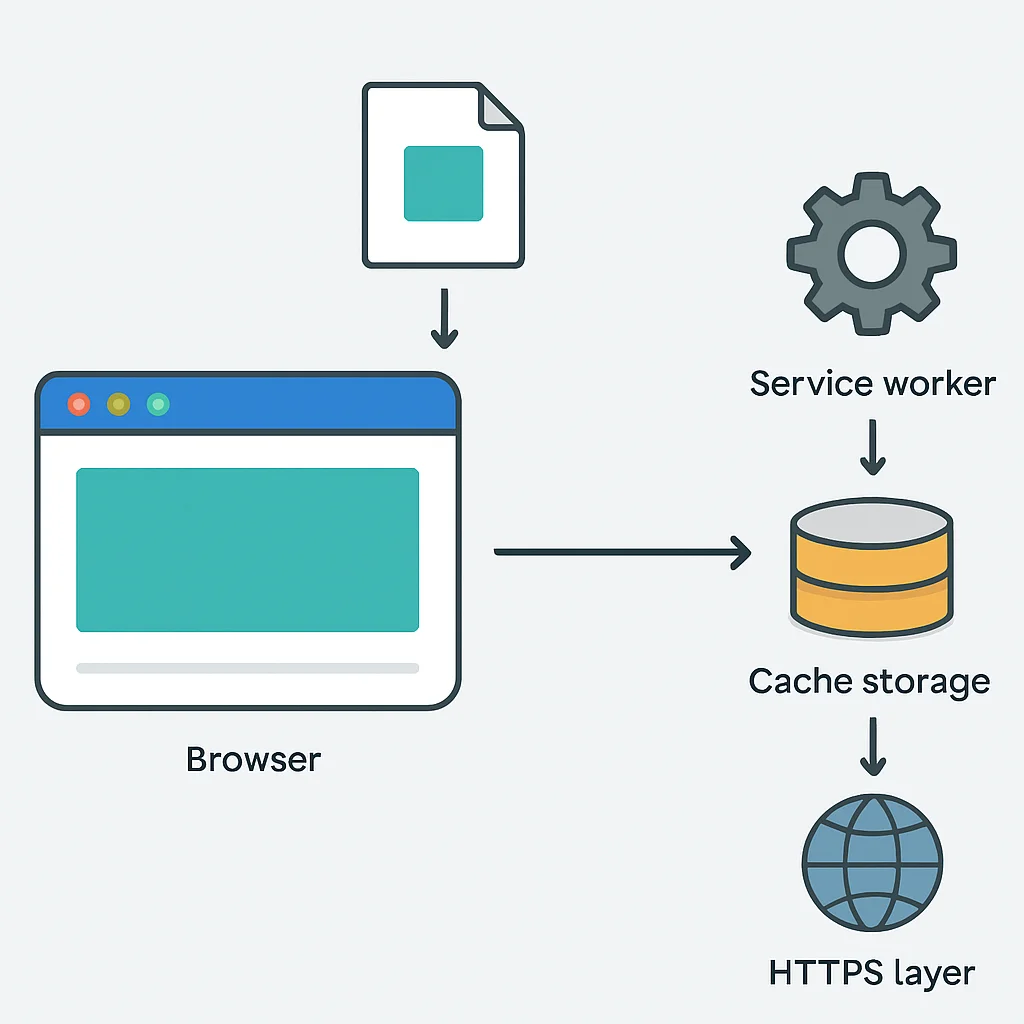
To truly understand and build a PWA, we must first grasp its foundational components. These elements work in concert to transform a standard web application into a powerful, installable experience. The three primary pillars are:
PWA Core Pillars
1. Web Manifest — A JSON file that dictates how your PWA should appear and behave when installed on a user’s device.
2. Service Workers — A client-side programmable proxy that sits between your web app and the network, enabling offline functionality, caching, and push notifications.
3. HTTPS — Essential for security and enabling Service Worker functionality, ensuring all data transmitted is encrypted and secure.
Beyond these core technical components, a PWA also embodies several fundamental principles that define its user experience:
Key PWA Principles
- ● Progressive: Works for every user, regardless of browser choice, because it’s built with progressive enhancement as a core tenet.
- ● Responsive: Fits any form factor: desktop, mobile, tablet, or whatever comes next.
- ● Connectivity Independent: Enhanced with service workers to work offline or on low-quality networks.
- ● App-like: Feels like a native app to the user with app-style interactions and navigation.
- ● Fresh: Always up-to-date thanks to the service worker update process.
- ● Safe: Served over HTTPS to prevent snooping and ensure content hasn’t been tampered with.
- ● Discoverable: Identifiable as an “application” by manifest files and service worker registration, allowing search engines to find them.
- ● Re-engageable: Makes re-engagement easy through features like push notifications.
- ● Installable: Allows users to “keep” apps they find most useful on their home screen without the hassle of an app store.
- ● Linkable: Easily shareable via URL, no complex installation required.
These principles guide the development of any robust PWA, ensuring it meets user expectations for performance, reliability, and engagement. The combination of these technical components and user-centric principles is what makes PWAs such a powerful force in 2026’s web ecosystem.
Building Blocks Deep Dive: Web Manifest
The Web Manifest is a JSON file that provides information about your web application to the browser, telling it how your PWA should behave when installed on a user’s device. It’s essentially the identity card for your PWA, defining its appearance, launch behavior, and other meta-data.
Key Properties of a Web Manifest
- ●
name: The full name of your application. - ●
short_name: A shorter name for display on the home screen or app launcher (e.g., “Kwonglish” instead of “Kwonglish Blog”). Typically 12-15 characters max. - ●
start_url: The URL that loads when a user launches the PWA from their home screen. Often, this is the root path/, but it can be a specific page like/dashboard. - ●
display: Defines the preferred display mode for the web app. Common values include:standalone: Opens the web app without any browser UI, resembling a native application.fullscreen: Opens with no browser UI, taking up the entire screen.minimal-ui: Similar to standalone but with a minimal set of browser UI elements (e.g., back/forward buttons).browser: Opens in a regular browser tab.
- ●
icons: An array of image objects specifying different sizes and types of icons for various contexts (e.g., home screen, splash screen). Typically, you’d include sizes like 192x192px and 512x512px. - ●
theme_color: The default theme color for the application, influencing the color of the browser’s address bar or the OS task switcher. - ●
background_color: The background color of the splash screen when the PWA is launched. It should match the background color of your app’s main page for a smooth transition. - ●
description: A short, descriptive text explaining what the PWA does.
The Web Manifest is a critical .json file that tells the browser how your PWA should look and behave when installed, defining everything from icons to display mode.
To link your web manifest to your HTML, you simply add a <link> tag in your <head> section:
CODE EXPLANATION
This HTML snippet demonstrates how to link your manifest.json file to your web page within the <head> section. It’s a crucial step for the browser to recognize your PWA’s metadata.
<!DOCTYPE html>
<html lang="en">
<head>
    <meta charset="UTF-8">
    <meta name="viewport" content="width=device-width, initial-scale=1.0">
    <title>My First PWA</title>
    <!-- Link to your web manifest file -->
    <link rel="manifest" href="/manifest.json">
    <meta name="theme-color" content="#667eea">
</head>
<body>
    <h1>Welcome to Kwonglish PWA!</h1>
</body>
</html>
Here’s an example of a simple manifest.json file:
CODE EXPLANATION
This JSON defines the PWA’s metadata, including its name, start URL, display mode, theme colors, and icons. These properties control how the PWA appears and behaves when installed on a user’s device.
{
  "name": "Kwonglish Blog PWA",
  "short_name": "Kwonglish",
  "description": "Your go-to source for IT insights and language learning.",
  "start_url": "/",
  "display": "standalone",
  "background_color": "#f0f3ff",
  "theme_color": "#667eea",
  "icons": [
    {
      "src": "/images/icons/icon-192x192.png",
      "sizes": "192x192",
      "type": "image/png"
    },
    {
      "src": "/images/icons/icon-512x512.png",
      "sizes": "512x512",
      "type": "image/png"
    },
    {
      "src": "/images/icons/icon-maskable-192x192.png",
      "sizes": "192x192",
      "type": "image/png",
      "purpose": "maskable"
    },
    {
      "src": "/images/icons/icon-maskable-512x512.png",
      "sizes": "512x512",
      "type": "image/png",
      "purpose": "maskable"
    }
  ]
}
Note the "purpose": "maskable" property on some icons. This is a best practice in 2026, ensuring your PWA icons adapt well to different device shapes and masks, preventing cropping on certain Android devices. Always provide at least one maskable icon for optimal display.
Building Blocks Deep Dive: Service Workers and Offline Capabilities
Service Workers are the true powerhouses behind PWAs, enabling capabilities like offline access, push notifications, and background synchronization. They are JavaScript files that run in the background, separate from the main browser thread, and act as a programmable network proxy. This means they can intercept network requests made by your PWA, allowing you to decide how to handle them – whether to serve cached content, fetch from the network, or a combination of both.
Service Worker Lifecycle
A Service Worker goes through a distinct lifecycle:
- ● Registration: Your main JavaScript file registers the service worker.
- ● Installation: The browser downloads and executes the service worker script. During this phase, you typically cache static assets (App Shell) required for basic offline functionality.
- ● Activation: After installation, the service worker takes control of pages within its scope. This is a good time to clean up old caches.
- ● Fetch/Message Events: Once active, the service worker can intercept network requests (
fetchevent) or receive messages from the main thread (messageevent).
KEY POINT
Service Workers are JavaScript files that act as a network proxy, enabling offline access and caching. They follow a lifecycle of registration, installation (caching static assets), and activation (taking control and handling requests).
Caching Strategies
Effective caching is fundamental to PWA performance and reliability. Here are common strategies:
Common Caching Strategies
1. Cache-First, then Network: Attempts to serve content from the cache first. If not found, it falls back to the network. Ideal for static assets (images, CSS, JS) that rarely change.
2. Network-First, then Cache: Tries to fetch content from the network first. If the network is unavailable, it falls back to the cache. Suitable for frequently updated content or dynamic data where freshness is preferred.
3. Stale-While-Revalidate: Serves content immediately from the cache (stale) while simultaneously fetching an updated version from the network in the background (revalidate). Once the network request completes, the cache is updated for the next request. Great for user-generated content or news feeds.
4. Cache Only: Serves content exclusively from the cache. Used for essential ‘app shell’ assets that are pre-cached during installation and are not expected to change frequently.
5. Network Only: Always fetches content from the network, bypassing the cache. Used for very sensitive data or requests that should never be cached.
Implementing a service worker involves two main parts: registering it from your main application script and defining its behavior in the service worker script itself.
CODE EXPLANATION
This JavaScript code, typically placed in your main app.js file, checks if Service Workers are supported by the browser. If so, it registers your sw.js file. This initiates the Service Worker lifecycle, allowing it to control your PWA’s network requests.
// public/js/app.js
if ('serviceWorker' in navigator) {
  window.addEventListener('load', () => {
    navigator.serviceWorker.register('/sw.js')
      .then(registration => {
        console.log('Service Worker registered with scope:', registration.scope);
      })
      .catch(error => {
        console.error('Service Worker registration failed:', error);
      });
  });
}
CODE EXPLANATION
This is your core Service Worker script (sw.js). During the install event, it opens a cache and adds a list of ‘app shell’ assets for offline availability. The fetch event intercepts network requests and attempts to serve cached assets first, falling back to the network if not found. This implements a “cache-first, then network” strategy for static resources.
// public/sw.js
const CACHE_NAME = 'kwonglish-cache-v1';
const urlsToCache = [
  '/',
  '/index.html',
  '/css/style.css',
  '/js/app.js',
  '/images/logo.png',
  '/images/icons/icon-192x192.png'
];

// Install event: cache assets
self.addEventListener('install', event => {
  event.waitUntil(
    caches.open(CACHE_NAME)
      .then(cache => {
        console.log('Opened cache');
        return cache.addAll(urlsToCache);
      })
  );
});

// Activate event: clean up old caches
self.addEventListener('activate', event => {
  event.waitUntil(
    caches.keys().then(cacheNames => {
      return Promise.all(
        cacheNames.map(cacheName => {
          if (cacheName !== CACHE_NAME) {
            console.log('Deleting old cache:', cacheName);
            return caches.delete(cacheName);
          }
        })
      );
    })
  );
  // Ensure the service worker takes control of clients as soon as it activates
  self.clients.claim();
});

// Fetch event: intercept network requests
self.addEventListener('fetch', event => {
  event.respondWith(
    caches.match(event.request)
      .then(response => {
        // Cache hit - return response
        if (response) {
          return response;
        }
        // No cache hit - fetch from network
        return fetch(event.request).then(
          networkResponse => {
            // Check if we received a valid response
            if (!networkResponse || networkResponse.status !== 200 || networkResponse.type !== 'basic') {
              return networkResponse;
            }

            // IMPORTANT: Clone the response. A response is a stream
            // and can only be consumed once. We must clone it so that
            // both the browser and the cache can consume it.
            const responseToCache = networkResponse.clone();

            caches.open(CACHE_NAME)
              .then(cache => {
                cache.put(event.request, responseToCache);
              });

            return networkResponse;
          }
        ).catch(() => {
            // If both cache and network fail, provide a fallback for HTML requests
            if (event.request.mode === 'navigate') {
                return caches.match('/index.html'); // Or an offline.html page
            }
        });
      })
  );
});
PWA vs. Native vs. Responsive Web: A Comparative Analysis
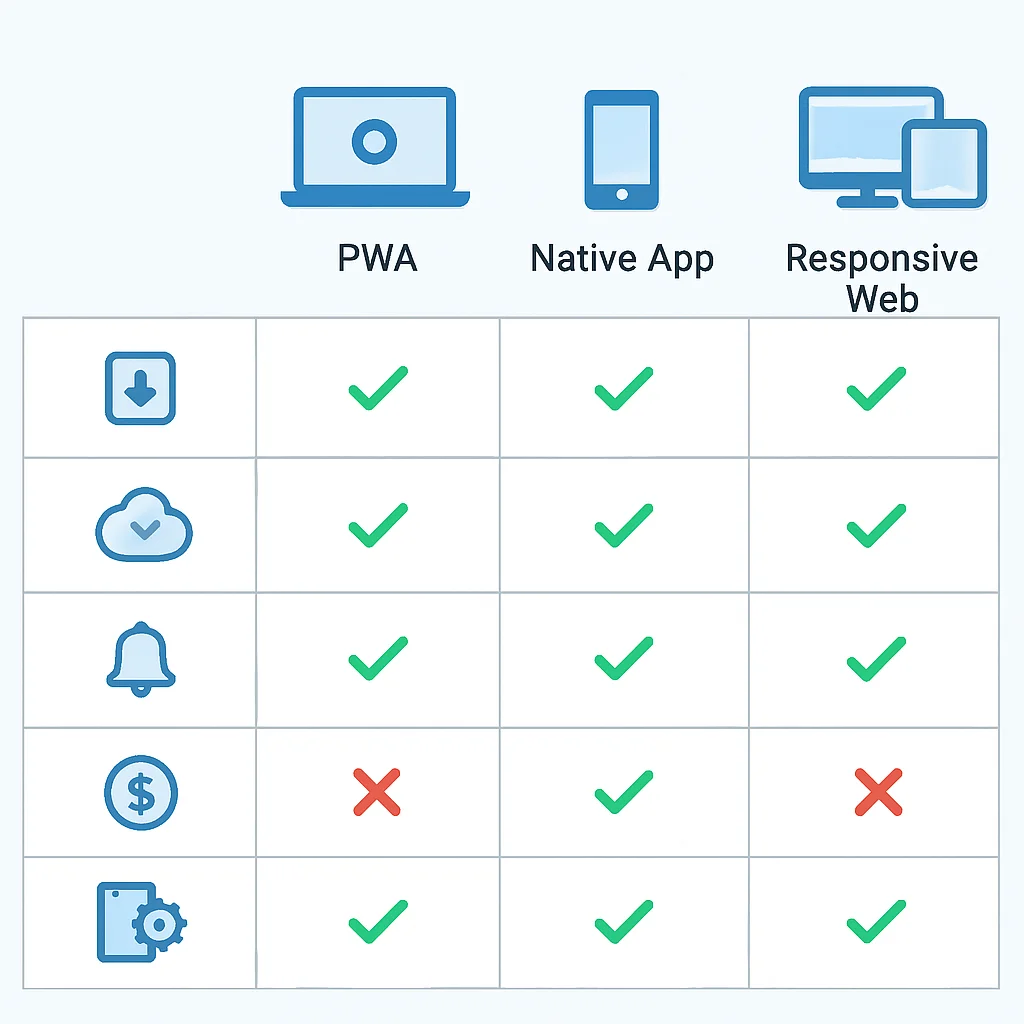
Understanding where PWAs fit in the broader application landscape requires a comparison with their counterparts: native applications and traditional responsive websites. Each has its strengths and weaknesses, making them suitable for different use cases in 2026.
Native Applications
Native apps are built specifically for a mobile operating system (iOS, Android) using platform-specific languages (Swift/Objective-C for iOS, Kotlin/Java for Android). They are distributed through app stores.
Pros:
- ✓ Full access to device hardware (camera, GPS, contacts, NFC, etc.) and APIs.
- ✓ Best performance and responsiveness, often utilizing GPU acceleration.
- ✓ Strongest security features and sandboxing.
- ✓ Presence in official app stores for discoverability and trust.
Cons:
- ✗ High development cost (separate codebases for iOS/Android).
- ✗ Distribution through app stores involves approval processes and fees.
- ✗ Larger download sizes and require manual updates.
- ✗ Higher friction for user acquisition (download, install, open).
Responsive Web Applications
These are traditional websites designed to adapt their layout to different screen sizes, offering a consistent experience across desktops, tablets, and mobile phones. They are accessed via a browser URL.
Pros:
- ✓ Universal accessibility via a URL on any device with a browser.
- ✓ Single codebase, lower development and maintenance costs.
- ✓ Instant updates (no user action required).
- ✓ Excellent search engine discoverability.
Cons:
- ✗ No offline capabilities.
- ✗ Limited access to device features compared to native apps.
- ✗ No home screen icon or push notifications (without PWA features).
- ✗ Performance can be inconsistent depending on network conditions.
Progressive Web Apps (PWAs)
PWAs combine the best aspects of both native apps and responsive websites. They are web applications that are progressively enhanced to offer app-like features and experiences.
Pros:
- ✓ Installable to home screen with an app-like experience (standalone mode).
- ✓ Offline capabilities and fast loading via service workers and caching.
- ✓ Push notifications for re-engagement.
- ✓ Single codebase, lower development and maintenance than native.
- ✓ No app store submission required (direct distribution via URL).
- ✓ Automatic updates without user intervention.
- ✓ Excellent discoverability through search engines.
Cons:
- ✗ Limited access to certain advanced device hardware/APIs compared to native (e.g., full background sync, advanced camera controls, some sensor data).
- ✗ No presence in traditional app stores (though some app stores now list PWAs).
- ✗ Performance can be slightly less optimized than native for graphics-intensive tasks.
In 2026, the choice largely depends on your project’s specific needs. If deep hardware integration and app store visibility are paramount, native might still be the way. For maximum reach, lower development costs, and a strong user experience without app store friction, PWAs are often the superior choice. Responsive web apps remain foundational but lack the advanced engagement features of PWAs.
Overcoming PWA Challenges: Strategies for Success
While PWAs offer tremendous advantages, developers often encounter specific challenges during implementation. Let’s address some common hurdles and their practical solutions.
PROBLEM 01
Ensuring Service Worker Updates are Prompt and Seamless
When you update your sw.js file, the browser might not immediately activate the new version. Users could be stuck on an older version until they close all tabs of your PWA or wait for a browser-determined update cycle.
SOLUTION — Force activation and notify user
You can implement logic in your main app to detect a new service worker and prompt the user to refresh. In your sw.js, use self.skipWaiting() during install and self.clients.claim() during activate to ensure the new service worker takes control immediately.
CODE EXPLANATION
// Inside sw.js
self.addEventListener('install', event => {
  event.waitUntil(
    caches.open(CACHE_NAME)
      .then(cache => {
        return cache.addAll(urlsToCache);
      })
      .then(() => self.skipWaiting()) // Forces the waiting service worker to become active
  );
});

self.addEventListener('activate', event => {
  event.waitUntil(
    caches.keys().then(cacheNames => {
      return Promise.all(
        cacheNames.map(cacheName => {
          if (cacheName !== CACHE_NAME) {
            return caches.delete(cacheName);
          }
        })
      );
    })
    .then(() => self.clients.claim()) // Takes control of any clients (pages) within its scope
  );
});
PROBLEM 02
Managing Cache Storage and Expiration
Caches can grow indefinitely, consuming user storage. Also, cached data might become stale if not properly managed, leading to outdated content being served.
SOLUTION — Use Workbox for advanced caching strategies
While manual caching is possible, Google’s Workbox library simplifies complex caching patterns significantly. It provides modules for cache expiration, background sync, routing, and more. For example, to manage cache expiration, you can define a maximum number of entries or a time-to-live (TTL) for cached items.
CODE EXPLANATION
This Workbox example demonstrates a “cache-first” strategy for images, with a maximum of 60 images cached and a 30-day expiration policy. It also sets up a “network-first” strategy for API calls, ensuring fresh data if available, but falling back to cache when offline. Workbox handles the underlying CacheStorage API complexities.
// Inside sw.js using Workbox
importScripts('https://storage.googleapis.com/workbox-cdn/releases/6.1.5/workbox-sw.js');

if (workbox) {
  console.log('Workbox is loaded!');

  // Precache the app shell
  workbox.precaching.precacheAndRoute([
    { url: '/', revision: '1' },
    { url: '/index.html', revision: '1' },
    { url: '/css/style.css', revision: '1' },
    { url: '/js/app.js', revision: '1' },
    { url: '/images/logo.png', revision: '1' },
    { url: '/images/icons/icon-192x192.png', revision: '1' }
  ]);

  // Cache images with a cache-first strategy and expiration
  workbox.routing.registerRoute(
    ({ request }) => request.destination === 'image',
    new workbox.strategies.CacheFirst({
      cacheName: 'images-cache',
      plugins: [
        new workbox.expiration.ExpirationPlugin({
          maxEntries: 60, // Only cache 60 images
          maxAgeSeconds: 30 * 24 * 60 * 60, // 30 Days
        }),
      ],
    })
  );

  // Cache API calls with a network-first strategy
  workbox.routing.registerRoute(
    ({ url }) => url.pathname.startsWith('/api/'),
    new workbox.strategies.NetworkFirst({
      cacheName: 'api-cache',
      plugins: [
        new workbox.expiration.ExpirationPlugin({
          maxEntries: 20,
          maxAgeSeconds: 7 * 24 * 60 * 60, // 7 Days
        }),
      ],
    })
  );

  // Fallback for offline pages
  workbox.routing.setCatchHandler(async ({ event }) => {
    if (event.request.mode === 'navigate') {
      return caches.match('/index.html'); // Serve the main page as fallback
    }
    return Response.error();
  });

} else {
  console.log('Workbox didn\'t load');
}
KEY POINT
For robust PWA development in 2026, leverage tools like Workbox to simplify complex Service Worker operations, manage cache effectively, and ensure seamless updates and offline experiences.
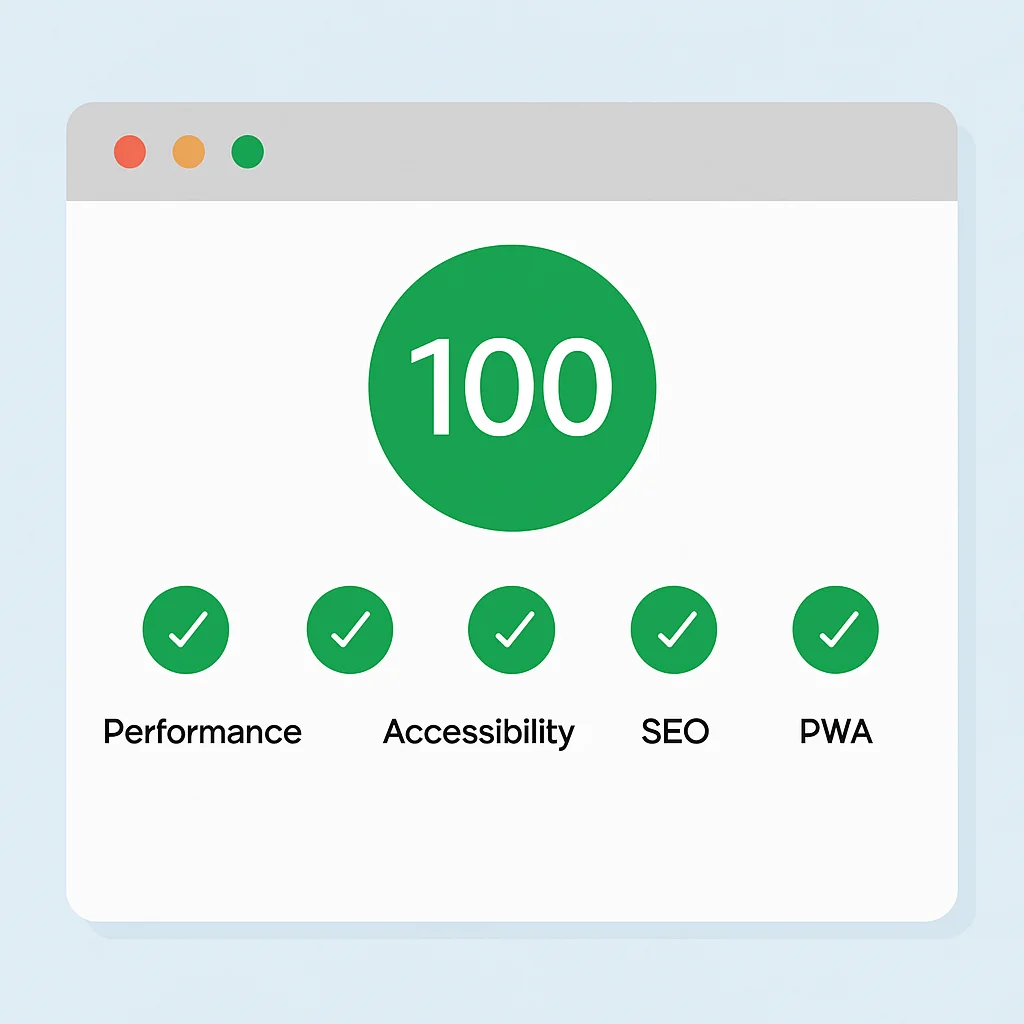
Your First PWA: A Step-by-Step Implementation Guide
Let’s put theory into practice and build a minimal PWA. This guide assumes you have a basic understanding of HTML, CSS, and JavaScript, and a web server (even a simple local one) to serve your files over HTTPS.
Step 1: Project Setup and Basic HTML
Create a folder for your PWA, e.g., my-pwa. Inside, create index.html, a css folder with style.css, a js folder with app.js, and an images folder for your icons and other assets.
1
Create index.html
This will be your main entry point. Include links to your manifest.json and app.js.
CODE EXPLANATION
<!DOCTYPE html>
<html lang="en">
<head>
    <meta charset="UTF-8">
    <meta name="viewport" content="width=device-width, initial-scale=1.0">
    <title>My Kwonglish PWA</title>
    <link rel="stylesheet" href="/css/style.css">
    <link rel="manifest" href="/manifest.json">
    <meta name="theme-color" content="#667eea">
</head>
<body>
    <header>
        <h1>Kwonglish PWA Demo</h1>
    </header>
    <main>
        <p>This is a simple Progressive Web App demonstration built in 2026.</p>
        <img src="/images/logo.png" alt="Kwonglish Logo" style="max-width: 100%; height: auto; padding-bottom: 16px;">
        <p>Try going offline after installing!</p>
    </main>
    <script src="/js/app.js"></script>
</body>
</html>
2
Create manifest.json
Place this file in your project’s root directory.
CODE EXPLANATION
This is the manifest file we discussed earlier. Ensure your start_url matches your PWA’s entry point and that the icons paths are correct. Don’t forget to create the icon images in your /images/icons/ directory.
// public/manifest.json
{
  "name": "Kwonglish PWA Demo",
  "short_name": "Kwonglish",
  "description": "A demo PWA for Kwonglish blog.",
  "start_url": "/",
  "display": "standalone",
  "background_color": "#f0f3ff",
  "theme_color": "#667eea",
  "icons": [
    {
      "src": "/images/icons/icon-192x192.png",
      "sizes": "192x192",
      "type": "image/png"
    },
    {
      "src": "/images/icons/icon-512x512.png",
      "sizes": "512x512",
      "type": "image/png"
    },
    {
      "src": "/images/icons/icon-maskable-192x192.png",
      "sizes": "192x192",
      "type": "image/png",
      "purpose": "maskable"
    },
    {
      "src": "/images/icons/icon-maskable-512x512.png",
      "sizes": "512x512",
      "type": "image/png",
      "purpose": "maskable"
    }
  ]
}
3
Create js/app.js
This script registers your service worker.
CODE EXPLANATION
This is the standard Service Worker registration script. It checks for browser support and registers /sw.js. The load event ensures that the service worker registration doesn’t block the initial page render.
// public/js/app.js
if ('serviceWorker' in navigator) {
  window.addEventListener('load', () => {
    navigator.serviceWorker.register('/sw.js')
      .then(registration => {
        console.log('Service Worker registered with scope:', registration.scope);
      })
      .catch(error => {
        console.error('Service Worker registration failed:', error);
      });
  });
}
4
Create sw.js
Place this file in your project’s root directory. This is the core of your PWA’s offline capabilities.
CODE EXPLANATION
This sw.js implements a basic “cache-first, then network” strategy for all requests. During installation, it pre-caches essential assets defined in urlsToCache. For subsequent fetches, it tries the cache first. If a resource isn’t found in the cache, it fetches from the network and caches the response for future use.
// public/sw.js
const CACHE_NAME = 'kwonglish-pwa-v1';
const urlsToCache = [
  '/',
  '/index.html',
  '/css/style.css',
  '/js/app.js',
  '/images/logo.png',
  '/images/icons/icon-192x192.png',
  '/images/icons/icon-512x512.png'
];

self.addEventListener('install', event => {
  event.waitUntil(
    caches.open(CACHE_NAME)
      .then(cache => {
        console.log('Service Worker: Caching App Shell');
        return cache.addAll(urlsToCache);
      })
      .then(() => self.skipWaiting()) // Activate new SW immediately
  );
});

self.addEventListener('activate', event => {
  event.waitUntil(
    caches.keys().then(cacheNames => {
      return Promise.all(
        cacheNames.map(cacheName => {
          if (cacheName !== CACHE_NAME) {
            console.log('Service Worker: Deleting old cache:', cacheName);
            return caches.delete(cacheName);
          }
        })
      );
    })
    .then(() => self.clients.claim()) // Take control of clients
  );
});

self.addEventListener('fetch', event => {
  event.respondWith(
    caches.match(event.request).then(response => {
      // Cache hit - return response
      if (response) {
        return response;
      }
      // No cache hit - fetch from network
      return fetch(event.request).then(
        networkResponse => {
          if (!networkResponse || networkResponse.status !== 200 || networkResponse.type !== 'basic') {
            return networkResponse;
          }
          const responseToCache = networkResponse.clone();
          caches.open(CACHE_NAME)
            .then(cache => {
              cache.put(event.request, responseToCache);
            });
          return networkResponse;
        }
      ).catch(() => {
          // Fallback for navigation requests when offline
          if (event.request.mode === 'navigate') {
              return caches.match('/index.html'); // Serve the cached index page
          }
          return new Response('You are offline and this resource is not cached.', { status: 503, statusText: 'Service Unavailable' });
      });
    })
  );
});
KEY POINT
Remember to serve your PWA over HTTPS. Service Workers only function in secure contexts, making HTTPS an absolute requirement for any production-ready PWA.