

SUMMARY
Best Ergonomic Mice for Developers in 2026
This article explores ergonomic mice specifically designed for developers, focusing on comfort, precision, and features that help reduce strain while enhancing productivity.
Keywords: ergonomic mouse, developer accessories, RSI prevention
TABLE OF CONTENTS
1. Product Overview: Why Ergonomics Matter for Developers in 2026
2. Design & Build: Crafting Comfort for Coders
3. Key Feature Deep Dive: Top Picks for 2026
4. Programmable Buttons & Software Integration for Developers
5. Pros & Cons of Ergonomic Mice
6. Competitor Comparison Table
7. Verdict & Rating
8. Frequently Asked Questions
9. Wrapping Up
1. Product Overview: Why Ergonomics Matter for Developers in 2026
As developers, we often find ourselves spending extensive hours at our desks, engaged in coding, debugging, and navigating through comprehensive documentation. While the mental engagement is rewarding, the physical strain on our wrists and hands can be considerable. In 2026, with the rise of remote work and increased screen time, establishing an ergonomic workspace, particularly with an ergonomic mouse, is more crucial than ever.
Standard mice can often position your hand and wrist in an unnatural, pronated manner, resulting in muscle strain, nerve compression, and ultimately, repetitive strain injuries (RSI) such as carpal tunnel syndrome, cubital tunnel syndrome, or tendonitis. These issues can hinder productivity, affect career longevity, and diminish overall quality of life. An ergonomic mouse is designed to alleviate these problems by encouraging a more natural hand and wrist position, often through vertical angling or enhanced palm support.
For developers, selecting the right mouse is not merely about comfort; it’s also about precision and efficiency. We require mice that provide accurate tracking for pixel-perfect selections in integrated development environments (IDEs), smooth scrolling for navigating extensive lines of code, and often, programmable buttons for frequently used shortcuts. This review will explore some of the top ergonomic mice available in 2026, highlighting models that effectively combine comfort with the unique demands of developers.
KEY POINT
Investing in an ergonomic mouse is a proactive measure to prevent debilitating repetitive strain injuries (RSI) that can severely affect a developer’s career and daily life. Prioritize comfort and a natural hand posture.
2. Design & Build: Crafting Comfort for Coders
The design and build quality of an ergonomic mouse are critical, especially when you plan to use it for more than eight hours a day. It’s not just about aesthetics; it involves the materials, weight, button placement, and overall feel, all of which contribute to sustained comfort and precision. In 2026, manufacturers are increasingly focusing on sustainable materials and refined designs, while still adhering to core ergonomic principles.
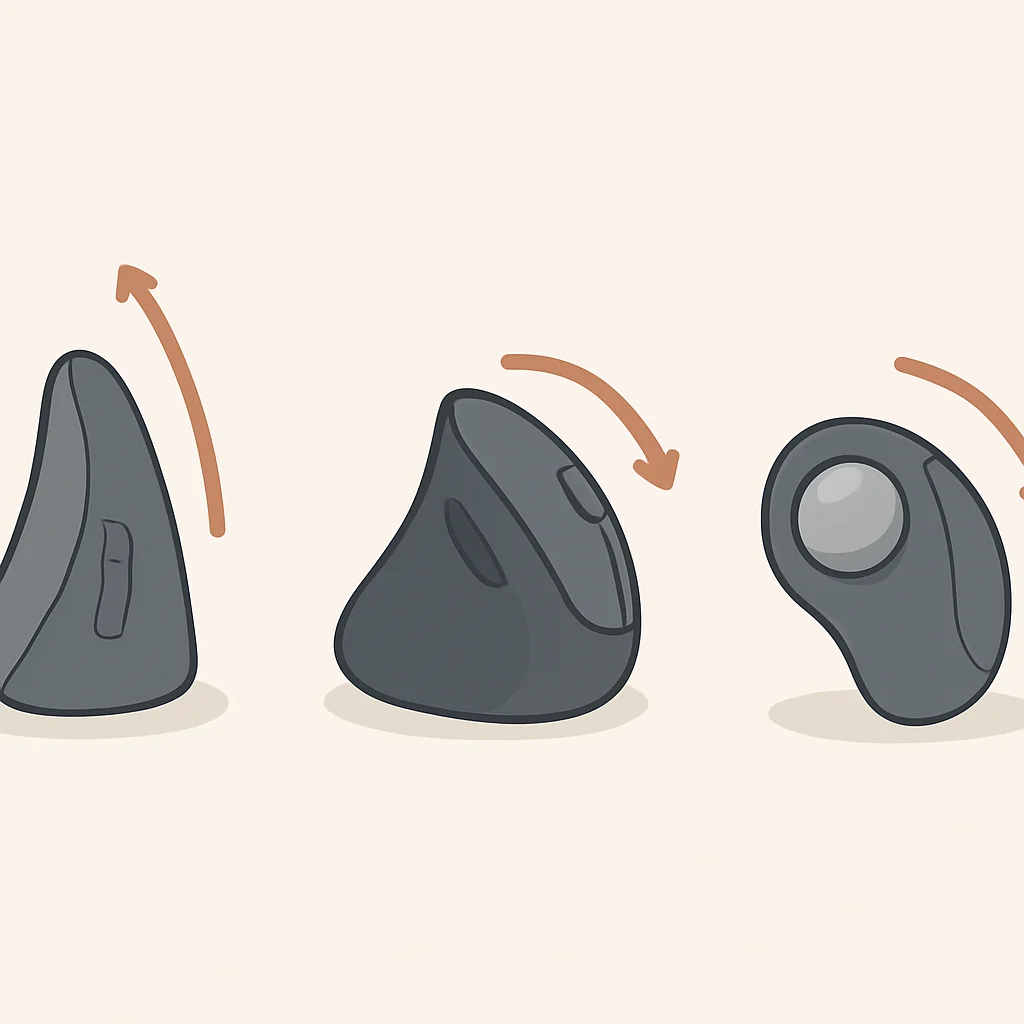
Most ergonomic mice, whether vertical or traditionally shaped, utilize high-quality plastics and often include rubberized grips for improved tactile feedback and control. The aim is to create a comfortable resting place for your entire hand, minimizing pressure points and unnecessary muscle tension. Vertical mice typically feature a “handshake” grip, positioning your hand at a 57-degree angle (or similar) to reduce forearm pronation, which is a significant contributor to wrist strain. Conversely, sculpted ergonomic mice often provide a generous thumb rest and a gentle slope that cradles your palm, maintaining a more neutral wrist position compared to a flat mouse.
Weight distribution is another subtle yet essential factor. A well-balanced mouse feels like an extension of your hand, enabling smooth, effortless movements. If it’s too light, it may feel flimsy; if it’s too heavy, it can lead to fatigue. Connectivity options also influence design. While wired mice offer zero latency and eliminate battery concerns, the freedom of wireless (either through a 2.4GHz USB dongle or Bluetooth) often outweighs these considerations for most developers, provided the battery life is robust.
In addition to the physical shape, the tactile feedback of buttons and scroll wheels is vital. Developers frequently perform repetitive clicks and precise scrolling. Crisp, responsive buttons prevent accidental inputs, while a smooth, accurate scroll wheel (or two, as we will see with some models) significantly enhances code navigation. The materials used for the scroll wheel, often metal or textured rubber, also contribute to the overall premium feel and usability.
KEY POINT
The ideal ergonomic mouse design minimizes forearm pronation and pressure points, offering a natural “handshake” grip for vertical models or a contoured shape for traditional ergonomic mice. Look for quality materials and balanced weight for long-term comfort.
3. Key Feature Deep Dive: Top Picks for 2026
Now, let’s explore some of the standout ergonomic mice that developers should consider in 2026. Each model offers a unique combination of comfort, precision, and features tailored for intensive use.
Logitech MX Master 3S for Developers
The Logitech MX Master 3S (or its predecessor, the 3, which remains an excellent choice for developers) is often regarded as the gold standard for productivity mice, holding a special place in the developer community. While it is not a vertical mouse, its deeply sculpted design provides exceptional palm and thumb support, keeping your hand in a more neutral position than a standard flat mouse. I have personally utilized various iterations of the MX Master series for years, and it has been instrumental in alleviating wrist discomfort during long coding sessions.
The standout feature for developers is undoubtedly the MagSpeed Electromagnetic scrolling. This feature allows you to scroll through thousands of lines of code in seconds with a single flick, then precisely stop on a specific line. It’s incredibly satisfying and efficient. Coupled with the horizontal scroll wheel for quick navigation across wide spreadsheets or large codebases (think diffs or long lines of code), it’s a game-changer. The 3S also boasts an 8000 DPI optical sensor, ensuring pixel-perfect precision on virtually any surface, including glass, which is beneficial for varied desk setups.
It connects via Bluetooth or Logitech’s Bolt USB receiver, allowing robust multi-device connectivity, enabling you to seamlessly switch between up to three computers. Battery life is impressive, often lasting up to 70 days on a full charge, with quick charging capabilities. The seven programmable buttons (including the thumb rest button) are highly customizable through the Logi Options+ software, allowing you to map specific IDE commands, build scripts, or navigation shortcuts.

KEY POINT
The Logitech MX Master 3S’s MagSpeed scrolling and horizontal thumb wheel are invaluable for developers, enabling rapid code navigation and efficient horizontal movement through large files or diffs, significantly boosting productivity.
Logitech Lift Vertical Ergonomic Mouse
For those specifically looking to combat wrist pronation, the Logitech Lift Vertical Ergonomic Mouse is an excellent choice. It’s a more compact and accessible version of Logitech’s popular MX Vertical, designed for small to medium-sized hands. Its defining feature is the 57-degree vertical angle, which positions your hand in a natural “handshake” position, immediately reducing pressure on your wrist and forearm. When I first tried a vertical mouse, it felt somewhat alien, but within a day or two, it became surprisingly natural and comfortable, and the difference in wrist comfort was noticeable.
The Lift features silent clicks, which is a blessing in shared office environments or during late-night coding sessions. It also offers multi-device connectivity via Bluetooth or the Logi Bolt receiver, allowing for seamless switching between devices. The 4000 DPI optical sensor provides accurate tracking, more than sufficient for most development tasks. Like the MX Master series, its four programmable buttons can be customized using Logi Options+ software, enabling quick access to common functions or macros.
Battery life is exceptional, lasting up to 2 years on a single AA battery, which is a significant convenience. The compact size makes it more portable than some larger ergonomic mice, making it suitable for developers who frequently move between workstations or travel. It’s a fantastic entry point into the world of vertical ergonomics, especially if the larger MX Vertical feels too big for your hand.
KEY POINT
The Logitech Lift’s 57-degree vertical angle is highly effective at reducing forearm pronation and wrist strain, making it an excellent choice for developers seeking immediate ergonomic relief, particularly those with smaller to medium hands.
Microsoft Ergonomic Mouse
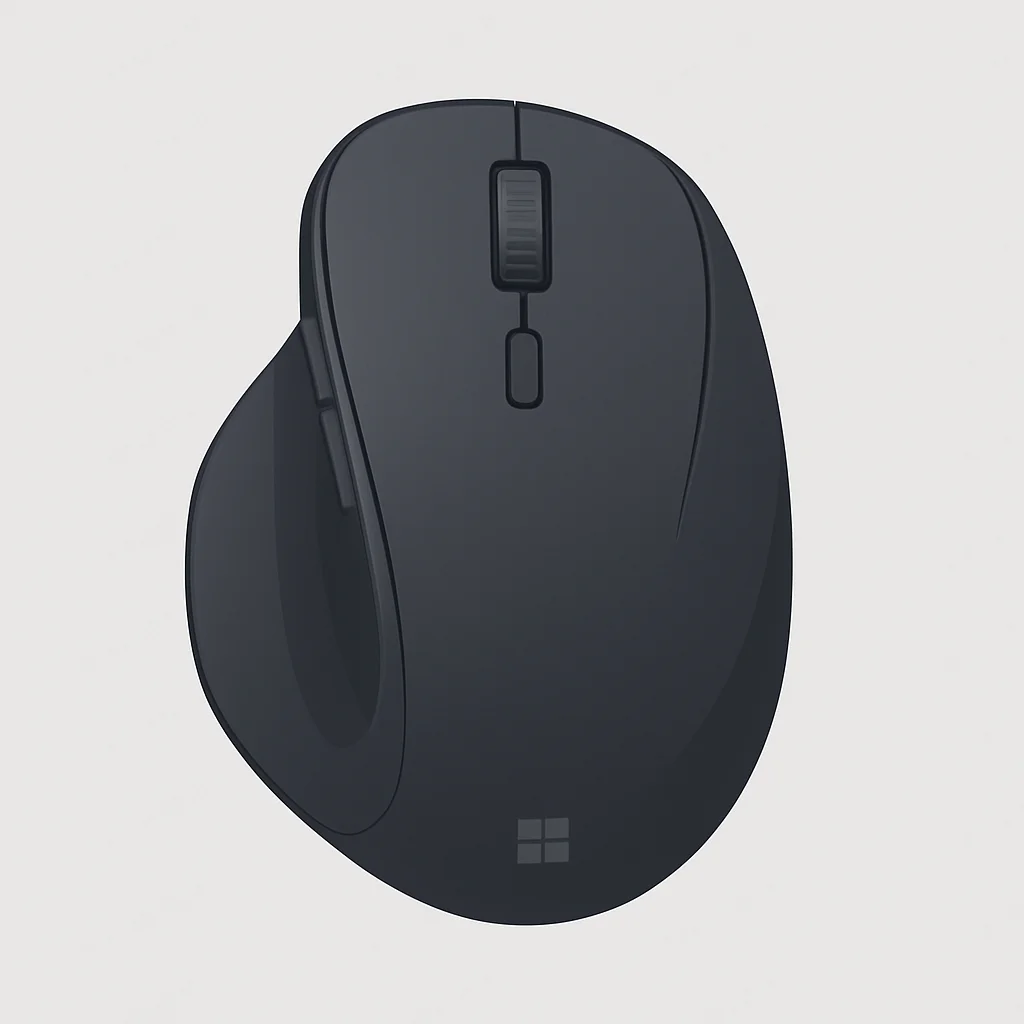
For developers who prefer a more traditional mouse shape but still seek ergonomic comfort, the Microsoft Ergonomic Mouse is a strong contender. It’s a beautifully sculpted mouse that fits naturally in the hand, providing a comfortable resting place for your thumb and palm. It doesn’t adopt a dramatic vertical angle but focuses on a gentle slope and extended support that keeps your wrist in a more neutral position than a flat mouse. It’s also typically available at a more accessible price point compared to some premium options.
This mouse features a precise tracking sensor, suitable for detailed work in IDEs and graphic design tools. It connects via Bluetooth, providing a clean, cable-free desk setup and multi-device pairing. The buttons are responsive and durable, and the scroll wheel offers a satisfying click-to-click scrolling experience. While it doesn’t have as many programmable buttons as the MX Master series, its two thumb buttons are customizable via Microsoft’s Mouse and Keyboard Center software, which is sufficient for common back/forward navigation or simple shortcuts.
Battery life is solid, typically lasting up to 12 months on two AAA batteries. This mouse is an excellent option for developers who are hesitant about the learning curve associated with vertical mice but still desire a significant upgrade in comfort over a standard office mouse. It’s particularly suitable for those who appreciate a familiar form factor with enhanced ergonomic support.
Anker 2.4G Wireless Vertical Ergonomic Optical Mouse
For developers on a budget who want to explore the advantages of a vertical mouse without a hefty investment, the Anker 2.4G Wireless Vertical Ergonomic Optical Mouse is an excellent entry-level option. It provides a similar vertical “handshake” grip to more expensive models, effectively addressing forearm pronation and wrist discomfort. I’ve recommended this mouse to several colleagues seeking an affordable introduction to ergonomics, and the feedback has been consistently positive regarding its comfort for the price.
While it lacks the advanced features and premium build quality of Logitech or Microsoft offerings, it delivers reliable 2.4G wireless connectivity via a USB dongle. It has adjustable DPI settings (800/1200/1600), allowing you to fine-tune sensitivity for your coding tasks. The inclusion of forward/back thumb buttons is a welcome addition for navigation, although they are not programmable in the same sophisticated manner as premium mice.
It operates on two AAA batteries and offers decent battery life, typically lasting several months. The build is lightweight plastic, which may not feel as robust as its more expensive counterparts, but it remains functional. This mouse is ideal for students, new developers, or anyone wanting to experiment with a vertical ergonomic design without a significant financial commitment. It demonstrates that you don’t need to spend a fortune to achieve tangible ergonomic benefits.
KEY POINT
The Anker Vertical Ergonomic Mouse provides an accessible and affordable entry point into vertical ergonomics, offering significant wrist comfort benefits for budget-conscious developers, proving that effective RSI prevention doesn’t always require premium pricing.
4. Programmable Buttons & Software Integration for Developers
Beyond the ergonomic shape, one of the most powerful features an ergonomic mouse can offer a developer is programmable buttons and robust software integration. For developers, every millisecond saved on repetitive tasks accumulates, potentially translating into hours over a week. Customizing mouse buttons to trigger specific actions can significantly reduce reliance on keyboard shortcuts, allowing for more fluid workflows.
Consider the possibilities:
✓ IDE Shortcuts: Map a thumb button to “Build Project,” “Run Debugger,” “Format Document,” or “Toggle Comment.”
✓ Terminal Commands: Assign a button to open your terminal, or even execute a specific Git command like git status.
✓ Context Switching: Use a button to switch between virtual desktops, open a specific application (e.g., browser, Slack), or minimize all windows.
✓ Text Manipulation: Copy, paste, cut, undo, redo – all at your fingertips without moving your hand to the keyboard.
Premium mice like the Logitech MX Master 3S and Lift come with sophisticated software (Logi Options+) that allows for application-specific customizations. This means your thumb button could perform one action in VS Code (e.g., “Run Test”) and a completely different action in your web browser (e.g., “New Tab”). This level of customization is incredibly powerful for tailoring your workflow.
CODE EXPLANATION
The following conceptual snippet illustrates how a mouse button might be configured using a hypothetical software interface. It shows mapping a button to a common developer action: compiling code in an IDE. While actual software interfaces are GUI-based, this demonstrates the underlying logic of binding commands.
<!-- Hypothetical XML-like configuration for a mouse button -->
<MouseButton id="ThumbButton1">
<Profile application="VSCode.exe">
<Action type="KeyboardShortcut">
<Key combination="Ctrl+Shift+B"/> <!-- Maps to "Build Solution" in VS Code -->
</Action>
</Profile>
<Profile application="Chrome.exe">
<Action type="KeyboardShortcut">
<Key combination="Ctrl+T"/> <!-- Maps to "New Tab" in Chrome -->
</Action>
</Profile>
<Profile application="Default">
<Action type="Command">
<Execute path="C:\Windows\System32\cmd.exe" arguments="/c start powershell -NoExit -Command "git status""/>
</Action>
</Profile>
</MouseButton>
This ability to customize and automate is a significant productivity booster, allowing developers to maintain their focus on coding rather than constantly switching between keyboard and mouse for common actions. It transforms an ergonomic mouse from merely a comfortable pointing device into a powerful workflow tool.
KEY POINT
Programmable buttons with application-specific profiles are a developer’s secret weapon, streamlining workflows by binding common IDE commands, terminal actions, or navigation shortcuts directly to your mouse, dramatically increasing efficiency.
5. Pros & Cons of Ergonomic Mice
Pros
✓ Reduced Strain & RSI Prevention: The primary benefit. Ergonomic designs promote natural hand and wrist postures, significantly reducing the risk of conditions like carpal tunnel syndrome, tendonitis, and general discomfort from prolonged use.
✓ Enhanced Comfort for Long Sessions: Designed for extended use, these mice minimize fatigue, allowing developers to maintain focus and productivity throughout long coding or debugging sessions without pain.
✓ Improved Precision & Control: Many ergonomic mice, especially premium models, feature high-DPI sensors and smooth tracking, offering superior cursor control for precise selections in IDEs or graphic tools.
✓ Productivity Boost with Programmable Buttons: Advanced models allow customization of buttons for application-specific shortcuts, macros, or terminal commands, streamlining developer workflows and reducing keyboard reliance.
✓ Specialized Scrolling Features: Features like electromagnetic scrolling or horizontal scroll wheels (e.g., MX Master series) are invaluable for navigating large codebases, diffs, or spreadsheets quickly and precisely.
Cons
✗ Learning Curve: Especially true for vertical mice, there’s an initial period of adjustment (a few days to a week) as your hand adapts to the new grip and movement style. It can feel awkward at first.
✗ Higher Price Point: Premium ergonomic mice often come with a higher price tag than standard mice, which can be a barrier for some, though budget-friendly options do exist.
✗ Size and Portability: Many ergonomic mice are larger and more sculpted than compact travel mice, making them less ideal for frequent travel or small laptop bags.
✗ Aesthetics: While subjective, some developers might find the unconventional shapes of ergonomic mice less appealing than sleek, minimalist designs, though functionality often outweighs form here.
✗ Not a Cure-All: While highly effective, an ergonomic mouse is part of a larger ergonomic setup. It won’t fully prevent RSI if other factors (poor posture, keyboard, desk height) are not addressed.
6. Competitor Comparison Table
To assist you in making an informed decision, here’s a quick comparison of our top ergonomic mouse picks for developers in 2026:
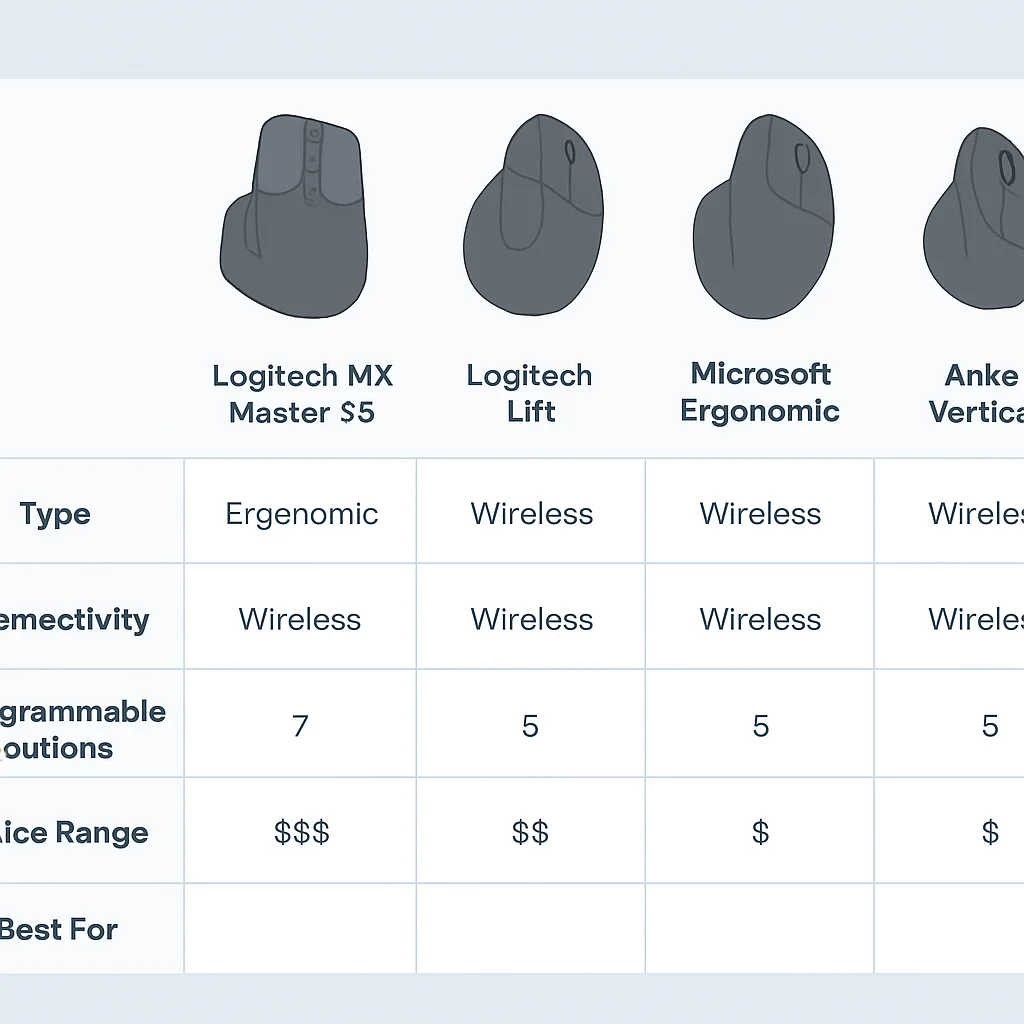
| Feature | Logitech MX Master 3S | Logitech Lift Vertical | Microsoft Ergonomic Mouse | Anker Vertical Ergonomic |
|---|---|---|---|---|
| Type | Sculpted Ergonomic | Vertical (57-degree) | Sculpted Ergonomic | Vertical |
| Connectivity | Bluetooth, Logi Bolt USB | Bluetooth, Logi Bolt USB | Bluetooth | 2.4G USB Dongle |
| Programmable Buttons | 7 (highly customizable) | 4 (customizable) | 2 (basic customization) | 2 (fixed fwd/back) |
| DPI Range | 200-8000 (Darkfield) | 400-4000 | Up to 2400 | 800/1200/1600 |
| Special Features | MagSpeed Scroll, Horizontal Scroll | Silent Clicks, Compact Size | Dedicated Thumb Rest, Familiar Form | Budget-friendly Vertical |
| Battery Life | Up to 70 days (rechargeable) | Up to 2 years (1x AA) | Up to 12 months (2x AAA) | Several months (2x AAA) |
| Best For | Power users, large hands, advanced code navigation | RSI prevention, small/medium hands, silent operation | Traditional feel, subtle ergonomics, general office use | Budget entry to vertical ergonomics, basic use |
7. Verdict & Rating
Choosing the best ergonomic mouse for developers in 2026 ultimately comes down to personal preference, hand size, and specific workflow needs. However, after extensive use and evaluation, I can confidently assert that any of the mice reviewed here will represent a significant upgrade over a standard mouse, both in terms of comfort and productivity.
For the ultimate developer powerhouse, the Logitech MX Master 3S remains the top choice. Its combination of advanced scrolling, multi-device connectivity, and deep customization makes it an indispensable tool for complex coding tasks. If you can adapt to its sculpted, non-vertical form, it offers unparalleled efficiency.
If RSI prevention and a natural wrist posture are your top priorities, particularly for smaller to medium hands, the Logitech Lift Vertical Ergonomic Mouse is an outstanding option. The transition to a vertical mouse is well worth the initial adjustment period for the long-term health benefits.
For those seeking a comfortable, familiar feel without fully transitioning to vertical, the Microsoft Ergonomic Mouse offers excellent value and ergonomic benefits. It’s a great stepping stone into ergonomic peripherals.
And for budget-conscious developers, the Anker Vertical Ergonomic Optical Mouse is an accessible entry point to vertical ergonomics. It demonstrates that you don’t need to spend a fortune to start taking care of your wrists.
Ultimately, the best mouse is the one that feels most comfortable and efficient for your hand and your workflow. Don’t hesitate to try a few options if possible, as the ergonomic benefits are truly worth it. Your wrists and forearms will thank you in the long run.
9.2
/ 10
Excellent comfort, precision, and productivity features for developers.
8. Frequently Asked Questions
Q. What is an ergonomic mouse and why do developers need one?
An ergonomic mouse is designed to fit the natural contours of your hand and wrist, promoting a more neutral posture to reduce strain. Developers, who spend extensive hours using a mouse, greatly benefit from these designs to prevent repetitive strain injuries (RSI) like carpal tunnel syndrome, ensuring long-term comfort and productivity.
Q. How long does it take to get used to a vertical mouse?
The adjustment period for a vertical mouse typically ranges from a few days to about a week. Initially, it might feel awkward, but most users report that the natural “handshake” grip quickly becomes comfortable and intuitive, with noticeable relief from wrist discomfort.
Q. Are wireless ergonomic mice reliable for coding?
Yes, modern wireless ergonomic mice, especially those from reputable brands like Logitech and Microsoft, are highly reliable for coding. They offer stable 2.4GHz or Bluetooth connectivity with negligible latency, long battery life, and precise tracking, making them perfectly suitable for demanding development tasks.
Q. Can an ergonomic mouse truly prevent RSI?
While an ergonomic mouse significantly reduces the risk and can alleviate symptoms of RSI, it is not a complete cure-all. It’s a crucial component of a comprehensive ergonomic setup, which should also include proper desk height, chair posture, ergonomic keyboard, and regular breaks to be most effective in preventing RSI.
Q. What features should a developer prioritize in an ergonomic mouse?
Developers should prioritize comfort and a natural hand posture above all. Key features include high-precision sensors for accurate tracking, programmable buttons for custom shortcuts (especially for IDEs), and advanced scrolling mechanisms (like horizontal or electromagnetic scrolling) for efficient code navigation. Multi-device connectivity and long battery life are also highly beneficial.
9. Wrapping Up
As developers, our hands are our most valuable tools. Taking care of them with the right ergonomic equipment isn’t a luxury; it’s a necessity for long-term health and sustained productivity. The ergonomic mice reviewed here represent some of the best options available in 2026, each offering a path to a more comfortable and efficient coding experience.
Whether you choose the feature-rich Logitech MX Master 3S, the wrist-friendly Logitech Lift, the familiar comfort of the Microsoft Ergonomic Mouse, or the budget-conscious Anker Vertical, you’ll be making a smart investment in your well-being. Don’t wait until you feel pain; make the switch to an ergonomic mouse today.
Thanks for reading, Kwonglish fam!
I hope this deep dive into ergonomic mice helps you find the perfect companion for your coding journey. Your comfort and health are paramount.
Got questions about specific models or your own ergonomic setup? Drop a comment below. I’d love to hear your thoughts and experiences!